Printer Works From Your Phone but Shows Offline on Windows?
Printing from the phone works fine, yet Windows still lists the printer as offline, even after a reinstall. What is the PC connecting to that the phone isn’t?
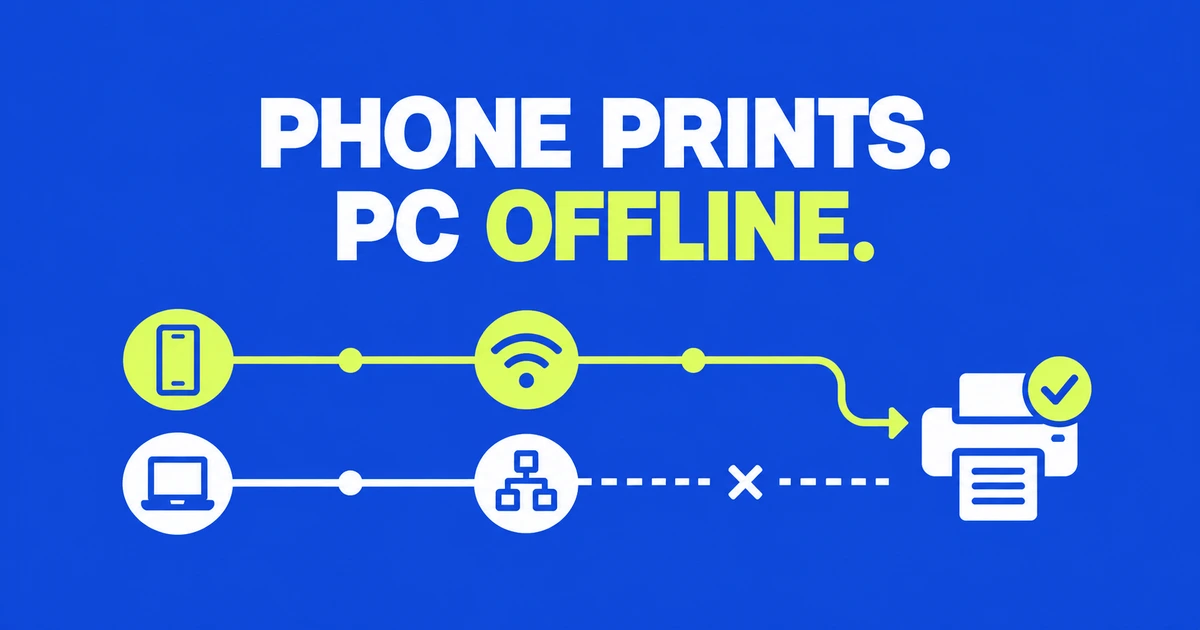
- A phone’s successful print does not prove the PC can reach the printer. Check that the laptop has not joined a hotspot or isolated guest network. For printing through your router, connect the PC and printer to the same local network.
- Read the printer’s current IP address from its network report. If a Windows TCP/IP port still points to an old address, correct the connection using the manufacturer’s instructions and print a Windows test page.
- If the address changes again and printing stops, a router DHCP reservation can keep assigning the same address. If the address remains correct, investigate the driver, queue, and communication restrictions instead of repeatedly changing it.
You have a freshly printed sheet from your phone, yet Windows insists the printer is offline. Before resetting the printer, check the PC’s network and the address it uses for printing. The phone may be using a direct wireless connection while Windows sends jobs through your router.
An HP user discussion includes exactly this complaint: an iPhone prints while Windows 11 cannot. The discussion contains both successful and unsuccessful reports of changing ports. For a Windows 11 PC printing through a router, compare the printer’s network report with the destination stored in Windows. First, though, make sure the PC has joined the intended network.
Check how the phone reaches the printer
Look at the Wi-Fi network selected on your phone. Is it your router’s network or a direct connection provided by the printer? Epson explains Wi-Fi Direct as communication between the printer and a device without a wireless router. A successful job over that connection does not test printing through your home network.
For example, the phone could be connected directly to the printer while the laptop uses the home router. In that situation, check whether the printer has joined the home network at all. To restore router-based printing, use the printer’s network setup to select the intended network and complete the connection. Its direct-connection password is not necessarily the router’s Wi-Fi password.
Also check which printer entry the Windows application selected. An older USB installation or duplicate entry may sit beside the network printer. Record the connection information before deleting entries based only on their names.
A printer shared by another computer adds a host to the connection. If you use a path such as \\ComputerName\PrinterShareName, follow Microsoft’s shared-printer guidance for host access, sharing, and credentials. For a managed workplace printer, give that path and the error to IT before replacing it with a direct IP connection.
Internet access does not establish printer access
A laptop can browse websites while being on the wrong network for printing. Check for an automatically joined phone hotspot or a guest network. Compare the PC’s selected network name with the SSID shown by the printer’s display or network report. If they differ because the laptop joined the wrong network, reconnect it to the intended home or office network.
Devices using the same router can also be isolated from one another. Epson’s troubleshooting documentation identifies a router’s Privacy Separator as a possible obstacle to printing. Move to an authorized network where devices can communicate, or ask the administrator to permit the required access. A workplace guest network may be isolated deliberately.
If the problem began after replacing the router, check for an old network name or password stored in the printer. If separate 2.4 GHz and 5 GHz network names appear, use the model’s documentation to choose a supported band. Complete the connection before troubleshooting discovery from the PC.
VPN use provides another comparison. The HP Community connectivity guide suggests temporarily disconnecting a VPN and retrying discovery. Where your organization allows this test, report whether the failure occurs only with the VPN connected. Do not leave security software disabled as a permanent printing solution.
Find the printer’s current address
Use the printer’s control panel to display network details or print a network configuration report. The buttons vary by model. Record the connection status and current IP address; these are the values to compare with the computer’s stored configuration.
Brother’s Windows network guide flags an all-zero address or a 169.254 address on a router-based infrastructure network as a reason to investigate the connection. Reconnect the printer to the intended network and obtain a fresh report before configuring Windows around that address.
If the printer provides a web management page, enter its reported IP in the failing PC’s browser. For example, use 192.168.0.45 only if that is what your own report shows. Check that the page identifies your printer. Opening another device’s page is a reason to stop and check the address.
An accessible management page establishes access to that web service, not successful printing. It makes the Windows port and driver useful next checks. A page that fails to open does not by itself establish hardware failure: verify the model’s web-management support, address, and network restrictions. The HP Community guide similarly notes that a failed ping can reflect blocked ICMP traffic.
Correct an outdated Windows connection
Open Settings → Bluetooth & devices → Printers & scanners, select the intended printer, and open Printer properties. If the installed driver exposes a Ports tab, inspect the selected port’s destination. A printer currently at 192.168.0.45 will not be reached correctly by a connection still aimed at its former 192.168.0.88 address. Those are illustrative values, not settings to copy.
Samsung’s wireless-printing instructions use SetIP to find the supported printer and compare its address with the driver’s TCP/IP port. For an incorrect connection, the documented route is Printer properties → Ports → Add Port → Standard TCP/IP Port → New Port, followed by the current printer address. Brother documents the same port-creation route for its applicable Windows drivers. SetIP is not a universal tool for other brands.
Brother notes that a disabled Add Port control can require administrator rights. If the wizard requests additional port information because it cannot communicate with the printer, return to the connection checks. Creating a port entry alone does not establish communication. Keep the previous configuration recorded so you can identify what changed.
If that driver interface is unavailable, use Windows printer installation: Add device, wait for discovery, and use manual addition if the printer is absent. Microsoft also documents problems with some manufacturer installers on ARM PCs and points to Windows installation or the manufacturer’s alternative guidance. A port named WSD is not, on its own, a diagnosis.
Keep the address consistent
If correcting the address restores printing but it fails again later, compare a new report with the previous IP. An actual address change can explain why a manually configured destination has become outdated. Where the router assigns addresses through DHCP, an address reservation can make it assign the same address to the printer again.
TP-Link’s reservation instructions use Advanced → Network → DHCP Server → Address Reservation. Add the device’s MAC address and the intended IP, enable the entry, and complete the model’s application or restart steps. The MAC identifies the network device; it is not the printer’s model name. The reserved IP must fit the network and must not conflict with another reservation.
With a reservation, the router supplies the chosen address when the printer obtains its configuration through DHCP. A manual address on the printer requires you to provide the other network settings too. For example, Samsung’s instructions for the wired SL-M2620ND require an unused address together with the correct subnet mask and gateway. Follow your own model’s procedure using addresses approved for that network.
Have the administrator handle this on a managed network. Changing the printer’s address can affect other computers configured to use the old one. If the IP stays the same and its management page remains accessible, repeated address changes are unlikely to clarify the problem. Investigate the Windows printing configuration next.
Test Windows, then the original application
After correcting the connection, send a page from Printer properties → General → Print Test Page. Dell distinguishes Printer Properties from the generic Properties command, which does not provide that button. Unlike the report printed from the device’s own controls, this job comes from Windows.
If it prints, return to the original application, select the same printer, and send one document page. A successful Windows test followed by failure in just one application calls for checking that application’s destination and document. Brother gives printing successfully from Word but failing from Chrome as an example of an application-specific problem.
If a job remains queued, inspect it before submitting more copies. Microsoft provides the Get Help printer troubleshooter and further queue and reinstallation steps. A job that will not cancel and a printer that cannot be reached need different investigations.
For support, supply the model, Windows version, current printer IP, PC network, selected port, and test-page result. Include whether the phone used ordinary Wi-Fi or a direct connection. That makes the successful phone print a useful comparison without treating it as proof that the PC connection works.