Cloud Download or Local Reinstall? What a Windows Reset Keeps
Windows is acting up, and Reset this PC offers Cloud download or Local reinstall plus a Keep my files option. Will any of those keep your work apps installed?
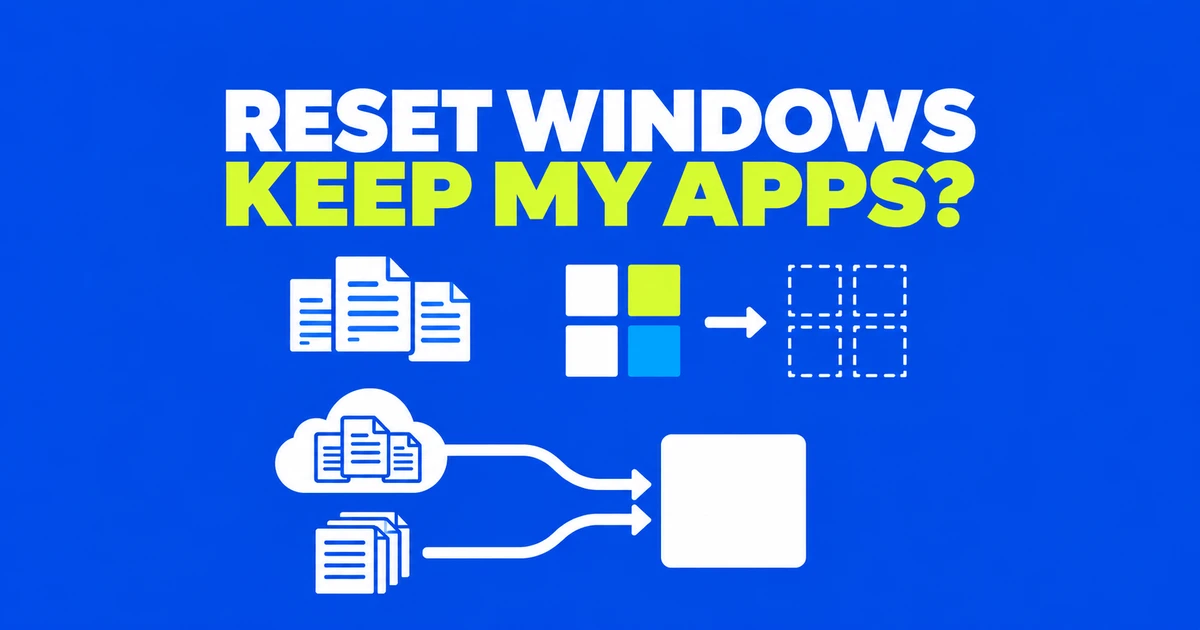
- Cloud download and local reinstall choose the source of Windows installation files; they do not decide whether your applications survive.
- A reset with Keep my files preserves personal files but removes apps and settings.
- Windows Update repair reinstall and an in-place installation started inside Windows offer ways to preserve apps, files, and settings.
The reset screen asks two separate questions
Cloud download gets a fresh Windows copy over the internet. Local reinstall uses files already on the PC. Neither choice turns a reset into an app-preserving repair: if you select Keep my files, your personal documents remain, but your installed applications and settings are removed. Decide what needs to survive before comparing download methods.
A WindowsHelp user asking about cloud versus local reinstall wanted the computer to feel brand new and also asked where the downloaded data would go. That question bundles two goals: rebuilding Windows and clearing an existing setup. The reset workflow separates them. The retention option controls what you keep; the installation source controls where the replacement Windows files come from.
Consider a laptop used to edit client reports. Keeping the report files does not keep the editor, its license sign-in, and the rest of the working environment ready for Monday morning. If reinstalling those applications would disrupt work, investigate a repair that preserves them before committing to a reset.
| Windows 11 operation | Personal files | Apps and settings |
|---|---|---|
| Reset: Keep my files | Kept | Removed |
| Reset: Remove everything | Removed | Removed |
| Reinstall the current version through Windows Update | Kept | Kept |
| Run setup.exe inside Windows and select Keep personal files and apps | Kept | Kept |
| Boot installation media for a clean install | Removed by the clean-install process | Existing environment removed |
These outcomes come from Microsoft's reset guidance, Windows Update repair guidance, and installation-media instructions.
Choosing a source for the replacement files
Microsoft identifies cloud download as useful when local installation files are missing or damaged. It requires downloading Windows, so the connection matters. Local reinstall avoids obtaining that fresh copy from the cloud and can be preferable on a slow connection, although it may not include the latest updates. Check Windows Update afterward.
A home broadband connection and a limited mobile hotspot create different practical constraints. On either connection, you can still choose to preserve personal files. Changing the download method does not change that retention decision. Read the download information on your reset screen and compare it with the data available on your current connection.
Nor does “cloud” mean a deeper removal of personal information. Someone preparing a laptop for another owner needs to examine the removal settings. Someone keeping the machine needs to decide whether rebuilding the app setup is acceptable. Connection speed becomes relevant after those goals are clear.
Repair Windows while keeping the working environment
If Windows still starts, open Settings, then System, then Recovery. Look for Fix problems using Windows Update and select Reinstall now. This repairs system components by reinstalling the currently installed Windows version while retaining files, applications, and settings. Confirm the operation, allow the repair download and installation to finish, and restart when prompted. Keep power and internet connected throughout.
The option has availability conditions. Microsoft requires the Windows 11 2022 annual update or later, plus the February 2024 optional update or a later update. Organization-managed update configurations can also make the feature unavailable. On a work laptop, an absent button may reflect management policy rather than a broken Settings app.
Preserving the environment has a practical consequence: this is not a promise to reset every third-party application's configuration. If only one editor crashes on one project, that editor or project may need separate attention. If the trouble began immediately after a Windows update, Microsoft's recovery options also identify update removal as a relevant route. Match the repair to what changed.
Prepare the files and the tools that use them
Before a reset, make a separate copy of important work outside the PC. Open a recent document from that copy, rather than checking only that a folder exists. For a project with several linked files, include those inputs as well. Opening the project from the saved copy helps reveal missing inputs before the original installation is changed.
Then list applications that must be reinstalled, where to obtain them, and how to sign in or activate them. A document backup does not supply an installer or recover access to a paid account. Company software may require an administrator. Arrange that access before taking the existing installation away.
Check application-specific data separately. A folder you created for exports, downloaded attachments, and material managed inside an app may require different preparation. Use the app's own backup or export procedure where appropriate; do not assume the reset option is a complete backup of every application's internal storage.
For an encrypted device, locate the BitLocker recovery key before entering recovery. Microsoft's recovery-key instructions cover Microsoft accounts, work or school accounts, printouts, and USB copies. Match the recovery screen's key ID to the corresponding 48-digit key. Make sure you can read it from another device; a copy stored only inside the locked PC is of little immediate use.
Starting a reset from Settings or recovery
In Windows 11, go to Settings → System → Recovery and select Reset PC. Choose Keep my files or Remove everything, then choose cloud download or local reinstall. Read the final description of what will be removed and any additional settings before starting. This is the point to resolve a mismatch between what you want and what the screen promises.
If an option to restore preinstalled apps appears, enabling it applies the manufacturer's customizations. A reset should therefore not be assumed to produce an installation stripped of every manufacturer addition.
For a device being sold or given away, Microsoft describes the data-cleaning option under Remove everything as making deleted files harder to recover, with additional time required. It is a consumer feature, not a government or industry-standard erasure process. Follow an organization's disposal procedure for its equipment.
When the desktop is unavailable, recovery uses a separate environment. Microsoft's Windows RE guide describes entry methods, including holding Shift while selecting Restart when that menu is accessible. Inside recovery, use Troubleshoot → Reset this PC. Startup Repair is another tool there for boot problems; it is a separate operation from resetting the machine.
A USB drive does not determine what gets kept
For an app-preserving installation using installation media, start while signed in to the existing Windows installation. Open the media in File Explorer, run its root-level setup.exe, and select Change what to keep. Choose Keep personal files and apps, then confirm that the installation summary reflects that choice.
Keep personal files only removes apps. If the option you need is unavailable, stop before installation and check the media and the current Windows installation. Microsoft also requires the installed edition to match the license: a Home license calls for Home, for example.
Booting the computer from installation media enters the clean-install route described in Microsoft's instructions. That procedure removes personal files, apps, settings changes, and manufacturer customizations. Having prepared a USB installer does not itself promise preservation. The launch method and the retention option are what distinguish these workflows.
Wait for recovery, then resume an actual task
A reset can leave the screen black for an extended period and restart the computer automatically. Microsoft notes that black-screen periods can sometimes exceed 15 minutes. That is not a deadline after which you should force a restart: manually restarting during the process can cause failure. Maintain power; if an explicit error appears, record the message for the corresponding support procedure.
Afterward, check updates and device operation, then rebuild the application environment from your list. Windows usually activates again after connecting online, but a major hardware change such as a motherboard replacement can require activation troubleshooting.
Finally, open a few important files in the applications you intend to use. Edit and save a report, or open the project with its associated material. That small work session can reveal missing tools or inputs that a folder inspection misses. Keep the external backup while completing those checks.