Share One OneNote Page Without Sharing Your Other Notes
Colleagues want to edit this week’s meeting notes, but OneNote’s share button offers the whole notebook, private pages included. How do you hand over just that one page?
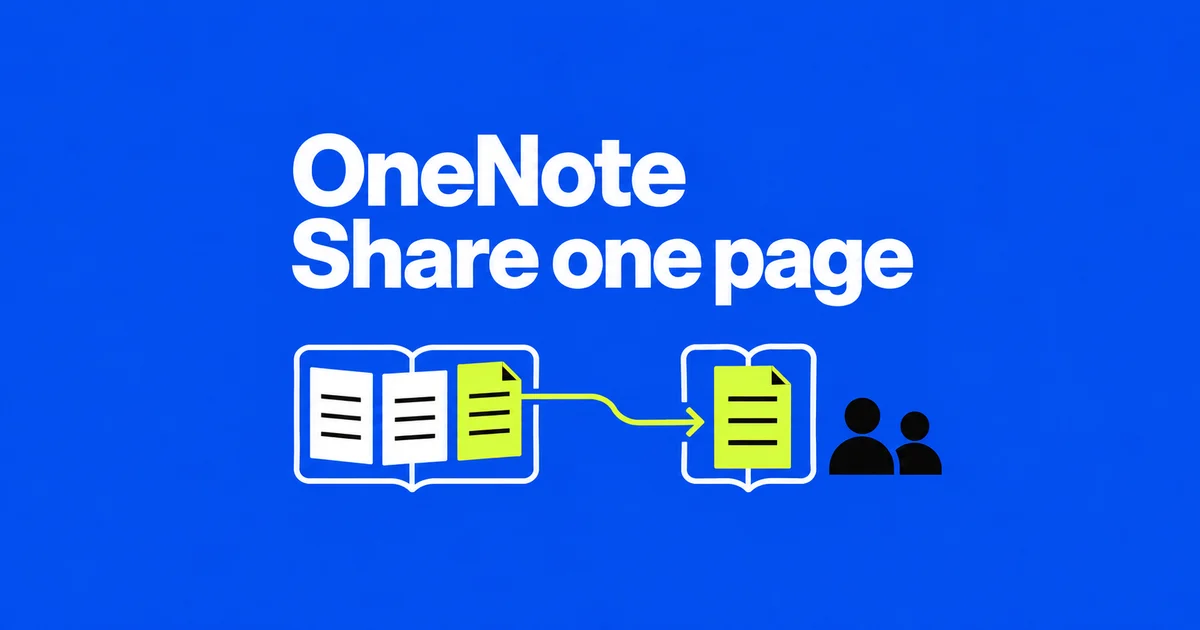
- A link to a OneNote page does not limit notebook access to that page.
- For collaboration, copy the relevant page into a separate notebook and share that notebook. For a finished record, send a PDF of the page.
- If you already shared the original notebook, remove the unwanted access there too. Creating a new notebook does not revoke existing permissions.
To share one page without exposing your other notes, put the shared content in its own notebook or send a static copy. A separate notebook lets colleagues keep editing the meeting record. A PDF gives them the version you exported, without giving them access to the source notebook.
In a Microsoft Q&A question, someone wanted to share a page with meeting attendees but found that the sharing included other notes. The instructions below use OneNote for Microsoft 365 on Windows, with a separate browser route for exporting a PDF.
What a page link actually selects
OneNote organizes pages inside sections, which sit inside notebooks. A page link takes someone to a particular place in that structure. It does not create a separate permission boundary around the destination page. Someone who already has access to the notebook does not lose access to its other pages because you sent a more specific address.
Nor does copying an address necessarily give a new recipient access. Whether that person can open the notebook depends on the permissions and sharing link involved. Microsoft describes page hyperlinks as a way to navigate between notes, including through a table of contents.
The former anonymous, read-only page-sharing feature for notebooks on personal OneDrive has been removed. Microsoft's current sharing guidance offers a separate notebook as an alternative. An old tutorial showing single-page sharing should not be treated as instructions for today's page-link command.
Create a notebook for the shared record
For an editable meeting record, create a notebook containing only material intended for the attendees. In the Windows app, use File → New, choose an online location such as OneDrive, and give the notebook a recognizable name. A notebook stored only on your PC is not ready for the same online invitation workflow. Microsoft's creation instructions explain the location choice.
For example, create “Weekly meeting — shared” and a section for minutes. In the original notebook, right-click the meeting page, open Move or Copy, select the destination section, and choose Copy. Keeping the original initially lets you inspect the result without also having to recover a misplaced page.
Check the new notebook's page list. A page group or multiple selected pages can include more than the single record you intended to copy. Open the copied page and compare its decisions, assignments, and final paragraph with the source. A matching title alone does not show that the intended content arrived.
Review what is inside that page as well. Personal preparation notes pasted beneath the minutes remain part of the copied content. Remove them from the shared version before inviting anyone. If the page contains a link to another internal document, copying the page does not itself give attendees permission to that document.
Now decide where future changes belong. In this example, the shared copy becomes the team's working record, while the original remains a private preparation record. Editing an assignment in the original should not be expected to update the separate copy. Tell attendees which page to use when adding owners and deadlines.
Later meetings can go into the same shared notebook when they have the same intended audience. Adding a private planning page there would recreate the original problem. A meeting involving a different group needs a fresh decision about who should have access before its notes are added.
Invite readers and editors
With the new notebook open, use Share → Share Entire Notebook and enter the intended recipients. Check the notebook name in the dialog before sending: the invitation should concern the new meeting notebook, not the original collection of work notes.
Give attendees editing permission when they need to update assignments. Use viewing permission for someone who only needs to read the continuing record. These roles do not select individual pages. A read-only invitation to the original notebook would still be an invitation to that notebook.
You can later adjust roles through the notebook's sharing controls in OneDrive. Microsoft's permission instructions use Share → Manage Access, where people and links can be inspected. The options available to an organization may differ from those in a personal OneDrive invitation.
After granting the intended access, a page link is useful for directing attendees to today's minutes. Have a recipient open it with the invited account and confirm that the correct record appears. An editor should also be able to make the intended contribution. Opening the link yourself only confirms what your own account can access.
If you are adding content to an existing SharePoint or Teams notebook, check its existing audience first. That notebook may already be used by a wider group. A restriction on external sharing also should not be treated as something a copied page address can bypass.
Send a finished page as a PDF
A PDF fits a different job: sending the decisions as they stood when the meeting ended. The recipient can read the exported file without being invited to the source notebook. In the Windows desktop app, open the meeting page and go to File → Export. Under the current export scope, select the page, choose PDF, and export it to a named file.
Choosing the page matters when the notebook also contains unrelated material. Microsoft's PDF guide explains the scope selection and confirms that the result is a snapshot. Later changes in OneNote do not update an already exported PDF.
Open the saved file before sending it. Check the whole output, including any table positioned far to the right and any notes beneath the main meeting record. If the exported layout is difficult to read, adjust the shared copy and export again instead of assuming that the recipient will see the same arrangement as your editing window.
Without the desktop export command, Windows browser users can open the page in OneNote for the web, select File → Print → Print, and choose Microsoft Print to PDF. The web instructions support one page at a time.
| After the meeting | PDF workflow | Shared notebook workflow |
|---|---|---|
| A deadline changes | Export and send a replacement file | Edit the team's shared page |
| An attendee adds an owner | Send the correction back for a new version | Edit the page if granted editing rights |
For example, a dated filename and a message identifying the replacement help distinguish a corrected PDF from the earlier attachment. If changes are frequent, using the shared page avoids distributing another attachment after every update.
When the shared page shows old notes
First check the notebook name. The private original and the shared copy can have identical page titles. If you edited the original while attendees opened the copy, changing their permissions will not transfer your edits. Update the page the team is actually using.
For differences between the app and the web version of the same page, inspect synchronization on the device containing the latest changes. In Windows, use File → Info → View Sync Status. Read the notebook's error message and use its manual sync option if appropriate.
Microsoft's sync troubleshooting recommends comparing the web content with the latest edits on the originating device. If the web still shows an old deadline, giving more people access will not upload the new one. Preserve unsynced notes before closing and reopening the notebook or attempting a reset.
Remove access to the original notebook
If you already shared your private notebook, creating a cleaner shared copy does not undo that invitation. Open the original notebook's access management in OneDrive and review the people and links listed there. Change a person's role if they should remain a reader; remove unwanted access when they should no longer open the notebook.
To stop all sharing, remove both sharing links and direct access. Microsoft's stop-sharing instructions cover both routes. Removing one link can leave another route active. Deleting a chat message containing the address does not change the notebook's permissions.
In the Windows app, you can also open access management from the original notebook's Share menu. Open the person's permission entry, then its permission menu under Direct Access, and select Remove direct access. Remove link-based access in the links list. Check that you are changing the original notebook, not the new collaborative one.
A PDF already sent is a separate file. Revoking notebook access does not retrieve that attachment from its recipient. If the wrong content was sent, contact that recipient about the file rather than treating a new sharing link as a recall.
OneNote also supports password protection for sections. That is not a per-page recipient list, and Microsoft cannot unlock forgotten section passwords. For the meeting workflow here, keeping attendees' records together in a dedicated notebook makes it easier to decide what belongs there next.
Send the team the address of the page they should keep updating. Leave personal preparation material in the original notebook, and keep assignments and decisions in the agreed shared record.