How to Prepare Firefox for Offline Page Translation
Firefox translates pages on your laptop at the airport gate without sending the text to the cloud. What else has to be on the laptop before the plane takes off?
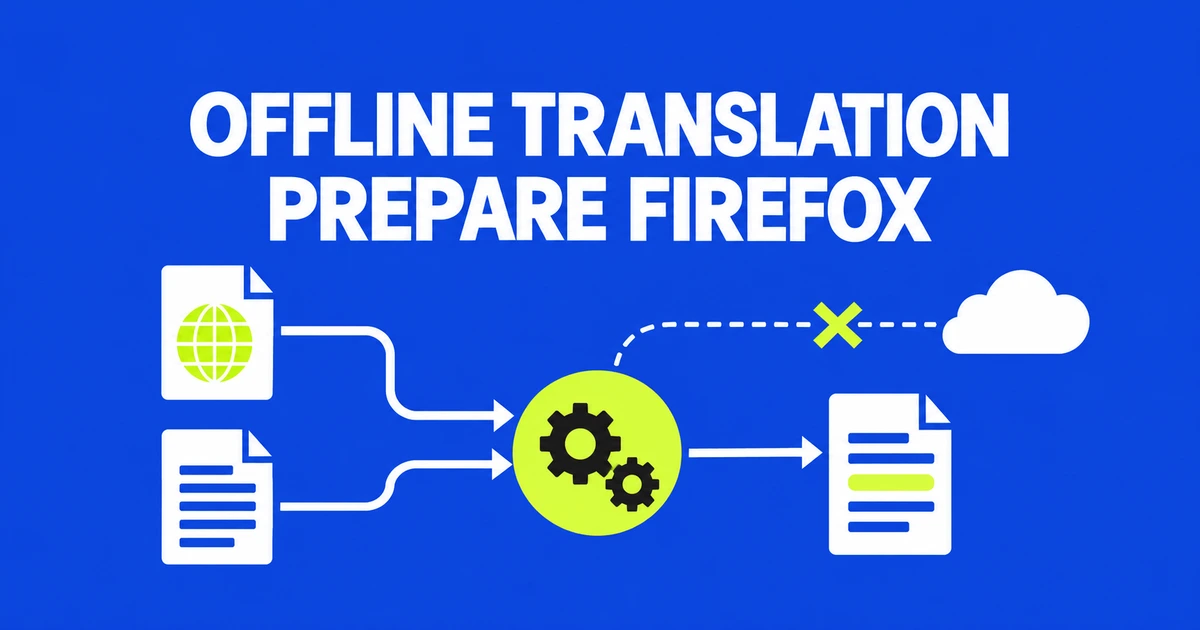
- Firefox performs supported translations locally after the necessary language files are installed.
- Prepare the page content separately. A translation pack does not download a website.
- Firefox 158 added Albanian, Belarusian, and Filipino; offline translation itself predates that release.
The translation runs locally after its language files arrive
Firefox can translate supported web text without an internet connection once the required language files are installed. Mozilla’s translation feature page describes downloading language models to the browser and processing text on the device, rather than submitting the page to a translation server.
That provides a way to read foreign-language material without copying its text into another online translation service. Local translation does not, however, make the website itself local. Opening a new page or fetching fresh content remains a separate network operation.
Offline preparation therefore has two parts: the translation files and the document you want to read. Keeping only a bookmark will not provide the original text after the connection disappears.
Install the languages and save the reading material
On desktop, pre-install languages from Firefox’s translation settings. The language-management instructions point to Translations in the language settings. Depending on the settings interface, that appears under General → Language and Appearance or in a separate Languages section.
- Open Translations, then More translation settings.
- Select Install for the languages you need.
- Check both the language of your source material and the language you want to read. Some files may already be present from earlier translations.
Use Save Page As to prepare the content separately. The complete-page format saves HTML with a companion directory for images and other display resources. HTML-only saves the page without its pictures. Keep the companion folder with the document when moving a complete-page copy.
Saving preserves reading material; it does not copy a service’s backend or establish that every saved file supports full-page translation. For a passage you have kept separately, type translate in the address bar and select the suggested translation action. The text tool lets you choose source and destination languages and paste the passage.
For a page that changes dynamically or requires a login, inspect the saved material before relying on it. Try your intended language pair while connected, and confirm that the passages you need are available. Preparing the text-entry tool as well as the document gives you a route that does not depend on a page’s translation icon.
Check the language pair and the type of content
Firefox translates text in supported languages; it does not translate every kind of page content. The Firefox 158 release notes add Albanian, Belarusian, and Filipino. Mozilla’s current list also includes Korean. Korean support and offline processing were available before Firefox 158.
If a language is missing, compare your browser version and desired translation direction with the current supported-language list. Installing files cannot enable an unsupported language.
The built-in feature translates text. It does not perform OCR on words embedded in pictures or translate video audio. Text already displayed after signing into a website can be translated; the feature does not bypass access restrictions.
Try the menu if the address-bar icon is absent
Use Translate page from the Firefox menu or the page’s context menu when the toolbar icon is missing. In the translation panel, the upper language selector specifies the source and the lower selector specifies the result. Correct the source manually if detection picked the wrong language.
Mozilla’s troubleshooting instructions also point to Settings → AI Controls: check that Translations is Available. Review any exceptions that prevent translation for a particular language or site.
While connected, an on-demand download can hide the fact that preparation was incomplete. Before going offline, check the actual material and language pair you plan to use. Keeping document access, language installation, and translation execution separate makes a failure easier to locate.