An Editable Excel Quote Without Your Internal Cost Data
Your customer needs to change quantities and see a new total. How much of the calculation can you keep without sending the costing sheet?
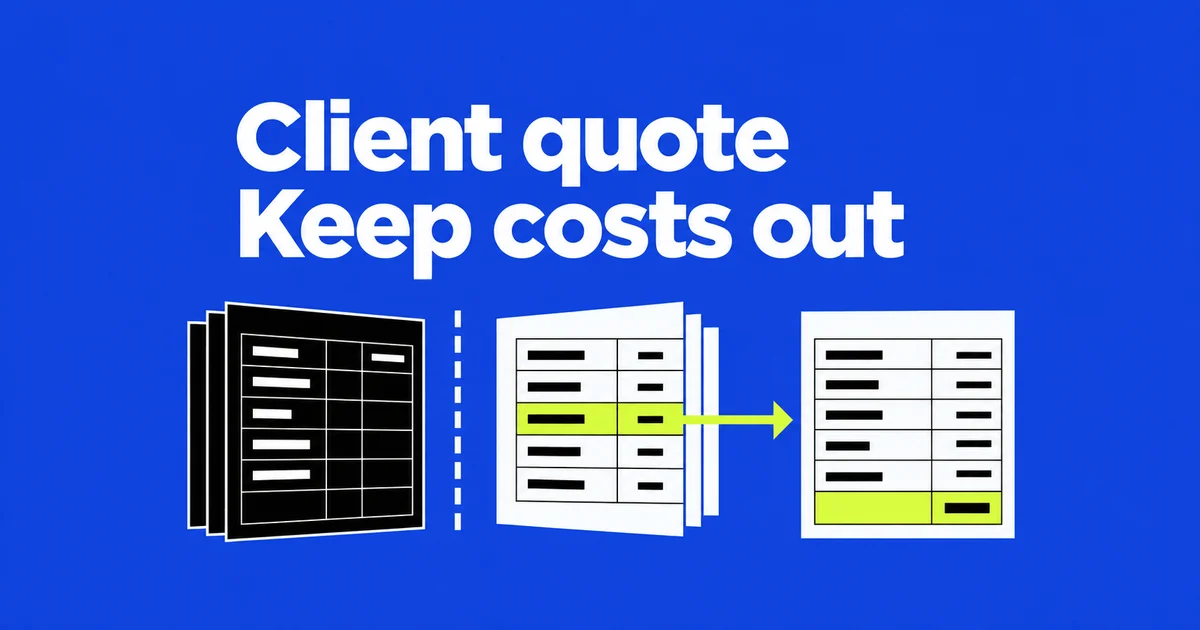
- Leave confidential costing data out of the file you send. Hiding its tab and protecting the sheet cannot safely conceal it from a customer who receives the workbook.
- Send a new workbook containing approved values for a fixed quote. For a quantity calculator, rebuild the calculation using public prices and client inputs.
- Try a quantity change in the outgoing calculator and check the new total. Replace references to internal costs with public prices, then review hidden data and comments found by Document Inspector before sending the file.
You have finished the client’s quote, but the workbook also contains purchase prices and your pricing calculations. Hiding the costing tab tidies the screen. Protecting the sheet seems to finish the job. Neither makes that internal data safe to include in a workbook the customer receives. Build an outgoing file containing only information the customer may read, then decide which cells they should be allowed to change.
This problem appears in a Microsoft community question: the author wanted to keep worksheets inside a workbook sent to external agents, while preventing those agents from viewing them. They had found passwords for opening a file and restricting sheet edits, but neither matched that requirement. The quote below is a worked example of the same sharing problem. Menu instructions refer to desktop Excel on Windows.
Three protection commands, three different effects
Microsoft’s protection overview explicitly describes worksheet protection as a way to prevent changes to locked cells, rather than a security feature. It helps preserve formulas in a form people fill in. It does not provide separate viewing permissions for people opening different tabs.
| Windows Excel command | What it restricts | Use in an outgoing quote |
|---|---|---|
| Review → Protect Sheet | Changes to locked cells and other selected actions | Keep a customer from accidentally overwriting the total formula |
| Review → Protect Workbook | Workbook structure, including adding, deleting and unhiding sheets | Preserve the arrangement of a shared form |
| File → Info → Protect Workbook → Encrypt with Password | Opening the file without its password | Require a password to open the complete outgoing workbook |
The repeated “Protect Workbook” label can be misleading. Structure protection on the Review tab really does disable commands such as Unhide. That visible restriction keeps the form’s tabs in place; it does not encrypt the file.
There is also no reason to assume a missing tab has stopped participating in the calculation. Microsoft’s hide and unhide documentation says other sheets and workbooks can still reference hidden data. Sheets marked VeryHidden through VBA do not even appear in the ordinary Unhide dialog. Counting the tabs you can see is therefore an inadequate inventory of the data you are sending.
Decide whether the customer needs a price or a calculator
Consider an illustrative quote in dollars. Your internal Cost sheet contains an $80 purchase price in B2 and a 25% markup on cost in C2. On the Quote sheet, =Cost!B2*(1+Cost!C2) produces a public unit price of $100. A quantity of three produces a $300 total.
Hiding Cost leaves that dependency intact. Deleting it can break the references used to calculate the public price. Before removing anything, decide what the recipient must actually do. A buyer approving a fixed $300 quote needs the agreed figures. A buyer comparing three units with four needs a calculation, but it can use the public $100 price without carrying the $80 purchase price.
For a fixed quote, keep the internal original and create a blank workbook. Copy only the approved product descriptions, quantities, unit prices and totals into it. Use Paste → Values, or press Ctrl+Alt+V and choose Values. Microsoft’s paste options guide distinguishes this from ordinary Ctrl+V, which also brings formulas, formatting and comments. Values and Number Formats can preserve numeric display formats along with the results.
Review the selected range before copying: an internal column tucked between public columns still does not belong in the outgoing file. After pasting, select representative amount cells and inspect the formula bar. They should contain numbers rather than references to Cost. Compare line items and totals with the approved original, then apply the headings, currency display and column widths the customer needs.
A values-only copy has a practical limitation. If someone changes quantity from three to four, a pasted total of $300 stays $300. The calculation was deliberately removed. Label and use this as a fixed quote; if the customer must change quantities, build the form in the next section.
A related user question about five consultants proposed merging separate files so each consultant could see only their own sheet while staff saw everything. Separate outgoing files also solve that distribution problem: staff retain the combined source, and each consultant receives only their permitted data. Naming a tab after a person does not assign that person exclusive access to its contents.
Rebuild the quantity calculation using public information
In a new workbook, put the customer’s quantity in B2, the public unit price of 100 in C2, and =B2*C2 in D2. Three units now total $300, and four total $400. This formula works without the internal purchase price or markup. Unlike a copy of the original quote tab, it has no need to refer back to Cost.
Use sheet protection here to preserve the form. Following Microsoft’s Windows worksheet protection instructions, first unlock the input cell: select B2, press Ctrl+1, open Protection and clear Locked. Leave the price and total cells locked. After completing the data inspection described below, choose Review → Protect Sheet and select the allowed actions and any password needed to unprotect it.
Test the customer’s intended operation in the finished copy. Changing B2 from three to four should update D2 to $400; typing over the formula in D2 should be blocked. The customer can still read the $100 unit price. That is intentional: the price is public information, while the confidential input was excluded when the workbook was built.
A longer product list needs more than a one-cell input check: sorting remains restricted when the range contains locked cells, even if sorting is allowed in protection settings. Try the operations your customer will need before sending the form.
If a new quantity triggers confidential supplier tiers or a negotiated pricing rule, the simple public formula is no longer enough. Keep that calculation internally. Ask the customer for their revised quantity and issue a revised price from the internal workbook. Do not put the confidential lookup table back into the outgoing file merely to preserve automatic recalculation.
Document Inspector finds more than hidden tabs
A clean-looking quote can still carry an internal note or a hidden column copied from the original. Keep the original and run Document Inspector on the outgoing copy through File → Info → Check for Issues → Inspect Document. Select the categories to inspect, read the findings, remove material the customer should not receive, and inspect again.
If you do not know what a hidden sheet contains, close Inspector and unhide the sheet to read it before deleting anything. Replace any price formula that still refers to internal costs with the approved public price, and check that changing quantity still produces the right total after cleanup. Inspector may also find external links or embedded objects that it cannot remove automatically. Examine those links and objects in the workbook, then replace material the customer should not receive with approved values or static results.
Pivot reports deserve their own check. Microsoft’s cached-data guidance explains that PivotTables, PivotCharts and slicers can retain data in the file. Inspector cannot automatically remove those caches without potentially breaking the workbook. An absent source tab does not establish that the underlying information has gone.
If the client only needs monthly totals, transfer the approved results as values into the new workbook. If they need to explore a PivotTable, rebuild the report from data they are allowed to receive. Copying the original interactive report wholesale defeats the effort to limit its underlying information. Replacing it with values also removes its interactive regrouping, which should be agreed before delivery.
Read the final visible content as well. A product description may contain an internal negotiation note that no software can judge on your behalf. Compare several line items and the grand total again after cleanup, so removing internal information has not changed the order itself.
Apply a file-opening password to the finished copy
To require a password for the entire outgoing file, use File → Info → Protect Workbook → Encrypt with Password. Enter and confirm it, save, close the workbook and reopen the exact file you intend to attach. Check both the password request and the contents after opening.
This password lets its recipient open that workbook. It does not give customer A access to one sheet and customer B access to another. Different viewing scopes need different outgoing contents. When the internal costing data has already been excluded, giving the customer the file password does not also hand over the costing sheet.
Microsoft cannot recover a forgotten password. Retain the internal source and manage the password so another authorized colleague can reissue the quote. The last file you check should be the actual attachment: encrypting a new copy will not protect an older, unencrypted copy accidentally selected for the email.