FileVault Recovery Key or Apple Account Key? Recovering Your Mac Login
The recovery key you generated on your iPhone won’t work on the locked Mac because it’s the wrong length. Which key is that login screen actually asking for?
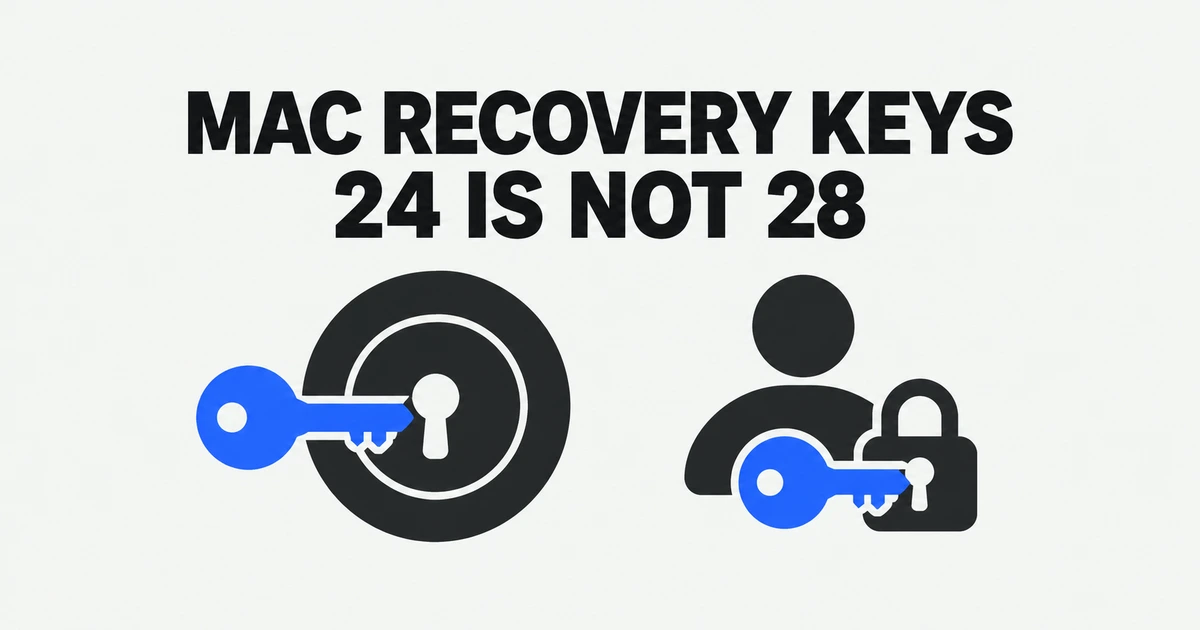
- A FileVault key unlocks a Mac disk; an Apple Account recovery key serves account recovery.
- For a Mac running Tahoe 26 or later, a synced FileVault key may be available in Passwords on another device.
- Follow the offered authentication and reset flow; erasing the Mac removes its data rather than recovering it.
Two recovery keys that open different things
A FileVault recovery prompt needs the 24-character key for that Mac’s encrypted disk. The 28-character recovery key you can create in Apple Account settings serves a different purpose: recovering access to your Apple Account. Creating the second key does not produce a replacement for the first.
This confusion appears in a MacOS community question from someone whose Mac stopped accepting their login password. They generated a key on an iPhone, then found it had too many characters for the Mac’s prompt.
| Credential | What it is for | Where the distinction matters |
|---|---|---|
| Mac login password | Your local user account on the Mac. | It need not match your Apple Account password. |
| Apple Account password | Apple services and an available account-based reset flow. | Typing it into the ordinary Mac login field is not a universal reset method. |
| FileVault recovery key | Unlocking the encrypted startup disk. | The 24-character alphanumeric key belongs to the relevant Mac. |
| Apple Account recovery key | Recovering access to your Apple Account. | The 28-character key cannot replace the FileVault key. |
FileVault protects access to startup-disk data. Macs with Apple silicon or a T2 chip already encrypt stored data; enabling FileVault adds protection against accessing that data without the login password. An account on another Apple device and an encrypted Mac disk are therefore different recovery targets.
Look for the existing Mac key in Passwords
If the Mac requesting the key runs macOS Tahoe 26 or later, Apple says its FileVault key might be available in Passwords on another device. The devices must use the same Apple Account with iCloud Passwords & Keychain enabled. A missing item does not mean you should generate an Apple Account recovery key.
On the other device, open Passwords, search for “recovery key,” and look for the locked Mac’s name. Open that item and reveal the recovery-key field. The Passwords user guide for Mac also describes finding the Mac under All and viewing or copying its key. An accessible Mac’s name appears in System Settings → General → About.
Device identity matters when you own several Macs. A key saved for a desktop Mac is not interchangeable with the key requested by a laptop. Match the item to the computer before transcribing it, and use the actual saved key rather than making a similarly named credential elsewhere.
Enabling an Apple Account recovery key changes account recovery: it turns off Apple’s standard account recovery process. It does not retrieve a forgotten disk key. Apple advises writing down or printing the account key and keeping it somewhere safe, rather than storing it in Passwords, iCloud Photos, Notes, or iCloud Drive, which could become inaccessible with the account. That is a different key from the FileVault item available in Passwords.
Use the reset option offered by the login window
Before resetting, check Caps Lock and the keyboard input language. Enter the Mac user’s login password, not automatically the password associated with an email address or Apple Account. If the account is temporarily locked, wait for the time shown on screen and restart.
The question mark beside the password field may show a hint or reset message. If no reset option appears, Apple says to try entering a password up to three times. Follow a message such as restarting to show password reset options when it appears.
If no message appears, restart and try again; move to Recovery if that still provides no reset route. These steps assume an ordinary user login window. An Activation Lock or padlock screen is a different startup state.
The next step depends on the Mac’s setup. An Apple Account route may request its password and a verification code sent to another device. A FileVault route requests the disk recovery key. Select the startup volume or user when asked, then set a new login password and hint. Apple’s current reset instructions describe these alternative prompts rather than one credential that works on every Mac.
If you can already sign in and know the current password, use the simpler password-change flow in Users & Groups. Open the information button beside your account, choose Change, and provide the old and new passwords. That is a routine change; recovering an account without its old password requires the additional authentication above.
Open Recovery using the procedure for your Mac
When the login-window process does not complete the reset, start macOS Recovery. Shut the Mac down first. The startup procedure differs between Apple silicon and Intel, so using the wrong key combination can leave you waiting at an ordinary startup screen.
| Mac | Startup action | Next screen |
|---|---|---|
| Apple silicon | Press and hold the power button. | At startup options, choose Options, then Continue. |
| Intel | Turn it on and immediately hold Command-R. | Keep holding until an Apple logo or spinning globe appears. |
Select the startup volume if requested. If asked to choose a user whose password you know, use “Forgot all passwords?” when appropriate. Continue through the account authentication or FileVault-key prompt. Reaching Recovery does not itself unlock encrypted files; the requested authentication still determines what you can access.
If asked to deactivate the Mac, allow it; Apple describes this as temporary. Choose “Exit to Recovery” if offered. A window listing options such as restoring from Time Machine or reinstalling macOS is the Recovery utilities screen. If you have already set a new password, restart and sign in. Otherwise, open Utilities → Terminal from the menu bar and enter:
resetpasswordIn the reset window, choose the option describing a forgotten password or a password that does not work, continue, and supply the information requested. This command launches the reset tool. It does not manufacture the missing recovery key or remove FileVault authentication.
Shared Macs, managed Macs, and the old keychain
Another user can sometimes provide a way into a shared Mac, but an administrator label alone is not the relevant FileVault condition. Apple says an account enabled for FileVault can start up and log in. A user who is not enabled needs an enabled user to start the Mac first, then log out so the other user can sign in. Restarting instead returns the machine to the startup unlock stage.
For a Mac configured by an employer or school, contact the organization’s administrator about unlocking it or resetting the password. Its recovery arrangement may differ from a personally configured Mac. Tell the administrator which computer is affected and whether the screen asks for a login password, an Apple Account, or a FileVault key.
After a successful reset, an old-password prompt can still appear because the login keychain retains its previous password. According to Apple’s keychain guidance, you need that old password to unlock the existing keychain. If your login password was reset and you cannot supply the old keychain password, the old keychain information remains inaccessible and a new blank keychain is created.
Restoring the Mac login therefore does not guarantee that every saved credential becomes available again. Some applications or services may require you to sign in again. Apple warns that manually resetting default keychains deletes saved passwords and should be done only when Apple Support advises it. Do not treat that reset as a routine way to dismiss an unexplained prompt after recovery.
Erasing the Mac removes its data
The available recovery route depends partly on the choice made when FileVault was configured: account-based unlocking or a separately kept recovery key. Check the appropriate saved key, the matching Passwords item if available, and any organization-managed recovery option before concluding that none remains.
When the supported reset routes cannot succeed, Apple’s final option is erasing the Mac. Erasure permanently removes its accounts, passwords, and data. It prepares the computer for reuse; it does not recover the files behind the locked disk. Copies on an external backup or another device are separate sources of files, so establish what they contain before choosing that outcome.
If an Activate Mac screen appears after erasure, connect to a network and provide the Apple Account information requested. This is not the erased local user’s login password. Once activation succeeds, exit to Recovery to reinstall macOS. Erasing the computer can therefore still leave an account-authentication step before reuse.
If you keep a separate copy of the FileVault key, label it with the Mac’s name and store it outside the startup disk that the key unlocks.