Duplicate iPhone contacts but no merge option? Check iCloud and Google
One card has a mobile number; another has a work email. How do you keep both details when your iPhone offers no merge button?
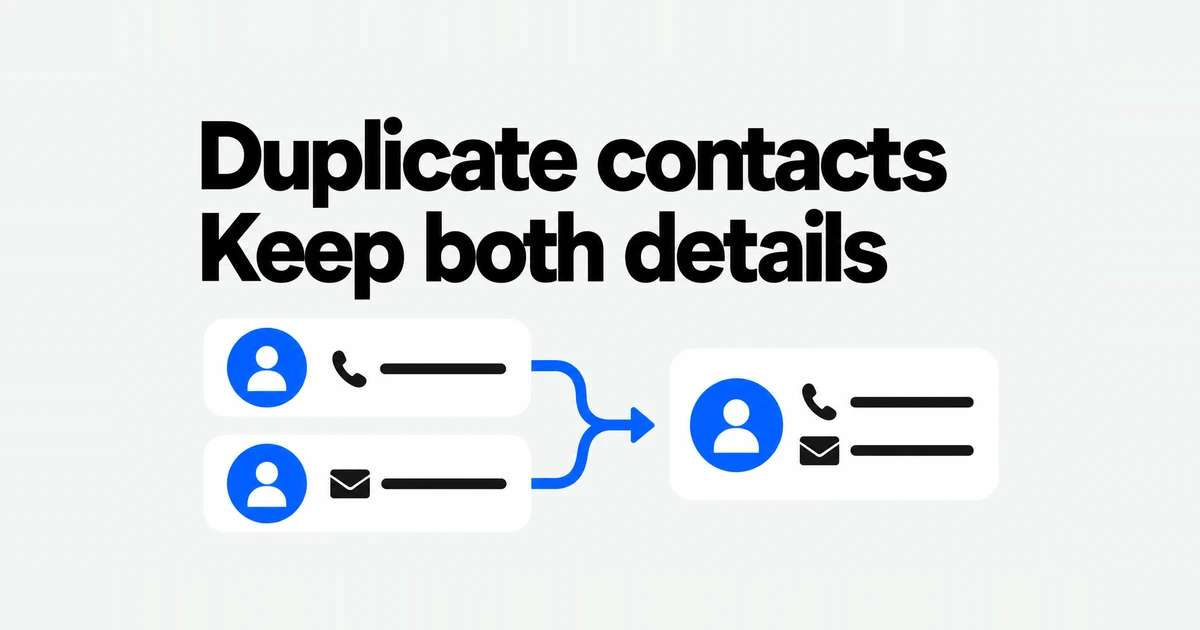
If View Duplicates is missing, open Lists and look for the person separately in iCloud and Google. A mobile number in one card and a work email in the other both need to survive the cleanup. You can manually link the cards while keeping both accounts in use. If you intend to leave Google Contacts, copy its information into iCloud before switching off that account’s contact syncing.
A user asking about the missing merge option had contacts mixed between the iPhone and Gmail. Manual linking worked, but applying it across thousands of entries was cumbersome. Checking where the duplicates are stored also reveals whether you can clean them up in the account's web interface.
Find the account behind each card
Open Contacts and use the back arrow or Lists at the top. Select All iCloud, search for the person, then return to Lists and inspect All [account] for each Google or other account. Apple's sync troubleshooting instructions use these account-specific lists to locate contacts. Switching lists changes what you are viewing; it does not transfer the cards.
Compare the fields, not just the names. For example, an iCloud card labeled “Alex” might contain a mobile number while “Alex Work” in Google contains an office number and email. If both identify the same person, neither is disposable just because the names look repetitive. Two unrelated people sharing a name should remain separate.
On a computer, search iCloud Contacts and Google Contacts separately. Check the signed-in address when you have several Google accounts. If the web account has the entry but its iPhone list does not, check that Contacts is enabled for that account and refresh the list. Establish what has already synced before importing another copy of the same address book.
Keep an account-specific copy before merging
Export both address books if you are going to change both. An iCloud export cannot preserve a number that exists only in Google. Give each file an account name and date so a later import can be traced to the right source.
On a computer or tablet, open iCloud Contacts, use the Actions button above the list to select all contacts, then use Share → Export vCard. Apple's export instructions produce one vCard file containing the selected people. Keep it as the pre-cleanup copy. A vCard export does not preserve contact lists, so it is not a complete backup of categories such as Clients or Family.
In Google Contacts on a computer, select an entry, use Selection Actions → All if needed, then More actions → Export. Google recommends Google CSV for a backup. Export a vCard for the iCloud transfer described below. A work or school Directory is not the same as your saved contacts; Google's export instructions do not allow selecting the entire Directory.
Merge duplicates or link separate accounts
When View Duplicates appears below My Card, open it and inspect the proposed matches before merging. If the cards are not linked automatically, open one, choose Edit → Link Contacts, select the other card, and tap Link. Apple distinguishes this from merging: linked source cards remain separate. Changes to information in the unified card are copied to source accounts where that information already exists.
For the Alex example, linking is useful if both personal and work accounts will remain active. It puts the two sets of details under one person in the combined view. If you intend to stop using Google Contacts, however, finding the work email in that unified card does not establish that iCloud now owns a copy. Inspect All iCloud or perform a deliberate transfer.
If the duplicates are inside one Google account, use Merge & fix in Google Contacts. Review its suggestions, or select specific contacts to merge manually. Google cannot merge contacts stored in different Google accounts through this feature. Sign into each account separately rather than expecting an iPhone containing both accounts to remove that restriction.
Move existing Google contacts into iCloud
Use this path when iCloud should hold the actual information, rather than simply displaying it alongside Google. After making the backups, export the desired Google contacts as a vCard. Apple's import guidance specifies vCard version 3.0 or later. On a computer or tablet, open iCloud Contacts and choose the Add button on the right → Import Contact, then select the file. People contained in the file are added as individual entries.
For a large address book, start with a small selection containing a Google-only person and a person already present in iCloud. Inspect the destination fields: phone numbers, multiple email addresses, and company names that matter to you. This staged approach makes it easier to spot an import problem before repeating it across the whole address book. Keep track of that selection and exclude it when importing the rest.
Importing is a copy operation. It does not erase the Google originals or establish ongoing synchronization between Google and iCloud. If someone already existed in iCloud, review the resulting duplicate instead of assuming that import automatically selected the best information from both cards.
Next, open All iCloud on the iPhone and find a person who previously existed only in Google. Seeing that person under All Contacts would not prove the transfer worked, because the Google card could still be supplying the result. If iCloud's website has the new card but the phone does not, check the Apple Account and iCloud Contacts setting, then refresh.
Set Settings → Apps → Contacts → Default Account to iCloud if new contacts should also go there. Apple's default-account setting applies to new contacts; changing it does not migrate old ones. If Google remains the address book you use elsewhere, keep Google as the default instead. Owning an iPhone does not require consolidating everything into iCloud.
Stop displaying an account without deleting its contacts
After verifying the destination, go to Settings → Apps → Contacts → Contacts Accounts, select the Google account, and turn off Contacts. Apple's account instructions provide this temporary stop separately from deleting the account. Its online contacts remain, and you can turn the switch back on to see them again.
For iCloud, the switch is under Settings → your name → iCloud → See All beside Saved to iCloud → Contacts. When switching it off, you can keep or remove the previously synced contacts on the phone. Keeping those local copies does not transfer them into Google.
Before hiding an account, check for people or fields that exist nowhere else. In the Alex example, an iCloud mobile number alone is insufficient if you still need the work email held in Google. Copy and verify that information first.
Deleting an individual contact is a different operation: Contacts → the person → Edit → Delete Contact changes the stored contact, and deletion from an email account affects other devices using that account. Use the account's Contacts switch when the intended result is simply to stop displaying its address book on this phone.
Undo a mistaken cleanup in the original service
For iCloud, open Contacts on a computer or tablet and choose the app launcher → Data Recovery → Restore Contacts. Select a dated archive. This restores an earlier address-book version, not just one chosen card. The current version is archived first. A recent deletion can take up to 24 hours to appear in an archive; wait for restoration to finish before editing, because changes made during it are not saved.
If you deleted a contact stored in Google, find it in Google Contacts’ Trash and recover it within 30 days. An item permanently deleted from Trash cannot be recovered. Deleted “Other contacts” do not enter Trash; use the rollback option below for changes within the past 30 days.
To undo a mistaken merge, open Settings → Undo changes and choose a point before it happened, within the past 30 days. Google’s rollback also undoes other changes since that point. Rolling back yesterday’s merge, for example, removes a new client saved today. Export the current contacts first, then use that copy to add the new client back after recovery.
After recovery, inspect the affected person in the original account's list and check the needed phone and email fields. Then return to the combined list to check its display. Recovering an iCloud version does not recover a Google original, so use the account you identified at the start.