Recorded a Zoom Meeting but Can’t Find the File?
You pressed Record and now need to send the meeting video, but your recordings list is empty. Where should you look when someone else hosted the call?
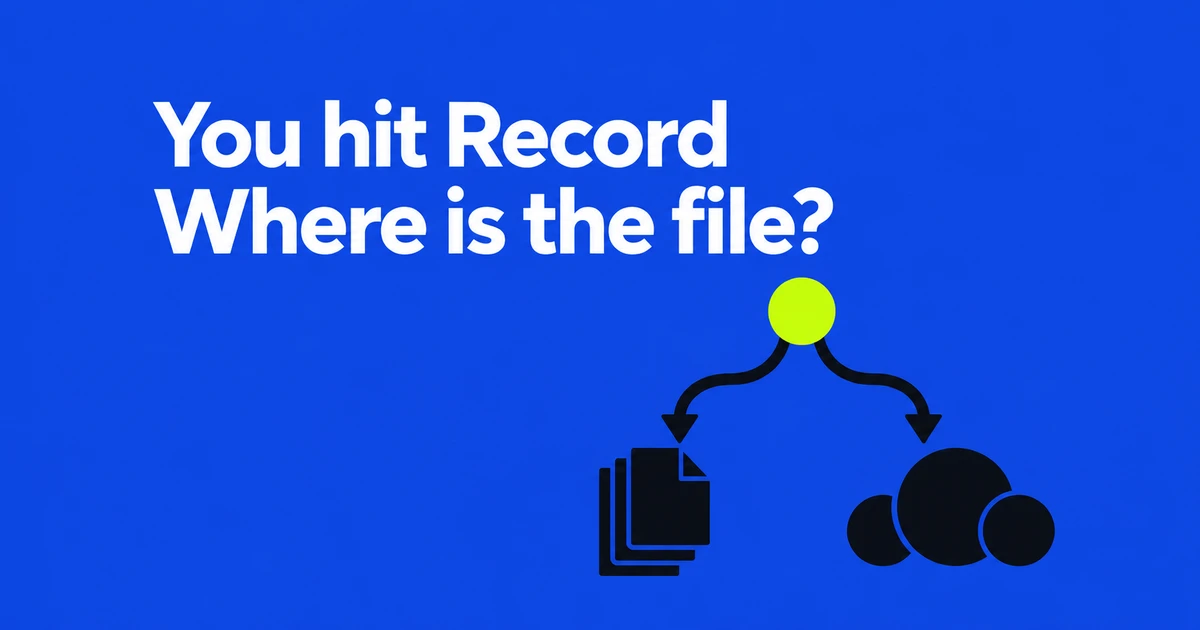
- A co-host’s cloud recording appears in the host’s recording list. A computer recording stays on the computer that recorded it.
- A cloud item marked Processing needs time to finish. Local
.zoomfiles may need conversion before you have a playable MP4. - Send a cloud recording’s sharing link or the finished local video file. A meeting invitation or a path on your computer won’t deliver the recording.
If you started a Zoom cloud recording as a co-host, ask the meeting’s host to retrieve it. Zoom places that recording in the host’s web portal list, even though you pressed Record. If you chose computer recording, look on the device you used during the session instead. Zoom’s recording location guide documents both destinations.
This confusion appears in a 2022 Zoom Community question: a co-host couldn’t find a cloud recording after 24 hours, then asked whether recording to the desktop would work the same way. The follow-up changes where to look—and who can send the video afterward.
Ask the host for the recording, not another invitation
Send the host the meeting ID and date, along with the fact that you started a cloud recording. They can search their web portal under Recordings & Transcripts → Cloud recordings. For a recurring training session, include the particular date rather than just its recurring title. The host should widen the date filter if the session falls outside the current search window.
A useful request might read: “I started the cloud recording as co-host for Tuesday’s onboarding session, meeting ID [ID]. Could you find that session in Cloud recordings and send its recording link?” This gives the host a specific item to locate. Asking for “the Zoom link” could simply get you another copy of the invitation.
Cloud recording requires a supported paid license and an enabled recording setting. Starting it as co-host doesn’t create a second copy in your account. Zoom states this in its cloud recording instructions.
Once the host finds an item marked Processing, waiting has a specific purpose: Zoom is preparing that recording for playback. Zoom estimates roughly twice the recorded duration in ordinary circumstances, with some recordings taking up to 24 hours. These are estimates, not a delivery guarantee. Its guidance points recordings still processing after 48 hours toward troubleshooting.
An empty list is different. Zoom’s missing recordings help says an item being processed shows its title and status. Waiting on your own empty co-host list won’t establish whether processing is underway in the host’s account. A link shared before processing finishes also cannot be played yet.
An assistant who manages recordings regularly may have another route. Scheduling privilege can include cloud recording access, with settings controlling which meetings a delegate can access. That permission needs to be configured; an in-meeting co-host assignment alone doesn’t supply it.
Find the computer that actually recorded
Computer recording is available to free and paid accounts on the Windows, macOS, and Linux desktop apps, subject to recording permissions and account settings. The mobile apps don’t support computer recording. These support conditions help narrow a search: joining on an iPhone doesn’t leave a native Zoom computer recording in that phone’s files.
For an actual computer recording, start with the machine used in the meeting. Signing into the same Zoom account on a second laptop doesn’t move a locally saved video there. If you recorded on a conference-room PC, that PC is the place to inspect.
| What you know | Where to look |
|---|---|
| You used the default Windows folder | C:\Users\[Username]\Documents\Zoom |
| You used the default Mac folder | /Users/[Username]/Documents/Zoom |
| You changed the recording folder | Desktop app Settings → Recording → Local recording storage |
| You don’t remember which computer recorded | The web portal’s Computer recordings list, including computer name and file path |
The desktop app’s Storage location → Open control opens its configured folder. Zoom’s computer recording management guide also explains the web listing. That listing points to local files; it isn’t a cloud backup you can download from any device.
For example, suppose the web entry identifies a Windows office PC but you are now on your home Mac. Copying the listed path into Finder won’t retrieve the office file. Ask someone with access to the office PC to locate that session and transfer the finished video through your usual file-sharing service.
Turn unfinished local files into a playable video
After a computer-recorded meeting ends, Zoom converts the recording. A folder containing double_click_to_convert_01.zoom rather than a finished MP4 may still need that step. Renaming the extension to .mp4 does not convert its contents.
In the current management instructions, open Home → Open recordings, then find Computer recordings in Hub’s Meeting recordings area. Unconverted entries show Convert. If your app arranges its navigation differently, look for Computer recordings in Hub. Use the conversion control for the relevant session.
If conversion fails, preserve the original files. Zoom’s conversion troubleshooting covers insufficient disk space and invalid paths, along with manually opening the double_click_to_convert_01.zoom file. It also provides Windows and Mac instructions when the system doesn’t know which application should open it.
Keep the computer awake while conversion runs. Closing the laptop or shutting down can interrupt it, and damaged files aren’t always recoverable. Zoom’s computer recording instructions recommend a local drive as the recording destination because syncing folders, external drives, and network locations can cause saving or conversion problems.
Once you have a video, check the part you need to deliver. Stopping and restarting a recording creates another segment; pausing and resuming continues the same one. A training session with a separately recorded Q&A may therefore need two files. An audio-only M4A also won’t show the spreadsheet or software demonstration someone wants to revisit.
Make the recording accessible to its recipient
For a cloud recording, the host opens Share, chooses the intended audience, and uses Copy link and passcode. Viewing and downloading have separate controls. If the recipient needs to edit the footage, a working playback link alone may not supply the downloadable file. Zoom documents these choices in its cloud recording sharing guide.
Consider an outside trainer receiving a recording restricted to signed-in users within your organization’s account. Sending the passcode again doesn’t satisfy that account restriction. The host can check whether sharing with that particular external person is available under the organization’s settings. An administrator may have restricted the available choices.
Changing the shared users or groups generates a new link, so copy the current sharing link after adjusting the audience. Test access with the intended recipient rather than relying on playback in the host’s own management page. The host’s access doesn’t show what an outside trainer can open.
For a computer recording, send the finished MP4 directly or upload it to an appropriate file-sharing service. Zoom’s local sharing instructions describe both options. A screenshot of the recording list, its management-page address, or a Windows file path won’t transfer the video.
Give separate segments recognizable names before delivery—for example, 2026-10-27_Onboarding_Q-and-A.mp4. That is a naming example, not a Zoom requirement. When uploading, share the uploaded file with the recipient and send that service’s link. Keep the local source until the recipient can open the delivered copy.
When a recording that existed has disappeared
A recording you previously played calls for a deletion check. For local files, look in the recording computer’s Recycle Bin or Trash. For cloud recordings, open Recordings and Transcripts → Trash, locate the meeting, and use Recover if it is available. Zoom’s recovery instructions describe a typical 30-day recovery period after deletion, but note that settings can affect it.
If the cloud Trash tab is absent, contact the administrator: the relevant trash setting may be disabled. Ask about automatic deletion too when an older recording has vanished. The 30-day guidance does not promise recovery of every missing file or mean every recording is retained for 30 days after the meeting.
One useful exception concerns the web portal’s Computer recordings list. Removing an entry there does not delete the actual file on the PC, according to Zoom’s management guide. Search the original folder even if the web entry is gone. Conversely, an entry pointing to a deleted local file doesn’t preserve the video.
If none of these locations contains the session, ask the other organizers whether anyone made a separate recording. Include the meeting ID, date, and the segment you need. That gives them something specific to search for, including a local copy that never appeared in your account.