A clean Word copy without losing your edits
The edits are right, but the file you’re about to send still shows colored markup and reviewer comments. How do you hand over a clean copy without undoing a single correction?
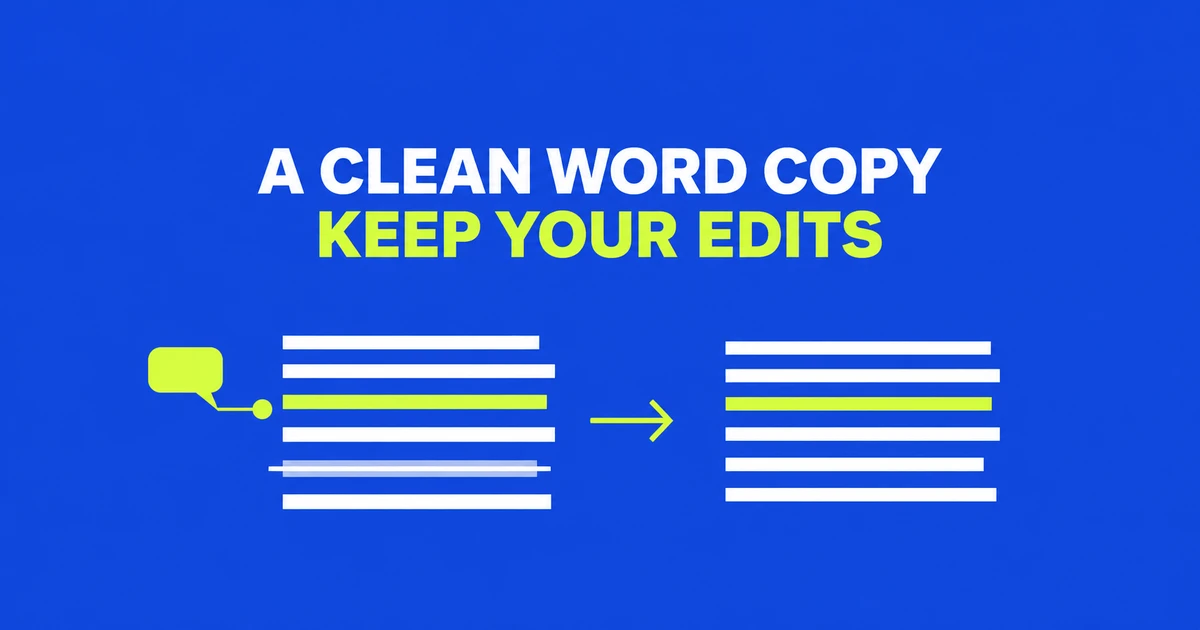
Accept the edit you want the reader to receive
To remove Word’s tracked changes while retaining an editor’s corrections, accept the corrections. Rejecting them removes the proposed changes instead. Both actions can clear revision marks, but they produce different text. Microsoft’s explanation of Accept and Reject makes that distinction explicit.
Consider an illustrative proposal that originally says, “Delivery is on Monday.” An editor deletes Monday and inserts Wednesday. Accept both revisions and the sentence says Wednesday. Reject both and it says Monday. If you accept the deletion but reject the insertion, you have removed the day altogether. Reading the finished sentence matters as much as clearing the markup.
This is a practical problem behind a Reddit reader’s question about a line beside an essay: the reader had resolved the comments, yet a margin indicator remained. In the discussion, they reported rejecting all changes. That may suit a writer who wants the original text, but it is the wrong outcome when the editor’s revisions are approved.
| Illustrative revision | Accept | Reject |
|---|---|---|
| Add “after final review.” | Keep that phrase. | Discard that addition. |
| Delete “draft.” | Remove the word. | Keep the original word. |
Make a delivery copy before finishing the review
Keep the reviewed document and save a separate copy for delivery. For example, retain Proposal-review.docx internally and work on Proposal-delivery.docx. The first file preserves the discussion about the schedule. The second will contain the wording the recipient is meant to use. Check the filename at the top of Word before making changes.
When some edits are approved and others are not, start at the beginning and work through them with Accept or Reject. Use the options that move to the next change to continue reviewing; Next alone lets you move without deciding. Windows, Mac, and web workflows are covered in Microsoft’s review instructions.
For a proposal, that could mean accepting the delivery-date correction while rejecting a suggested price increase. Before using a bulk command, settle those exceptions individually. Then read each affected paragraph as ordinary prose: does the date agree with the schedule table, and does the price still match the amount you approved?
Show the whole review before applying a bulk decision
No Markup previews the document with revisions incorporated; it does not finish the review. Turning Track Changes off stops tracking new edits while leaving earlier ones unresolved. This explains why a file that looks finished can still reveal proposed changes to another reader.
In desktop Word, open Review and choose All Markup. Under Show Markup, include insertions and deletions, formatting, and all reviewers. If the complete set of remaining revisions is approved, use Accept All Changes and Stop Tracking. An option labeled Accept All Changes Shown has a narrower scope when a reviewer filter is active. Microsoft documents the display filters and bulk commands.
Imagine two colleagues edited the proposal: one corrected wording, while the other changed dates. A view limited to the first colleague can look complete after the visible edits are accepted. It says nothing about the second colleague’s proposals. Show everyone’s changes before using the Reviewing Pane to examine what remains; Microsoft describes its summary as a count of visible revisions and comments.
If the controls are unavailable, the document may have been shared for reviewing, or tracking may be locked. A tracking lock prevents accepting or rejecting changes until it is unlocked. Ask the sender for the appropriate editing access, an unlocked document, or a finished copy. Switching display modes does not grant that access.
Finish the conversation, then remove it from the handoff
Comments carry a different part of the review. A thread might ask whether Wednesday has been agreed with the customer; the tracked revision changes the sentence itself. Accepting that revision does not answer the question in the thread.
Modern comments offer a contextual view that hides resolved discussions and a list view that includes both active and resolved threads. Open Comments at the top right to see the list, then use a thread’s More thread actions menu to delete a discussion that does not belong in the delivered copy. The modern comments documentation explains those views and controls.
On Word for the web, Resolve thread also retains the conversation; Delete thread removes it. A resolved thread can be reopened, according to Microsoft’s web instructions. For the example proposal, read the replies before deletion: “Wednesday confirmed” settles the question, while an unanswered scheduling query still needs a decision. Preserve the internal review copy if you will need to explain that decision later.
Inspect hidden information without stripping the document’s identity
For Word on Windows, open File → Info → Check for Issues → Inspect Document. Choose the categories to inspect, run the check, and review the results. Use Remove All beside a category only when its contents should be removed, then reinspect. These are the steps in Microsoft’s Document Inspector guide.
The categories include comments and revisions, document properties, hidden text, and headers, footers, and watermarks. They are not interchangeable. A company name in the header or a reference number in the footer may be part of the intended deliverable. Removing that category simply because it appears in the results can strip information the recipient needs.
Microsoft recommends inspecting a copy because removal may not be reversible with Undo. It also lists detection gaps, including white text on a white background and objects concealed by other objects. The inspection scope and limitations explain why a clean report from the tool does not replace reading the document.
Word for Mac has no Document Inspector. Use File → Properties to edit summary information or remove selected custom properties manually. Word for the web cannot currently view or edit document properties; open the desktop application for that work. These platform differences are documented in the inspection guide.
Check the file you will actually send
For a PDF from Word on Windows, use File → Save a Copy, select PDF, and open More Options → Options. Under Publish what, choose Document for output without tracked-change markup. Document showing markup includes the revisions. Document properties has a separate export checkbox. These options appear in Microsoft’s PDF export instructions.
For a paper printout, File → Print → Settings → Print All Pages provides the Print Markup setting. Clear it to omit markup from the printout. That printing choice does not resolve revisions in an editable DOCX you also attach. Review each deliverable on its own terms.
A shared link also deserves attention. OneDrive and SharePoint provide version history for earlier file versions. Cleaning the current delivery copy is not a procedure for deleting the history of the existing collaborative file. Point the recipient to the intended delivery copy rather than automatically reusing the review link.
If you already rejected every edit and saved the result, return to the preserved review document and make a fresh delivery copy. Without that original, a file stored in OneDrive or SharePoint may have a suitable earlier version. Click the filename in Word, select Version history, and open a version in its separate window. Look for the revision you lost before deciding what to recover. For example, Monday might appear in the oldest draft, while the editor’s Wednesday correction exists only in a later review version. Choosing the oldest file would not recover that correction. Compare the relevant versions with your current document so that recovering the schedule does not discard other wording you finalized afterward.
Finally, reopen the saved DOCX and the exported PDF. In the sample proposal, read the delivery date, the approved amount, and the surrounding sentences. Compare the table with the paragraphs, and check that the company header and document number survived inspection. Attach those reviewed files, leaving the discussion-bearing original in its internal location.