Set up Windows Storage Sense without clearing your Downloads
Downloads holds contracts as well as old installers. What will Windows remove if you turn on automatic cleanup?
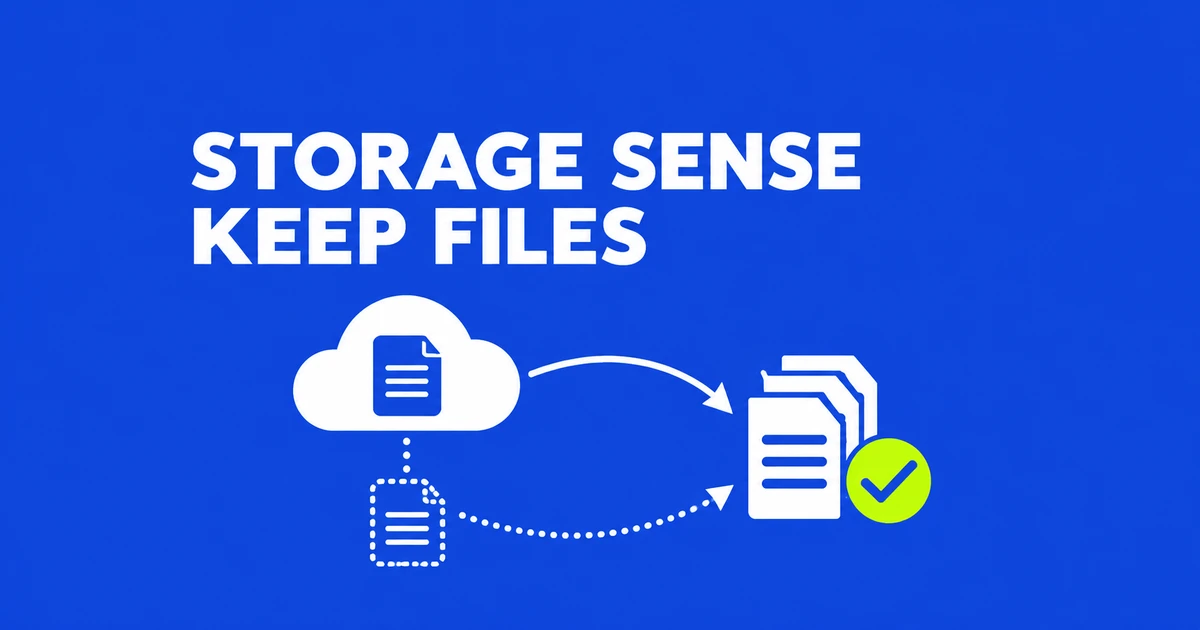
A file can remain in Explorer after its local content is removed
You can use Storage Sense without letting it clear your Downloads folder. Open its settings and leave Downloads cleanup at Never. That is useful when Downloads contains working documents rather than disposable copies. The OneDrive options on the same screen perform a different operation: they can turn downloaded files back into online-only files.
An online-only file still has a name in File Explorer. Its contents come from OneDrive when an app needs them. Microsoft's drive-space guidance describes the smaller placeholder that replaces the full local file. A folder listing that looks unchanged can therefore accompany a reduction in local storage use.
That does not reduce how much storage the file uses in your OneDrive account. It frees local disk space. Deleting the file in Explorer is a different action: OneDrive propagates that deletion online and to other devices. Use Free up space when the intended result is to retain the cloud copy.
Configure what to keep before the first cleanup
On Windows 11, open Settings → System → Storage → Storage Sense. Go into the detailed settings, rather than only changing the toggle on the Storage page. Review Downloads, Recycle Bin and cloud content individually before using the run-now control.
- Leave Downloads deletion at Never if you keep signed documents, receipts or working files there. If you want Downloads to become a temporary inbox, first file away anything you need to retain.
- Inspect the Recycle Bin for anything you still want to restore, then choose how long items may remain there before cleanup.
- Enable automatic user content cleanup and choose a schedule. Daily, weekly and monthly runs serve a recurring cleanup plan; the low-disk-space option waits for that condition.
- Review the locally available cloud content setting. Pin the OneDrive files you need offline before allowing their downloaded copies to be reclaimed.
Never excludes Downloads from this automatic cleanup rule. It does not prevent you from deleting those files manually or selecting them in another cleanup screen.
Do not assume every PC starts with the same configuration. Microsoft's consumer support page specifically describes a 30-day unopened-file default for OneDrive starting with Windows 11 version 22H2. Previously chosen settings and management policies can affect what your PC does. Read the value shown for your account.
The schedule does not specify the age of every file
A weekly schedule answers “when should cleanup run?” A 30-day threshold answers “which files are old enough to consider when it runs?” They are separate controls. Setting Storage Sense to run more often does not override Downloads being set to Never.
The Storage policy definitions distinguish time spent in the Recycle Bin from time a Downloads file has remained unopened. Consider a document created last year but put in the bin today. Its creation date does not make it a year-old Recycle Bin item. Likewise, an old download you opened today does not qualify merely because it was created over 30 days ago.
| Location | What the retention period measures | Cleanup result |
|---|---|---|
| Recycle Bin | Time in the bin | Items are removed from the bin. |
| Downloads | Time a file has remained unopened | Eligible files are deleted. |
| Locally available OneDrive content | Time a file has remained unopened | Eligible content becomes online-only. |
A file crossing a threshold does not imply a deletion at that exact moment. Cleanup still has to run, and the relevant setting must apply. A 2022 Microsoft Q&A question describes Downloads surviving daily cleanup while the Recycle Bin was being cleared. It establishes a real source of confusion, not a diagnosis for your current Windows 11 installation. The comments' proposed antivirus explanation is not enough to justify disabling protection.
Keep a small working set available offline
For an upcoming trip, select the required OneDrive files in Explorer, right-click and choose Always keep on this device. Wait for the download to finish. A filled green circle with a white check identifies this status; a green check on a white background only means the file is currently available locally.
The distinction is documented in Microsoft's OneDrive icon guide. Ordinary downloaded files can become online-only after the configured period. Files marked to stay on the device are exempt from Storage Sense's cloud cleanup. Circular arrows indicate synchronization in progress, while a red X signals a sync problem that needs attention.
Pin the smallest useful set. If you pin a whole folder, future files added to that folder also download. In an illustrative travel folder, a colleague adding a large video could increase local usage even though you only need a presentation. Pinning the presentation itself avoids making that whole folder an offline commitment.
Open the required documents in their apps before departure. As a practical check, briefly disconnect from the network and try opening them again after downloads finish. When the trip is over, right-click material that no longer needs to stay offline and choose Free up space.
Measure before opening the files again
Check available space under File Explorer → This PC, run Storage Sense, then compare the drive's free space. Also inspect the files you intended to preserve. Downloads documents should remain under the exclusion you configured, while offline work files should retain their always-available status.
If you are unsure whether a OneDrive file reached the cloud, use the taskbar OneDrive icon's View Online command and find it there before reclaiming the local copy. Microsoft recommends online access as a way to verify an upload. Inspect the document's contents as well as its name.
Opening every cleaned-up file locally to check it immediately downloads those contents again. Read the free-space result before doing that. Use the web copy to confirm cloud retention, then reopen local files as your work requires them.
Apps can also bring content back without a deliberate Explorer double-click. Microsoft's automatic-download guidance gives the example of a music player fetching online-only music. Read the notification to identify the app and files involved. Cancel an unwanted download if appropriate; blocking an app you rely on can interfere with its operation.
If cleanup runs but recovers little space
First check what is actually stored locally. A large online-only file has no full downloaded copy to remove. A large pinned folder is deliberately retained. Neither becomes an additional pool of reclaimable space just because you run cleanup again.
If automatic cleanup has not run, inspect its schedule. A low-space schedule is not a promise of daily execution while space remains available. Microsoft also specifies being signed in and online for more than ten minutes as an execution requirement. A powered-on PC sitting at the sign-in screen does not meet that condition.
Storage Sense operates on the Windows system drive, usually C:. For a full D: drive, open Settings → System → Storage → Advanced storage settings → Storage used on other drives and inspect that drive. Running C: cleanup cannot remove the large files stored elsewhere.
On a managed work PC, the available choices may reflect company policy. Microsoft's administration documentation supports controlling cleanup through Intune and Group Policy, including schedules and retention thresholds. Give IT the displayed settings, the affected folder and the files that must remain available. Those details are more useful than repeatedly changing a setting that management controls.
Choose the large items automatic cleanup leaves behind
Open Settings → System → Storage → Cleanup recommendations when eligible temporary content is not the main source of disk use. Windows groups suggestions into temporary files, large or unused files, cloud-synced files and unused apps. Review the items and estimated space, then clean the relevant section.
For Downloads you chose to retain, switch Explorer to Details and sort by size. You can remove a large obsolete installer individually while leaving contracts and receipts in place.
If new large content keeps landing on C:, use Advanced storage settings → Where new content is saved to choose a drive for the relevant content type. That choice concerns future saves; existing files still need attention. Material kept on an external drive is accessible when that drive is connected.
One cleanup choice has a separate consequence after an upgrade: removing the previous Windows installation deletes the files needed to go back. Leave that item alone while assessing whether your apps and hardware work on the new version. Once you no longer need that rollback option, an administrator can remove the previous installation through Storage's Temporary files screen.