Keep Your External Monitor On When You Close a Windows Laptop
You close the laptop to clear desk space, and the external monitor goes dark with it. What else is there to change when the lid setting already says Do nothing?
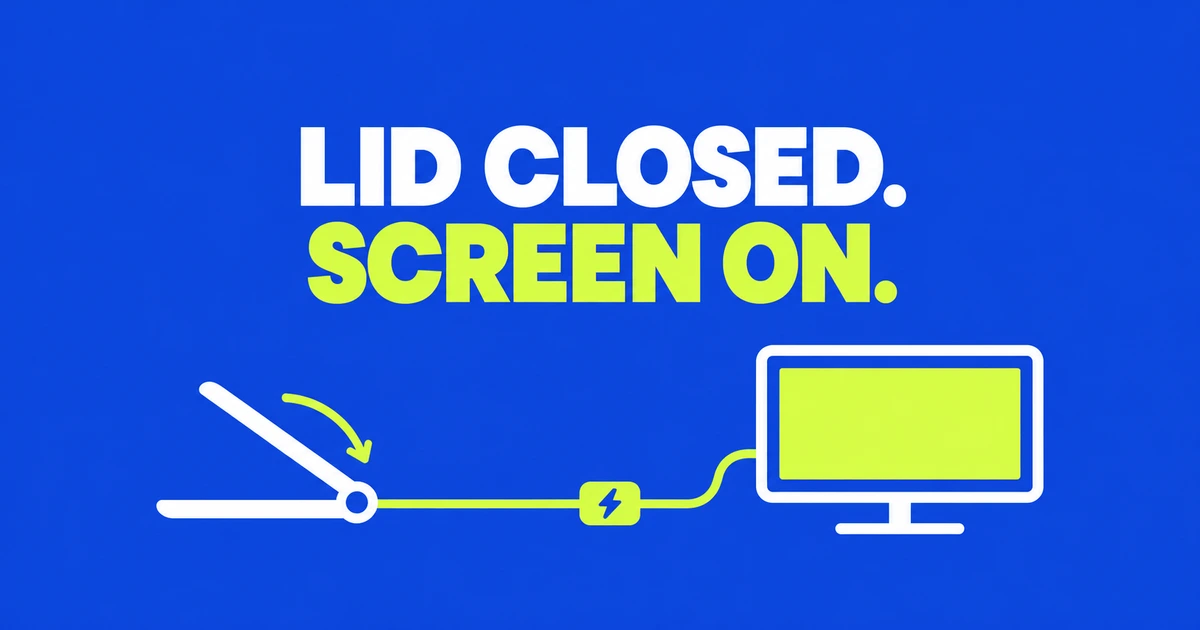
- For desk use with a charger, set the Plugged in lid-close action to Do nothing in Control Panel and save it. The On battery action is separate, so you can keep a sleep action for portable use.
- With the lid still open, choose Windows+P → Second screen only for one external monitor. Confirm that the monitor, keyboard, and mouse work before closing the laptop.
- If the closed laptop works until you stop typing, adjust its screen-off and sleep timers for the task. If the picture disappears immediately through a dock but stays on with a direct connection, investigate the docked connection and its cables.
Closing a laptop can put the computer to sleep even when a monitor is attached. To keep working at your desk, change the lid-close action and select the external display. Those settings handle two parts of the job: keeping the computer running and putting your desktop on the screen you intend to use.
In one Microsoft Q&A report, a Windows 10 user had already selected Do nothing and tried different display modes, yet closing the lid still blanked the monitor. If the basic Windows 11 setup still leaves you with that problem, compare the current power source and a direct monitor connection. If the picture disappears only after you stop working, inspect the idle timers.
Get the monitor working with the lid open
Start with the laptop open and connected to its charger. Select the monitor input that matches the cable: an HDMI connection will not appear while the monitor is looking at a different DisplayPort input. Open a window on the external screen and use the external keyboard and mouse. You will need those controls once the laptop’s own keyboard and touchpad are covered.
If the display does not appear in Windows, open Settings → System → Display → Multiple displays → Detect. Microsoft’s multiple-monitor guide also describes Identify, which puts a number on each detected screen. Detect looks for a connected display; Identify helps you match the settings to the physical screens.
When several monitors are attached to a dock, begin with one. A setup that cannot drive one screen needs a different comparison from a setup that works until you add another. Confirm the laptop and dock’s supported display configuration before treating the lid setting as the reason a second monitor fails. Changing a power action does not add display outputs to the hardware.
Change the lid action for the power source you use
For a laptop that stays on a charger at your desk, change the Plugged in column. Microsoft’s closed-laptop instructions use the following Control Panel route:
- Search for Control Panel from Start and open it.
- Choose Hardware and Sound → Power Options → Choose what closing the lid does.
- In the When I close the lid row, set Plugged in to Do nothing.
- Select Save changes, then test closing the lid.
The adjacent On battery column controls the other situation. If you change only Plugged in and then test without the charger, you are testing a different setting. Conversely, changing both columns can leave the laptop running when you close it away from your desk. Keep the battery action appropriate for how you carry the computer.
A USB-C dock also makes the current power state worth checking. A connected cable does not, by itself, tell you which column Windows is using. Look at the power status; if the laptop is running on battery, compare again with its normal charger connected. Keep the display connection unchanged for that comparison.
Do nothing describes the response to closing the lid. It does not disable every reason the computer might later sleep. ASUS’s power troubleshooting instructions cover idle timers and lid actions separately. If closing works initially but the display goes dark after you stop typing, continue to the timeout check below.
Use the external screen without the internal display
For a single external monitor, press Windows+P with the laptop open and select Second screen only. This gives you a way to confirm the desktop is usable on that monitor before closing the lid. Check that you can reach the windows needed for your work.
The other choices serve different arrangements. Duplicate presents the same content on both screens; Extend gives you a desktop across them. If you read mail on the laptop and edit a document on the monitor, Extend fits that arrangement. If the laptop is being put aside, an external-only display avoids keeping part of the working desktop on its internal screen. These options are listed in Microsoft’s display guide.
Choosing Second screen only does not change a lid action that is still set to sleep. Set both controls for the result you want. You can also leave the lid open while using only the external screen; closing it is optional if your desk has enough room.
An immediate failure differs from an idle timeout
If you can work normally with the lid closed and the screen later goes dark while you read, inspect the idle settings. Open Settings → System → Power & battery → Screen, sleep, & hibernate timeouts. Some Windows versions label the section Screen and sleep.
Windows has separate screen-off and sleep timers, with choices for battery and plugged-in operation. If the display turns off too soon while you read without touching an input device, adjust the screen timer. If the computer itself is sleeping, check the sleep timer too. Note the current values before changing them.
For a reference document that needs to remain visible at the desk, choose a plugged-in timeout that suits that task. There is no need to make every battery setting match. Comparing the delay you observe with the configured timeout is more informative than changing all options to Never at once.
Record what happens when the screen goes dark: whether an input brings it back, whether the monitor reports no signal, and what appears when you open the lid. A black display alone does not establish that Windows shut down. Those observations help decide whether to keep investigating power settings or the display connection.
If Do nothing is already selected, simplify the connection
Once the active power column and display mode are correct, compare the setup with fewer parts. Microsoft’s external-monitor troubleshooting includes removing accessories, checking cables, trying another output, and testing the monitor with another computer.
If the ports allow it, connect one monitor directly to the laptop instead of through the dock. Keep the power source the same and compare the lid-open and lid-closed results. If direct connection works but the docked route does not, investigate the dock, adapter, and cables in that route. That result narrows the comparison; it does not prove the dock itself is defective.
Change one part at a time. A replacement cable that works points you back to the original cable. A monitor that also fails on another computer directs attention toward the monitor and its input. Record which combination worked so you can return to it instead of losing track of several simultaneous changes.
For a previously working setup that suddenly fails, save your work and restart Windows. Microsoft also suggests Windows+Ctrl+Shift+B to reset the graphics driver. If the problem began immediately after an update, include that timing and the driver version in a support request. Once the picture returns, test closing the lid again with your usual dock and power source before resuming work in that arrangement.
Check what happens when you leave the desk
A computer configured to keep running with the lid closed still uses power. Acer advises using this arrangement on external power in a place where heat can dissipate, and warns about leaving it running inside a bag. Closing the lid is no longer a reliable sign that you have stopped the computer.
Keep the battery lid action suited to portable use, and test it at the desk by disconnecting power before closing the lid. Do not assume that removing a charger from an already closed laptop must immediately put it to sleep. Before packing up, save your work and choose Sleep or Shut down directly if that is the state you need.
| What you observe | Next check |
|---|---|
| No external picture even with the lid open | Input selection, cable, and Detect in display settings |
| Works plugged in, fails on battery | The On battery lid-close action |
| Works until you stop using the keyboard or mouse | Screen-off and sleep timers |
| Works directly, fails through the dock | The docked connection and its supported configuration |
If you need help, include the laptop, dock, and monitor models, Windows version, ports, power source, and these comparisons. “Direct HDMI stays on, but this dock loses signal when the lid closes” gives support a setup to reproduce. Meanwhile, use the direct connection or lid-open arrangement you have confirmed works to continue the task.