Windows HDR Makes the Desktop Look Washed Out. What Should You Change?
You enabled HDR for a movie, but now the browser and documents look pale or too bright. Which adjustment helps everyday apps without spoiling the film?
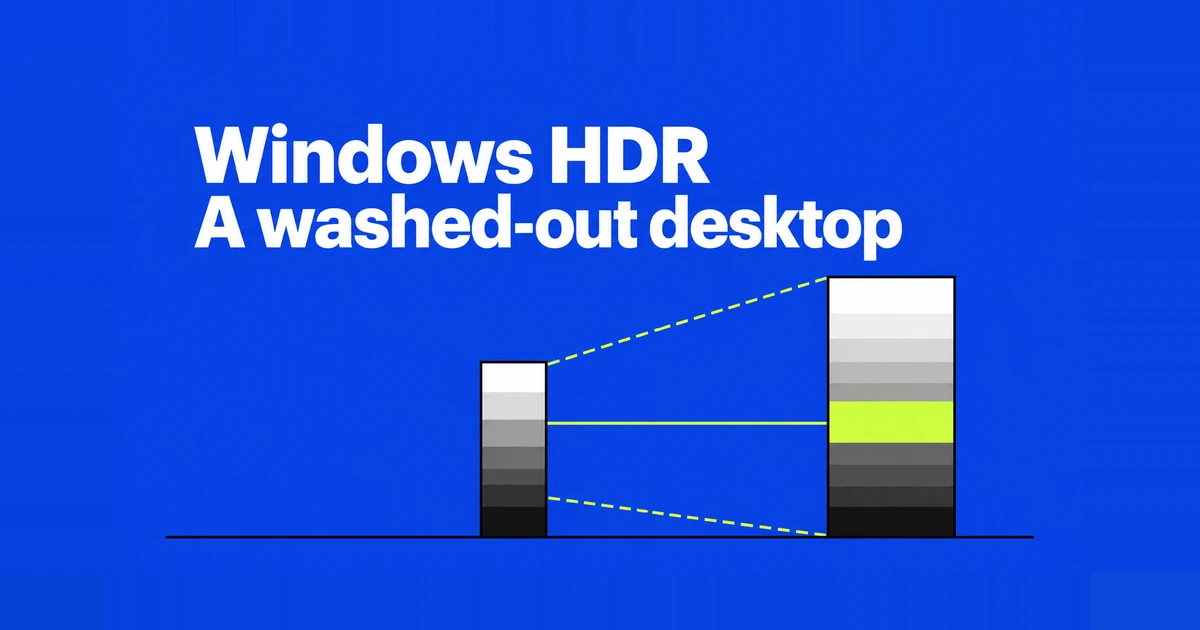
- For ordinary apps that become too bright on an external HDR monitor, adjust SDR content brightness in Windows HDR settings. Restart an app if it does not respond to the change.
- Use Windows HDR Calibration when checking lost highlight or shadow detail in HDR content. Follow its patterns on the intended display, in your normal room lighting, and avoid pushing saturation just to improve the wallpaper.
- If everyday work still looks uncomfortable, leave HDR off for that work and enable it for HDR content. Keeping it on is also reasonable when both your regular apps and HDR material look satisfactory.
You bought a monitor for HDR movies or games, enabled HDR in Windows 11, and immediately noticed the browser. Whites look uncomfortable, or familiar colors seem pale. Raising the monitor’s saturation can make the desktop more familiar while making faces or lighting in a movie look exaggerated.
Start with the content that actually changed. A bright document, one unusually dark app, and missing detail in an HDR scene call for different checks. Windows gives you controls for ordinary SDR content as well as HDR calibration. You can also choose to switch modes when your work changes.
Identify what looks wrong before changing the monitor
HDR can represent a wider brightness range, but switching it on does not turn an ordinary document into HDR content. Windows must display SDR applications alongside HDR video. Its Advanced Color pipeline manages those sources together, rather than treating every window as if it were the same kind of image.
A monitor owner asking about this problem had already run HDR Calibration and still disliked the desktop. The practical question was whether to leave HDR enabled for browsing. After setting up the monitor for movies or games, there is still the browser you may spend much of the day reading.
Open a familiar document and a known HDR scene. If the document is glaring while the video looks good, start with SDR brightness. If a bright object in the video loses its texture, investigate calibration as well. Keep the same scene and viewing conditions when comparing changes; unrelated pictures make the result harder to judge.
More vivid color is not automatically more accurate color. Microsoft’s Surface measurement guidance uses different profile choices when checking sRGB accuracy and explicitly gives device-specific brightness settings. Those numbers are not universal monitor recommendations. Record your own display mode before changing it.
Adjust SDR brightness on the display you are using
Open Settings → System → Display, select the affected HDR monitor, and move the Settings window onto it. Under HDR, adjust SDR content brightness. This is Microsoft’s documented starting point for ordinary apps that look too bright or dark on an external HDR display.
Keep a normal webpage or document beside Settings. Lower the value if its white background is uncomfortable, then compare with the HDR material you intend to watch. On an external monitor, this control changes SDR brightness relative to HDR; it is not a general brightness control for the HDR movie.
A laptop’s built-in panel works differently. Its normal Brightness control, possibly with automatic adjustment, sets SDR brightness. The HDR content brightness setting adjusts HDR relative to that SDR level. Microsoft explains this distinction in its HDR troubleshooting guide.
| What needs adjustment? | Control to inspect | Content to compare |
|---|---|---|
| Ordinary apps on an external HDR monitor | SDR content brightness | A white page and gray interface elements |
| Overall built-in laptop brightness | Brightness and automatic brightness | Your usual document in normal room lighting |
| HDR relative to SDR on the built-in panel | HDR content brightness | A scene containing bright and dark detail |
| The external monitor’s own brightness | Its buttons and on-screen menu | The desktop after the Windows adjustment |
Windows may not offer an ordinary Brightness slider for an external monitor. Use the monitor’s controls, as described in Microsoft’s brightness instructions. Available adjustments can change with the monitor’s picture mode, so consult its manual if an option is locked.
Use the patterns, then check real content
Install Windows HDR Calibration from the Microsoft Store. It requires Windows 11, HDR enabled, a suitable display, and compatible graphics hardware and drivers. Run it full screen on the monitor you want to calibrate.
The three patterns address dark detail, bright detail, and maximum brightness. Adjust each until its pattern is no longer visible. Follow what your screen shows instead of copying a peak-brightness number from someone else’s setup. Use the lighting in which you normally use the display, and inspect any monitor post-processing that could affect the patterns.
The saturation stage can make both SDR and HDR colors more vivid while HDR is active. Increase it cautiously and check faces and brightly colored objects afterwards. A striking before-and-after difference is not required; Microsoft notes that the comparison can look similar on some displays.
A built-in panel that supports HDR video streaming but not HDR games and apps has a different route: the HDR video display calibration in Windows Settings. Check the capabilities listed for that panel before trying to follow an incompatible calibration workflow.
When one app stays dark, restart it before retuning everything
Save your work, close the affected app, and open it again on the same monitor. Some SDR apps do not immediately follow changes to the brightness balance. Compare the same file after reopening it before compensating with more monitor brightness.
If you have created several profiles, open Settings → System → Display → Color profile and select the intended display. Windows lets you add and remove profiles and choose a default. Check the selected screen before picking a profile with a familiar name.
To undo a profile you created with HDR Calibration, Microsoft also documents the Control Panel route: search Start for Color Management, open All Profiles, select that profile, and remove it. Identify the one you created, check which profile is now active, and reopen the comparison content.
Keep Night light in the same state during comparisons; it changes the screen toward warmer colors. On a laptop, content-adaptive brightness can also change brightness and contrast between scenes. These controls are described in the Windows brightness and color guide. You do not need to abandon features you like, but an automatic change in the middle of a comparison can obscure what your manual adjustment did.
A missing HDR switch needs a connection check
If an external HDR monitor is duplicating the laptop screen, try Extend these displays. Microsoft identifies the duplicated-desktop configuration as a reason HDR may be unavailable. Select the external display again after changing the layout.
Check the computer output, monitor input, and connection against the product documentation and Windows HDR requirements. If a dock or adapter is involved, compare a supported direct connection where possible. Check graphics drivers too. If HDR becomes available with a direct connection, investigate the modes supported by the dock or adapter.
If Advanced display lists HDR certification as “Not found,” look up the exact model on the manufacturer’s site. A certified display may not have supplied that information to Windows. Check its specifications alongside the HDR modes supported by the input you are actually using.
On a laptop, unplugging power can disable HDR to conserve battery. Check power and HDR state together if the appearance changes during that transition. You can change the battery-related HDR option, at the cost of battery life. For an initial comparison, use external power so that unplugging does not change the mode midway through the exercise.
You can keep HDR for the work that benefits from it
If regular apps and HDR material look satisfactory after adjustment, leaving HDR on is a workable choice. If ordinary work remains uncomfortable, use SDR for that work and switch HDR on for the movie or game. Dell recommends content-by-content switching for the faded desktop behavior described in its monitor guidance.
Use the display-specific Windows setting when changing one monitor. The Game Bar shortcut Windows + Alt + B can toggle all HDR-capable displays together, as explained in Microsoft’s HDR setup guide. If the shortcut does not respond, inspect the state in Settings rather than assuming the picture changed modes.
Auto HDR applies to supported SDR games. It is not a general repair switch for pale documents or browser windows. If only one game looks wrong, note whether you are using the game’s native HDR or Auto HDR before changing its settings.
Keep a short record of the monitor mode, SDR brightness setting, and calibration profile that worked with your usual document and HDR scene. After a driver update or display change, those references let you compare the affected app without starting from an entirely unfamiliar configuration.