Ryzen 7 9700X RAM: DDR5-6000 CL30 or DDR5-8000?
Your 32GB gaming build offers a choice between 6000 CL30 and 8000 CL38 memory. How much extra is the faster kit worth once the rest of the PC is included?
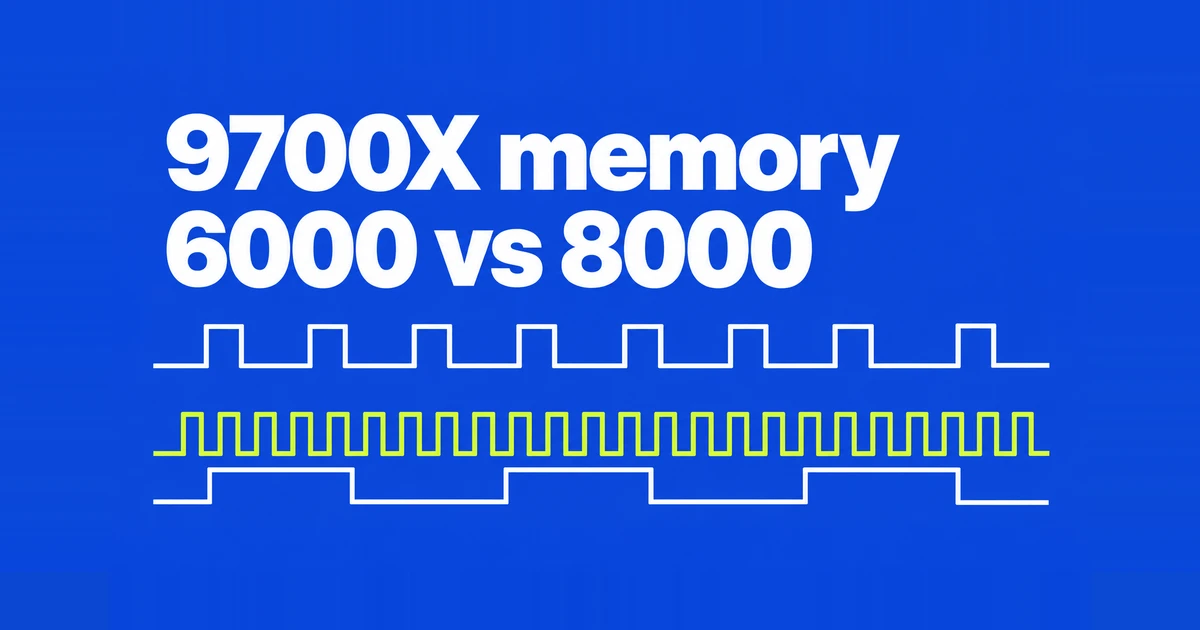
- Start a Ryzen 7 9700X gaming build with a quote for a matched DDR5-6000 CL30 kit. Faster memory deserves more of the budget when your games are limited by CPU performance.
- DDR5-8000 offers 33.3% more transfers per second than 6000, but the memory controller and timings affect the result. That bandwidth increase is not a matching increase in game performance.
- Compare low-latency 6000 CL26 or CL28 kits before paying for 8000. If you already own stable 6000 CL30 memory, replacement has a higher cost than choosing between kits in a new build.
A 9700X build does not need the highest memory speed on the motherboard box to be a good gaming PC. The useful question is what the extra RAM budget buys in the games you play, after keeping capacity and the rest of the hardware comparable.
DDR5-6000 CL30 is a sensible starting quote. DDR5-8000 becomes more interesting when the graphics card already has headroom and you want the CPU to prepare frames faster. Low-latency DDR5-6000 is a third option, so the purchase is broader than a simple choice between two transfer rates.
Price the upgrade across the whole build
Use the difference between complete, workable configurations. An 8000 kit that requires a more expensive motherboard carries both premiums. A kit that fits your existing board only adds the memory difference.
For a hypothetical example, suppose a PC costs $1,500 with a $120 memory kit. An alternative kit costs $160 at the same capacity. The $40 difference makes RAM 33.3% more expensive, but raises the complete PC's cost by 2.7%. These are example prices, not current retail quotes.
Now add a hypothetical $100 motherboard upgrade needed for the second configuration. The total premium becomes $140, or 9.3% of the original build. That is a different decision from spending another $40. Compare the alternative uses of the money, including graphics performance and storage capacity.
An existing owner also faces a different calculation. Replacing working memory requires buying the new kit and recovering whatever the old kit sells for. The cost is not the small difference between two items on a new-build configurator. Without a specific performance shortfall, keeping stable 6000 CL30 is the stronger default.
If the kits cost the same, keep 8000 in consideration when the exact kit is supported by your existing hardware and no board upgrade is needed. A buyer who wants minimal configuration work can still prefer a well-established combination. Higher transfer rate does not establish either a higher retail price or a better overall purchase.
What the 9700X gaming results show
TechSpot tested the Ryzen 7 9700X with several memory configurations. At 1080p, DDR5-8000 led 6000 CL30 by up to 12% in Cyberpunk 2077: Phantom Liberty, about 7% in Horizon Zero Dawn Remastered, and 4% in Counter-Strike 2. Its 6000 CL26 configuration performed close to 8000. These are individual game results, not an average or a 9800X3D measurement.
A separate ComputerBase 9700X test found little difference between 6000 and 8000 in its 1280×720 gaming aggregate. Its 8000 configuration used two 24GB modules at CL38-48-48-98. Different game selections and memory settings produce different comparisons; the biggest improvement in one game is a poor substitute for a result matched to your own purchase.
Match that evidence to your target. Lower graphics settings and a high refresh-rate target can put more pressure on how quickly the CPU prepares frames. A game spending most of its frame time on GPU rendering leaves less room for faster system memory to change the result.
Also keep average frame rate separate from 1% lows. The former describes overall throughput; the latter helps examine slower frames. If the purpose of the upgrade is to reduce intermittent slowdowns, an average-only comparison leaves part of the question unanswered.
Why the 8000 label does not settle the comparison
DDR5-6000 describes a transfer rate of 6000MT/s. DDR transfers data twice per clock, so its actual memory clock, MCLK, is 3000MHz. At 8000MT/s, MCLK is 4000MHz. A diagnostic tool reporting the lower clock is describing a different quantity from the transfer rate.
UCLK is the memory controller clock. In a 1:1 UCLK:MCLK configuration at 6000, both clocks run at 3000MHz. At 8000 with UCLK:MCLK set to 1:2, the memory runs at 4000MHz while the controller runs at 2000MHz. More transfers and a slower controller are part of the same configuration.
Do not treat 6000 as a universal hard ceiling for 1:1 operation. MSI's AM5 testing describes 6400 1:1 operation under suitable CPU and motherboard conditions. The working combination depends on the hardware and firmware.
The MSI AM5 BIOS manual, page 32, lists DRAM Frequency, UCLK DIV1 MODE, and FCLK Frequency separately. FCLK controls the internal fabric. A 6000 kit does not imply that all three clocks should be set to 3000MHz.
Compare CAS time as well as transfer rate
CL is a count of clock cycles for CAS latency. Comparing CL numbers across different transfer rates requires converting the cycles into time. Kingston explains the conversion as CL multiplied by 2000 and divided by the transfer rate in MT/s.
| Configuration | MCLK | Calculated CAS time |
|---|---|---|
| 6000 CL30 | 3000MHz | 10.00ns |
| 6000 CL28 | 3000MHz | 9.33ns |
| 6000 CL26 | 3000MHz | 8.67ns |
| 8000 CL38 | 4000MHz | 9.50ns |
This calculation covers CAS time alone. It does not include the full trip from a CPU request through the controller and back with data. A memory benchmark reporting total latency measures more than the number in this table.
The table also explains why a larger CL number is not automatically worse. The clock period changes with transfer rate. Conversely, a lower calculated CAS time does not automatically identify the fastest gaming configuration; other timings and controller behavior remain involved.
A 6000 profile can contain several different changes
MSI's own 9700X testing used an X670E TOMAHAWK WIFI, RTX 4080, and two 16GB modules. Its EXPO configuration was 6000 CL36-38-38-80; AMD OPP used CL30-38-38-96; Memory Try It! used CL28-35-35-60. Multiple timings changed while the advertised transfer rate stayed at 6000.
Results obtained with an additional motherboard preset therefore cannot be attributed to changing CL alone. When comparing a review against a product listing, identify whether the test used the kit's supplied profile, a board preset, or manual tuning.
AMD's current EXPO page and compatibility list also distinguish Ultra Low Latency memory. An existing kit carrying a general EXPO label does not establish that it contains an ULL profile. Use the exact product specification and certification category.
Low-latency 6000 is an actual product option: G.SKILL announced EXPO kits rated at 6000 CL26-36-36-96. Their existence makes them worth including in a quote, but the CL number alone cannot justify any premium. Compare the same capacity and the price you can actually pay.
Verify the profile you paid for
AMD specifies DDR5-5600 for two modules on the 9700X. Both 6000 and 8000 are overclocked configurations. A motherboard's maximum OC figure describes a different condition from the processor's published base memory support.
Before ordering, match the complete kit part number, capacity, module count, processor family, and BIOS information in the board's memory support list. Keep capacity constant: a faster 32GB kit does not replace the benefit of 64GB when your actual workload exceeds 32GB.
For an ASUS board, the official EXPO example uses Delete to enter BIOS, F7 for Advanced Mode, then Ai Tweaker → Ai Overclock Tuner → EXPO I. Save with F10. Use your own model's documentation for other boards.
After rebooting, inspect memory speed in BIOS or Windows Task Manager under Performance → Memory. A tool displaying DRAM Frequency uses the actual clock: approximately 3000MHz corresponds to 6000MT/s. Kingston's support FAQ explains this doubled relationship.
Keep boot time separate from gaming performance, too. A system can spend time training memory before Windows loads without that delay describing its in-game frame rate. MSI lists Memory Context Restore as a separate BIOS option that reduces POST time by restoring memory context. Changing it is not equivalent to increasing the memory transfer rate. Establish a working profile before adding convenience settings or extra tuning presets, so a new failure has fewer possible causes.
Run memory error checks and your normal games after applying the profile. For a performance comparison, keep the game version, scene, resolution, quality preset, and background tasks consistent. A successful boot establishes less than repeated use without errors.
If the profile prevents booting, follow the board manual's CMOS reset procedure. If errors appear after boot, return to the default memory configuration and compare the same workload. For most 9700X buyers, establish a stable 6000 CL30 configuration first; consider low-latency 6000 or 8000 when a specific CPU-limited gaming target gives the extra spending a purpose.