Converting a 4:3 PowerPoint to 16:9 without rebuilding every slide
The slide is wider, but your carefully sized pictures and text no longer line up. Which parts can you fix across the deck, and which need individual attention?
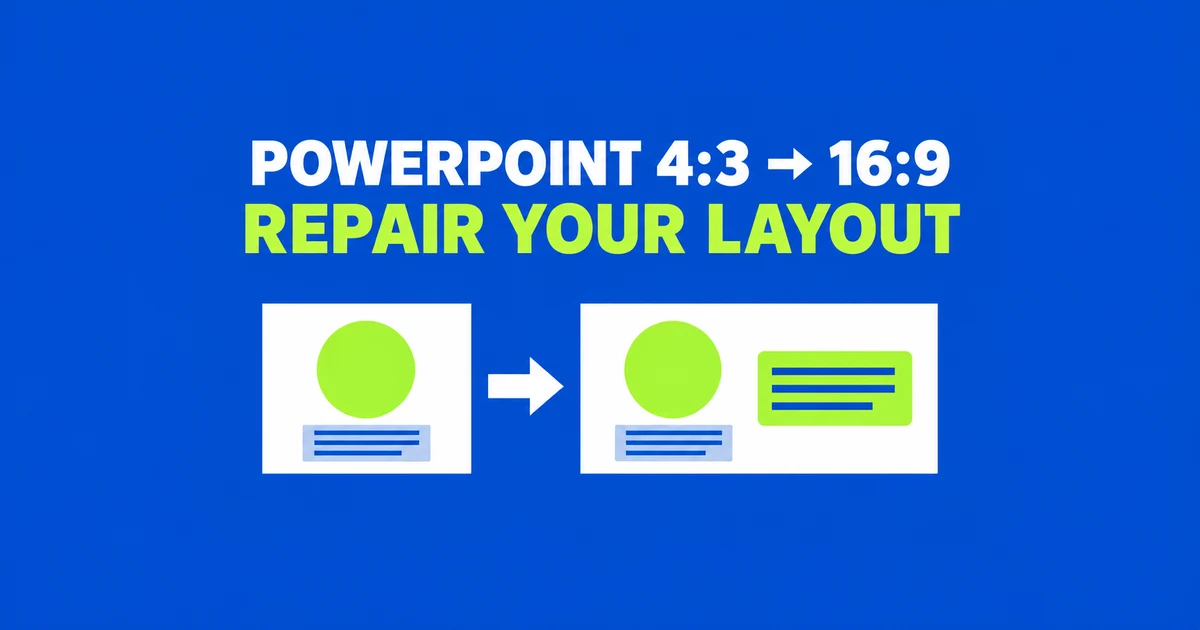
- Convert a copy of the presentation. Ensure Fit can shrink the contents to keep them inside the new slide, so text may need enlarging afterward. Check for missing material, then adjust type size and picture placement.
- Keep photographs proportional. Use the extra horizontal space for captions or explanations, or deliberately crop images that can lose their edges.
- Start with two slides using the same layout: one with a short title and one with a long title. Reapply the repaired layout to their placeholders, then fix any remaining picture crop or overlapping free-standing text box on the individual slide.
You can reuse the contents of an older PowerPoint presentation without retyping every slide. Change the slide dimensions in a copy, repair the repeated layouts, then adjust individual pictures and text boxes. The wider canvas gives you room to rearrange material, but it does not supply a new composition for each page.
One Microsoft Community user had 110 slides of placed graphics and wanted to know whether converting them for a widescreen TV meant replacing and recropping everything. Another reported changes to text formatting while updating older PowerPoint 2016 slides. The image-heavy deck question; the text-formatting question.
Choose the canvas before repairing the content
Save a separate working copy and keep the original available for comparison. Use names that identify the two versions, such as Quarterly-review-4x3 and Quarterly-review-16x9. The original gives you a reference for a photograph’s proportions, a title’s font, or a caption that appears to have disappeared.
In desktop PowerPoint for Windows, choose Design → Slide Size → Widescreen (16:9). Under Custom Slide Size, Widescreen measures 13.333 × 7.5 inches; On-screen Show (16:9) measures 10 × 5.625 inches. The former retains the height of the standard 10 × 7.5-inch 4:3 canvas. This setting affects the entire presentation. Slide dimensions and scope.
If PowerPoint asks how to scale the contents, Maximize can put material outside the slide; Ensure Fit can make it smaller. For a deck where every label must survive, begin by inspecting the fitted result. Then restore readable type and adjust the arrangement around it.
Compare slides with a long title, a large photograph, and a dense table or diagram against their originals. Titles misplaced in the same way across several slides may need a shared layout edit; a single clipped photograph may need its crop adjusted. If text color or font has changed, compare those settings too; increasing a text box’s width will not restore its original typeface.
Why keeping the whole picture leaves space
A 4:3 rectangle cannot fill a 16:9 rectangle while simultaneously keeping its proportions and showing its entire contents. Consider a hypothetical picture measuring 12 units across and 9 high, placed inside a 16-by-9 frame. Matching the height leaves four units of horizontal space. Centering the picture would put two units on each side.
| Treatment of the 12-by-9 picture | Result in a 16-by-9 frame |
|---|---|
| Keep its height at 9 | Everything remains visible; horizontal space remains. |
| Enlarge proportionally to a width of 16 | The height becomes 12, leaving three units outside the frame vertically. |
| Increase only the width to 16 | The picture becomes about one-third wider, distorting its contents. |
That first arrangement occupies 75% of the new width. You can use the remaining space for an explanation, a key number, or a caption. For a software screenshot, this can preserve controls and labels that would otherwise be cropped away. For a title photograph, losing some background around the subject may be acceptable.
Choose based on what the image communicates. A table’s last column or a screenshot’s status bar may contain the point of the slide. Treating those edges as expendable decoration can remove information even when the resulting page looks cleaner.
Repair stretched pictures and crops separately
If a circular logo looks oval, compare its proportions with the original image. You can also insert an undistorted copy and size it for the revised slide. In Windows, Microsoft’s procedure for resizing while retaining the original proportions is to open the detailed size controls under Picture Format → Size, select Lock aspect ratio, and enter a percentage for either Height or Width under Scale. This lets you choose a size for the new layout while keeping the proportions, rather than requiring the image to occupy its original dimensions. Object size and proportion controls.
If the shape looks right but a face or edge is missing, inspect the crop. Under Picture Format → Crop, Fit keeps the full image inside its frame, potentially leaving space. Fill covers the frame and may trim outer areas. Reposition the picture within the crop to keep the important subject visible. Fit, Fill, and crop positioning.
For example, a product photograph used to explain its physical controls needs those controls in view. A title slide might instead use a tighter crop of the same product. Decide that separately for each use rather than stretching all pictures to the new slide width.
Picture-level Fit is a different operation from Ensure Fit during slide resizing. After choosing the slide-level option, still inspect individual crops. A composition that worked inside the old frame may need a different subject position inside the new one.
Find where the background image lives
An old cover may consist of one large 4:3 image. Before dragging it wider, determine whether it is an ordinary inserted picture or a background fill. An inserted picture has its own size and crop controls. A background image is changed under Design → Format Background. Background changes normally affect the current slide; Apply to All extends them through the presentation. Background formatting and its scope.
If a cover image combines a person, a logo, and decorative color, stretching the whole thing changes the person and logo too. One alternative is to retain the proportional image and use a compatible solid color beside it. That added area can hold the title while the photograph keeps its original shape.
Check the next body slide after repairing the cover. Its background may be intentionally different. If a recurring decoration cannot be selected in Normal view, inspect the relevant master or layout before trying to conceal it with another object.
Fix repeated arrangements through layouts
A title that is misplaced on many slides may belong to a shared layout. Layouts contain placeholders for recurring content. Use Home → Layout to select an arrangement. Home → Reset restores the layout after unwanted manual changes without deleting added content. Try this on one representative slide before applying it widely. Layouts and Reset.
If the arrangement itself needs more width, edit it in View → Slide Master. Select the relevant layout, adjust its title and body placeholders, and close Master View. Back in Normal view, select the affected slides and reapply the edited layout through Home → Layout. Microsoft specifies this reapplication step for existing slides after layout changes. Editing and reapplying layouts.
Work through each arrangement separately: title-only, picture with caption, two-column comparison, and any custom layout. For a comparison slide, make sure both headings still align with the correct content beneath them. A wider title placeholder is useful only if it does not overlap the picture or obscure a label.
For a practical first pass, choose two slides using Picture with Caption: one with a short title and landscape photo, the other with a two-line title and portrait photo. Confirm their layout under Home → Layout. Keep a table slide using a different layout available for comparison. After editing the title and body placeholders in the intended layout, reapply it to just the first two slides.
If both titles now align but the portrait still cuts off the top of the product, adjust that picture’s crop. Moving the shared layout again to solve the crop could disturb the slide you already repaired. Check the long title for overlap with the body and the short title for spacing above the photo. If the comparison table slide changes unexpectedly, inspect whether you edited the parent master or reapplied the layout to more slides than intended. Once these examples show which changes belong to the layout and which belong to individual objects, continue through the other slides using that layout.
Individually inserted text boxes and pictures also need inspection. If several boxes were positioned by hand, plan their new relationship on one slide before repeating the treatment. Do not rely on a layout change to design a new arrangement for every free-standing object.
When text becomes too small, use the added horizontal room before shrinking everything further. Move an explanation beside its diagram, shorten a sentence, or split an overloaded slide. In tables, inspect units, footnotes, and the last row as well as the largest numbers.
Check portrait inserts and the finished show
A presentation cannot mix portrait and landscape slide orientations. You can place a portrait image inside a landscape slide, leaving room beside it for commentary. For a poster with small print, consider one slide showing the whole design and another showing the section the audience needs to read. Portrait images within landscape presentations.
Run the revised deck in Slide Show view, following the original order. Check photographs for distorted faces or circles, diagrams for missing labels, and tables for clipped edges. Read long headings at presentation size and inspect where they wrap.
For animated slides, click through the sequence. A text box moved into new space may overlap something that appears later. On the presentation computer and display, inspect the opening slide, the densest slide, and the final slide. Note specific slide numbers and objects that need correction, then deliver the revised widescreen copy while retaining the original separately.