Recovering Passkey Access After Losing Your Phone
A lost phone takes with it the passkeys you used to sign in everywhere. What does it take to get them working on the replacement?
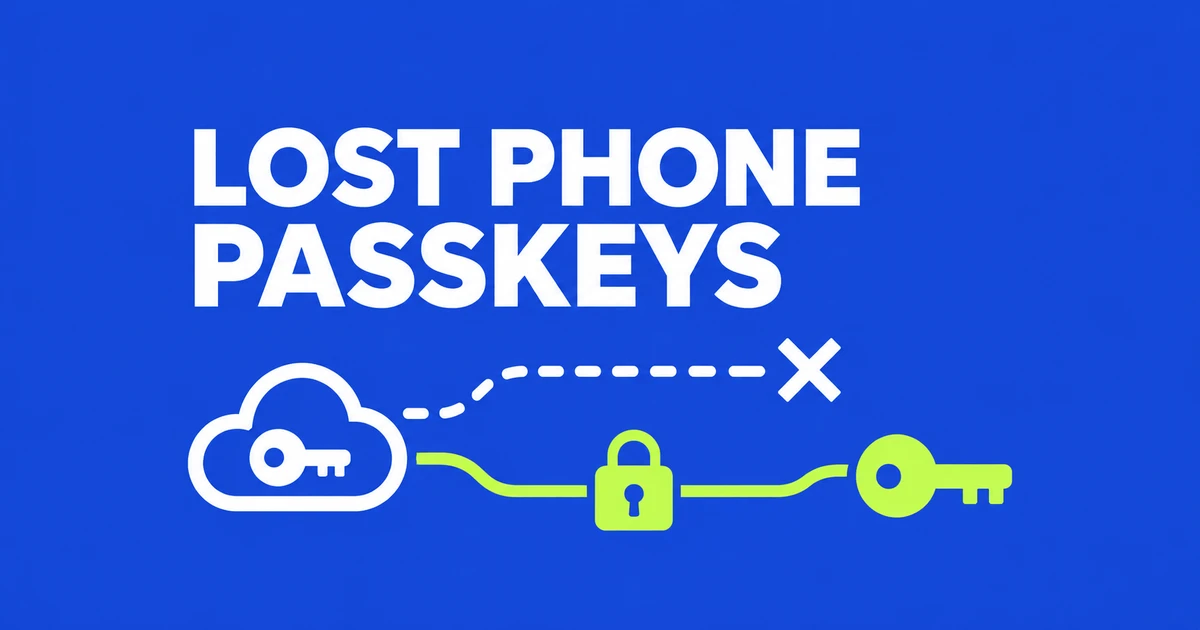
- A synced passkey can survive a lost phone. Recover access to its password-manager account, then authorize the replacement device to use the encrypted credentials.
- Google Password Manager may ask for its PIN or an Android screen lock. iCloud Keychain requires its own approval after Apple Account sign-in.
- A passkey stored only on the missing device cannot be restored through sync. Use that website’s alternative sign-in or recovery process, then register a replacement.
The awkward part of losing a phone is not always losing the passkey. It can be reaching the account that stores it. A discussion about lost and replaced smartphones reached exactly that follow-up: what happens when the password-manager account itself asks for the missing device?
Signing in to Google can be followed by a Google Password Manager PIN prompt; Apple can ask for an old device passcode before syncing the keychain. The recovery routes below apply to personal accounts. Work and school administrators may control which recovery methods are available.
Start with where you saved the passkey
Face ID and fingerprints authorize the use of a credential; they are not the credential. Registering your fingerprint on a new phone does not recreate the private key registered with a website. Apple’s security explanation describes the website holding a public key while the private key remains available through the user’s devices and credential storage.
| Storage | What may survive the phone | Next route |
|---|---|---|
| Google Password Manager | Credentials synced with the same Google account | Sign in, then unlock the stored passkeys |
| iCloud Keychain | A copy on another approved Apple device or a recoverable keychain | Use the remaining device or approve the replacement |
| Local device storage, such as Windows Hello | The credential on that particular surviving device | Use it there; a lost local credential has no cloud copy |
| A separately registered hardware security key | The physical key kept apart from the phone | Connect it to a supported device and authenticate |
Open the password manager on a remaining laptop or tablet and look for the website and account address. A browser name alone does not identify the store: Chrome on a Mac can use Apple Passwords or Google Password Manager. Chrome’s documentation specifically distinguishes synced Google credentials from locally saved Windows Hello passkeys, which cannot be recovered after the computer is lost or its OS is reinstalled.
A remaining Mac can already solve an iPhone-loss problem. GitHub describes an iCloud-backed passkey created with MacBook Touch ID being usable on other linked Apple devices. The authenticator changes; the synced credential still identifies the same account.
Google: get into the account, then unlock its passkeys
If Google asks for a passkey on the missing phone, choose “Try another way.” Google lists alternatives including a previously added backup number, a saved backup code, a registered security key, or a passkey on another device. Another signed-in phone or a previously trusted computer may also help. The button offers available authentication methods; it does not remove two-step verification.
If you still control the phone number, your carrier may transfer it to a replacement SIM or phone so you can receive verification messages. That restores an account-verification channel, not the passkey itself. If none of the available methods works, use Google’s account recovery process. Creating a new Google account will not bring over the old account’s credentials.
Once signed in to the correct account in Chrome or Android, follow the credential-store prompt. Google Password Manager can require its PIN or an Android screen lock to unlock saved passkeys. Read which device the prompt names: a newly chosen replacement-phone PIN is not necessarily the old screen lock it requests.
For a forgotten PIN, use a computer that previously used these passkeys. Google’s instructions provide this route:
- Open Chrome with that Google account.
- Open
chrome://password-manager/settings. - Select the manager’s PIN-change option and authenticate.
- Set the replacement PIN.
A missing button can reflect the wrong account, no previous passkey use, removed access, or an Android-created first key.
The separate passkey-reset operation deletes all stored keys. Establish alternative site access before considering it: you will need to register replacements.
Apple: account verification comes before keychain approval
On the replacement device, Apple Account sign-in may require a verification code as well as the account password. Use a code displayed on another trusted device, or select the option for a missing code and request a text or call to a trusted number. Apple’s verification guide also provides a recovery route when you permanently lack access to both trusted devices and numbers.
After account sign-in, open Settings, your name, iCloud, then Passwords, and enable syncing for the device. On iOS 17 and earlier, the item is named Passwords and Keychain. Apple’s setup instructions explain that you may need an old device passcode or approval from another authorized device. Postponing approval can leave you signed into the account without the synced passkeys ready to use.
If no approved device remains, Apple describes keychain recovery through previously configured recovery contacts or escrow. The escrow route uses account authentication, a message to the registered number and a device passcode to recover protected data. An account-password reset alone does not remove these encrypted-data requirements.
A recovery contact helps by providing a recovery code; being designated does not grant that person access to your account’s contents. This is something configured before the lockout, not a way to nominate a new person from outside an inaccessible account.
If you cannot reset the account password through available methods, standard account recovery can take several days or longer. Apple says support cannot shorten the wait. Follow the instructions for the method used to start recovery: a web-started request requires turning off Apple devices during the waiting period, because account use can cancel it. Look for usable trusted devices before starting that wait.
Enabling an Apple Account recovery key disables standard account recovery. If you lack a trusted device or are locked out, Apple requires the saved recovery key and a code sent to your trusted number.
A QR code uses another device; it does not restore one
A desktop sign-in screen may offer a QR code. That invites a nearby device already holding the passkey to authenticate. FIDO explains that cross-device authentication uses Bluetooth to establish proximity. Scanning with an empty replacement phone cannot download the missing phone’s credential.
If another device really has the passkey, use it directly or through the supported QR flow. Once authenticated, the website may let you add a passkey in your new storage provider. An already-open browser session is less conclusive: security settings may require fresh authentication before a new credential can be added.
Remove the missing phone’s access without erasing your way back in
You can protect the missing phone while recovery continues. For an iPhone, use Find My or iCloud Find Devices to mark it lost. Apple says this web route does not require a verification code. Lost Mode locks the device and suspends Apple Pay cards. The device must be powered on and connected to Wi-Fi or cellular to appear online and in Lost Mode. Find My must also have been enabled before the loss.
For Google, open the account’s security settings, go to Your devices, then Manage all devices. Review the sessions associated with the missing phone and sign them out. One physical device can have multiple sessions, so inspect the details rather than removing every session indiscriminately.
Then inspect registered credentials. A manually added Google Account passkey can be removed from its passkey and security-key settings. An automatically created Android passkey uses the device sign-out route. Google notes that the automatic passkey may still sign in for up to six hours after logout; do not assume instant invalidation.
Other websites maintain their own sessions and credentials. Google’s device list does not close every GitHub session, for example. Secure a working replacement sign-in method, then review each important service. Before deleting a synced credential, check whether it is also the one you intend to keep using on another device.
Before a planned upgrade, test a fresh sign-in
With the old phone still available, set up the credential store on the replacement and finish its approval. Start a fresh login to an important website and select the passkey on the new device. Merely opening a page where you were already signed in does not test the replacement’s credential.
When switching platforms, a password manager supported on both may supply the existing credentials after setup. If you are changing providers, the old device can authenticate you to a website so you can register another passkey in the new store. Do not assume a phone-data transfer moves every passkey between providers.
For Google Accounts specifically, a newly created passkey can take up to seven days to become available for sign-in. Keep the old method while testing; this is not a universal waiting period for other websites.
Finally, try reaching the storage account without relying on the phone you are about to retire. Keep backup codes somewhere accessible without it, or register a separate security key beforehand. Two synced copies help if one device disappears. A separately registered recovery method also helps when access to the shared storage account is the part that fails.