Dialog or Popover? Choose by Interaction, Focus, and Meaning
A save confirmation and a field hint look like the same floating panel on screen. Should users still be able to edit the page behind each one?
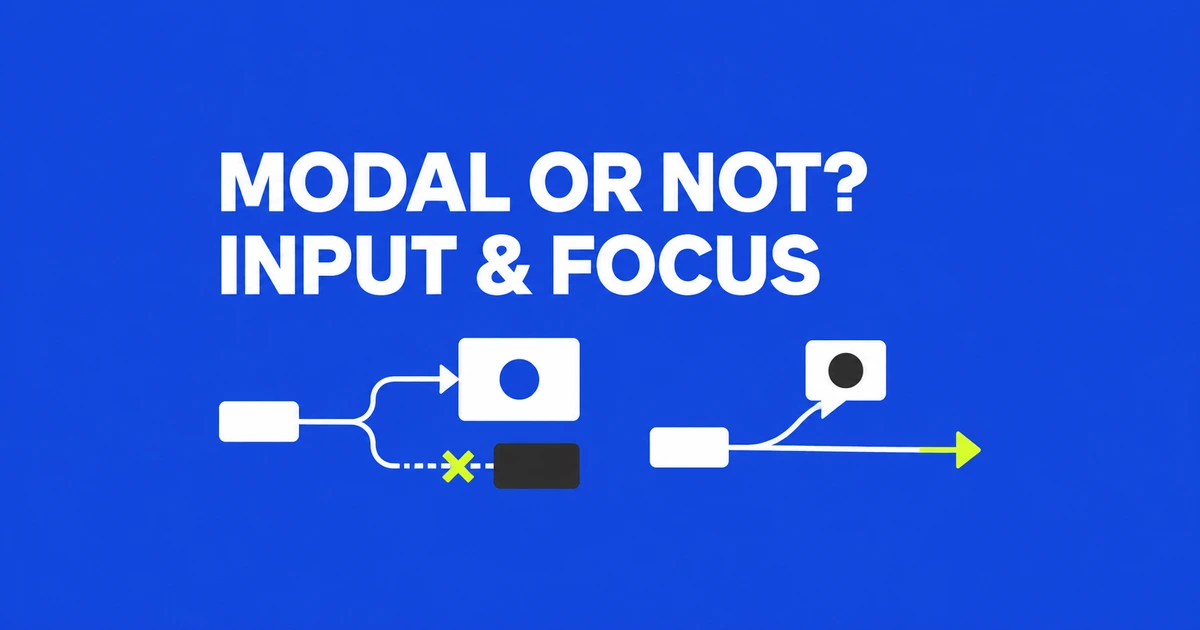
- Choose modality by whether the surrounding task should pause, not by the panel’s appearance.
- Auto popovers dismiss on outside interaction or Escape; manual popovers need explicit dismissal.
- Handle dialog results separately from application actions, and reset returnValue before each opening.
A dialog is a meaning; a popover is a display behavior
A developer on Reddit asked why both non-modal dialogs and manual popovers exist. Both can leave the rest of a page usable, so they seem interchangeable. The missing distinction is that a dialog identifies a kind of interface, while popover controls how an element is shown and dismissed. Layering and modality add two more choices.
Consider an editor with a save confirmation, a floating search panel, and a help note next to a field. The confirmation pauses the current task. The search panel lets the user keep working in the document. The note explains something without necessarily representing a separate conversation with the application. Giving all three the same opening behavior would lose useful differences.
The web.dev layered UI example makes this distinction within one interface: a gallery uses a login modal and an email explanation inside a popover. Login is the task to complete; the explanation supports an input within that task. Neither the size of a panel nor its visual position determines which behavior it needs.
Compare the opening methods before choosing the tag
| Opening method | Page remains interactive | Layer and default dismissal |
|---|---|---|
| dialog.showModal() | No | Top layer; Escape or an implemented close control |
| dialog.show() | Yes | Normal page layering; implement a close control |
| popover="auto" | Yes | Top layer; outside interaction, Escape, or a toggle button |
| popover="manual" | Yes | Top layer; explicit controls or script |
These are the defaults without an additional dismissal policy. A modal dialog responds to Escape but does not automatically close when its backdrop is clicked. In browsers supporting closedby, setting closedby="any" also enables outside-click dismissal. The dialog documentation defines these closing policies separately from the styles that draw the backdrop.
The top layer sits above ordinary page stacking. That lets an open popover escape clipping by an ancestor with overflow restrictions. It does not disable surrounding controls. A manual popover styled to cover most of the viewport therefore still lacks the interaction boundary of a modal dialog.
For auto popovers, opening another independent auto popover normally closes the first; nested popovers are an exception. Manual popovers can remain open together.
A complete confirmation needs a result handler
This example reports the user's choice. Place the script after the HTML. It deliberately reports a selection rather than claiming that a file has been saved. In an application, the save branch is where a real request and its success or failure handling belong.
<button id="open-save" type="button">Review save choice</button>
<p id="save-result" role="status"></p>
<dialog id="save-dialog" aria-labelledby="save-title">
  <h2 id="save-title">Save these changes?</h2>
  <form method="dialog">
    <button type="submit" value="cancel" autofocus>Cancel</button>
    <button type="submit" value="save">Choose save</button>
  </form>
</dialog>
const dialog = document.querySelector('#save-dialog');
const result = document.querySelector('#save-result');
document.querySelector('#open-save').addEventListener('click', () => {
dialog.returnValue = '';
dialog.showModal();
});
dialog.addEventListener('close', () => {
result.textContent = dialog.returnValue === 'save'
? 'Save was selected.'
: 'Closed without selecting save.';
});A form with method="dialog" closes the dialog instead of sending its data to a server. Its submitted button supplies the return value. The application still has to interpret that choice. If a save request fails after the dialog has closed, report the failure and keep the unsaved document available. The result handler records intent; only the application’s response can establish whether the operation completed.
The close event is attached directly to the dialog because it does not bubble. Both buttons and Escape can lead to closure, so the handler tests the value rather than running a save unconditionally.
Resetting returnValue at each opening matters because Escape does not assign a fresh result. Without a reset, choosing Save, reopening the dialog, and pressing Escape can leave the previous save value in place. The empty value makes the new dismissal distinct from another approval.
The same design applies to a delete confirmation: only the affirmative value should start deletion. Cancel, Escape, and other non-affirmative exits should preserve the current item. Keeping this decision beside the result handler also makes the application logic easier to review than scattering actions across several closing buttons.
Choose the first focus target for the actual content
The title supplies the accessible name through aria-labelledby. The Cancel button receives initial focus through autofocus. For an irreversible operation, starting with the least destructive choice reduces the chance of accepting it accidentally.
The WAI-ARIA modal dialog pattern also covers longer content. If a dialog begins with important paragraphs, lists, or a table, focusing an internal heading with tabindex="-1" can let readers start at the beginning. This does not mean adding tabindex to the dialog element itself. A long agreement and a two-button confirmation need different starting points.
For structured content, connecting the entire body through aria-describedby can turn it into an awkward single announcement. A clear dialog name and navigable internal structure may work better. The name answers which interaction has opened; the content then explains the decision in a readable order.
Native modal focus handling keeps Tab from entering background page controls, while browser chrome remains available. On closure, focus returns to the opener when it still exists. If deleting an item also removes its opening button, choose a sensible next target in the application, such as the next remaining item. Native behavior cannot choose the best workflow destination for an element that no longer exists.
Keep a help note open only as long as it is useful
A field explanation can use declarative buttons without an opening script. The target value must match the popover's ID. Both buttons have an explicit button type so that placing this example inside a larger form does not turn them into submit controls.
<label for="display-name">Display name</label>
<input id="display-name" name="displayName" type="text">
<button type="button" popovertarget="name-help">Name help</button>
<div id="name-help" popover="auto">
  <p>Choose the name other participants will see.</p>
  <button type="button" popovertarget="name-help"
          popovertargetaction="hide">Close</button>
</div>
With auto, clicking the input dismisses the explanation and lets the user type. This suits a short note that can be read once. Change the value to manual when the user should keep comparing the explanation with several fields. Outside interaction will then leave it visible; the toggle and Close button provide explicit ways to hide it. Escape dismissal is not supplied automatically in manual mode.
The popovertarget relationship also supports keyboard navigation. After opening, tabbing from the invoker can enter controls in the popover. Escape dismissal of an auto popover returns focus to the invoker. Unlike a modal, it allows navigation to continue through the surrounding page.
The attribute does not choose a suitable position or width for the explanation. Check whether it covers the field the user needs to edit and whether its text fits a narrow viewport. Escaping an ancestor's clipping is useful, but it cannot determine the most readable layout for a particular form.
When a non-modal dialog earns its place
A floating find panel can be a meaningful dialog while leaving the document interactive. Opening it with show() preserves that dialog meaning, but keeps it in normal page layering. Its overlap with toolbars and other panels remains a layout concern.
By comparison, adding popover to a div does not give its contents dialog or menu semantics. Write the underlying content as the thing it actually represents: an explanatory paragraph, a set of links, or another appropriate structure. A menu-like appearance does not make popover implement a complete menu interaction pattern.
When both dialog semantics and popover display behavior fit, <dialog popover> combines them. Opened through a popovertarget button, it remains non-modal. Seeing a dialog tag in the source is therefore insufficient to determine whether the background is blocked; follow the mechanism that opens it.
For the examples above, review two concrete sequences: choose Save, reopen, then press Escape; open the help note, then click the input. The first checks result handling and the second distinguishes auto from manual persistence. Finally, repeat opening and closing with the keyboard to inspect initial focus and the return destination in the actual application.