Filter a shared Google Sheet without changing everyone else’s view
You want only your assignments, sorted by deadline, while a colleague works through the full list in the same sheet. How do you filter without rearranging their screen?
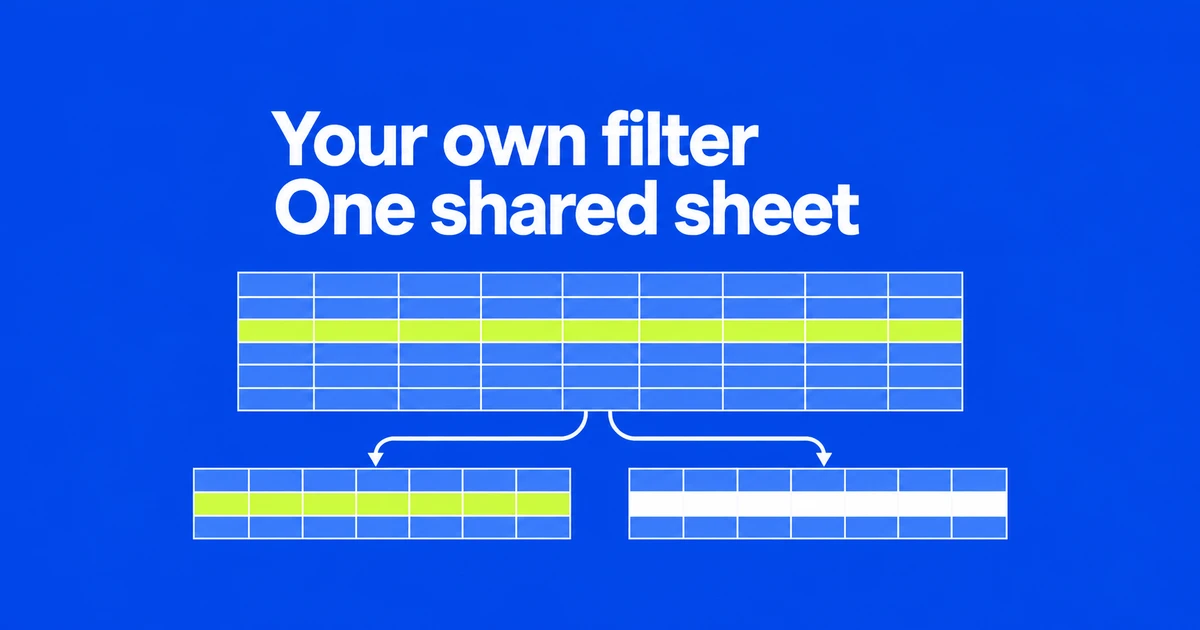
Open a filter view when you need to work through your assignments while someone else uses a different slice of the same Google Sheet. You can narrow the list and change its displayed order without making another spreadsheet. The result is useful for individual work queues, but it is still the shared task list: entering a new status changes the original cell.
In one community question, a group of 20 friends shared a board-game list. Filtering game names disturbed other people while they were entering information. Each person needed to find relevant games while keeping everyone’s contributions together. The fictional task list below shows how to handle that kind of shared work.
Build a work queue with a result you can check
Start with an ordinary cell range, A1:E7, in desktop Google Sheets. Row 1 contains the headings. The six task rows below use real date values, displayed in ISO format. Morgan wants unfinished assignments in deadline order. Jamie needs a different list from the same source.
| ID | Owner | Status | Deadline | Task |
|---|---|---|---|---|
| T-101 | Morgan | To do | 2026-10-30 | Review quote |
| T-102 | Jamie | In progress | 2026-10-28 | Collect materials |
| T-103 | Morgan | Done | 2026-10-26 | Distribute notes |
| T-104 | Morgan | In progress | 2026-10-29 | Check design |
| T-105 | Jamie | To do | 2026-10-31 | Adjust schedule |
| T-106 | Morgan | To do | 2026-11-02 | Final proposal |
- Select the complete table and open Data → Create filter view.
- In the Owner column’s filter, keep Morgan. At this stage, Morgan’s completed task also qualifies.
- In Status, keep To do and In progress.
- Sort Deadline ascending within this view. Do not switch to a separate whole-sheet sorting command.
- Choose Save View, give it a recognizable name such as “Morgan — open by deadline,” and save.
These steps use the desktop menus in Google’s filtering instructions.
The expected result is T-104, T-101, T-106. T-103 has the earliest deadline but is finished, so it is excluded. T-102 and T-105 belong to Jamie. That gives you two independent checks: the right three tasks are present, and their deadlines run from October 29 through November 2.
Jamie can create another view with the same status choices and deadline order, selecting Jamie as owner. Its expected result is T-102 followed by T-105. The two screens should disagree about which assignments they display. Making them match would defeat the purpose.
A view stores the selection, not a second set of tasks
A team can use the shared basic filter to discuss one agreed list during a meeting. If Morgan then narrows that filter to personal assignments, Jamie’s shared list changes as well. Saved filter views let each person reopen a separate selection, with its own range, criteria and sort order. Hiding a completed task this way leaves its stored status untouched. A sheet can hold several saved views, though only one can be applied at a time. Google’s filter model
For this example, owner and status belong in the same view. Opening an “unfinished” view after an “owned by Morgan” view is not a way to stack those two definitions. Give one view both conditions. Likewise, do not plan around combining a basic filter and a filter view over the same range; Google documents that combination as unsupported.
The shared basic filter can suit a discussion where everyone deliberately works from one agreed selection. Individual queues need a different arrangement. Naming views after their purpose helps: “Morgan — open by deadline” explains why the queue excludes Jamie and finished tasks. “My filter” does not tell the next person what the list contains.
Reopen a queue, or use a temporary view with read access
Use Data → Change view to reopen a saved view and Close to leave the current one. Changes to saved views are saved automatically. If a team uses an established view, duplicate it before experimenting with a different selection. Exiting a view and deleting its saved definition are different actions.
Suppose “Weekly review” is the team’s queue for every owner. Narrowing that saved definition to Morgan makes its name misleading. A separate named view keeps the weekly review’s selection intact while Morgan works through a personal list. Putting Morgan’s name on the view does not make its data private.
A person with view-only access can create a temporary filter view, but cannot save it. There is no need to request editing access merely to inspect a smaller selection. If the team needs a reusable named queue, ask an editor to save those conditions.
| Reader’s need | Arrangement |
|---|---|
| Find relevant rows once | A temporary view can serve a viewer. |
| Return to the same named selection next week | An editor saves a filter view. |
| Update a task’s actual status | File and range editing permissions must allow the change. |
Google Drive’s sharing roles govern access to the file. Opening a filtered view does not promote a viewer to an editor. In the example, seeing only Morgan’s tasks does not itself authorize changes to those rows.
Completing a task changes the shared record
Morgan finishes the design check and changes T-104 from In progress to Done. Assuming editing is permitted, that is an edit to the shared task. When the unfinished selection is evaluated with the new value, T-104 no longer qualifies. It has not been deleted or moved into a private completed list.
A team lead looking through the full list can find T-104 marked Done and see that Morgan has finished the design check. If Morgan had only changed the filter to hide that task, its status would still be In progress. Update the status cell when the shared list needs to tell colleagues that the work is complete.
Use task IDs when discussing this list with colleagues. “The second task” means T-101 in Morgan’s initial view and T-105 in Jamie’s. The discrepancy is an expected result of independent views. Referring to T-101 avoids giving an instruction whose target changes with the recipient’s screen.
To send a saved selection, apply the desired view and copy the browser URL. Google’s view links identify a view within the same spreadsheet. Combined with the file-sharing rules, that means the recipient still needs access to that file; the view URL is not a separate permission grant.
Nor does the link freeze today’s results. Morgan’s queue can contain three tasks in the morning and two after T-104 is completed. If meeting notes must preserve what was outstanding at the meeting, record the time, task IDs and their then-current statuses. A link to the live queue can accompany that record, but does not replace it.
A filtered link cannot restrict a client to one row
Now change the requirement: an external recipient should see only the quote-review task, not the other customers’ work. That is a data-access requirement. A filter view merely selects a way to display the spreadsheet they can access.
Protecting a range controls editing, and Google explicitly says protection should not be used as a security measure. Hidden sheets are not private compartments either; editors can unhide them. Google’s protection and hiding guidance
For this example, prepare a separate file containing only the rows and columns approved for that recipient. Read it through to check that tasks T-102 through T-106 and any internal-only columns are absent, then check who can access that file.
Check the range, the values and the order separately
If Morgan’s queue does not produce the expected result, begin with its range. The worked example covers A1:E7. After adding a task on row 8, check that the view includes that row before treating its displayed tasks as the complete queue. Do not assume every new row is automatically included in every existing view.
Next, inspect the actual owner and status values. A list that mixes “In progress” with “Started” has two labels for work someone might consider unfinished. The example selected only To do and In progress. Decide which labels belong in the selection; if the source needs standardizing, agree on those changes before editing the shared records.
Finally, check ordering separately from membership. Three correct task IDs in the wrong order point toward the deadline sort or the date values. This example assumes dates, not text such as “urgent,” mixed with blanks. Changing an owner condition will not repair inconsistent dates.
Try the fictional table with two people: one expects Morgan’s three tasks, the other Jamie’s two. Change the practice task T-104 to Done and inspect the unfiltered source for that same status. Morgan’s unfinished selection should now contain just T-101 and T-106.