Send a Gmail group email without exposing the address list
You’re emailing directions to every event attendee, and none of them should see the others’ addresses. When one of them hits Reply all, who gets that message?
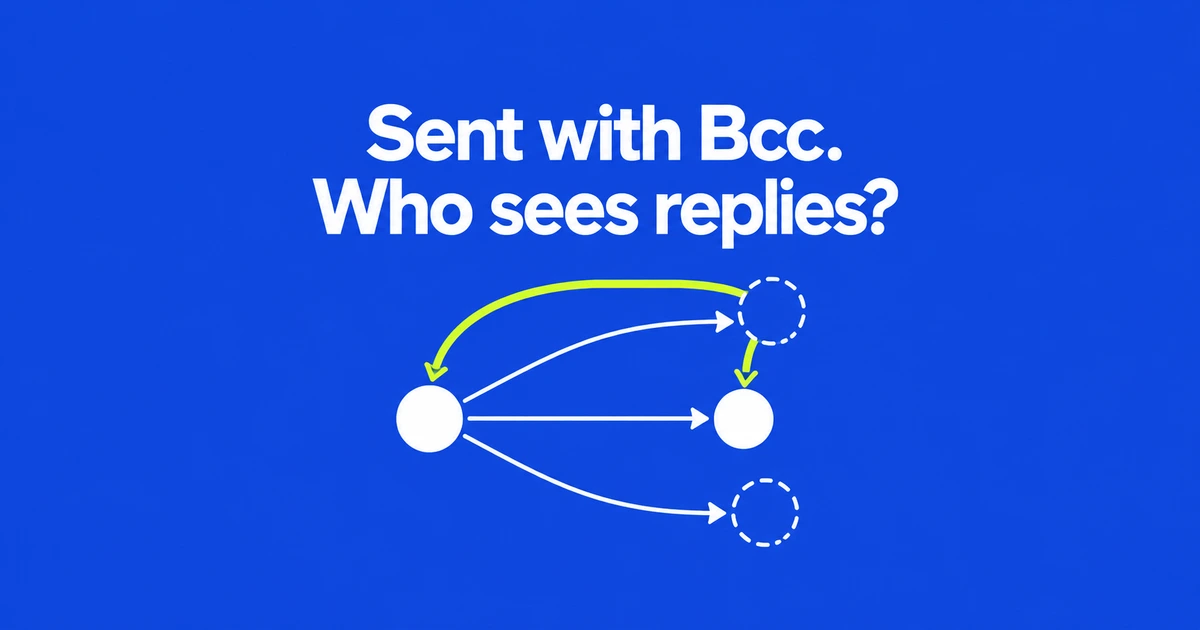
- Put recipients whose addresses should stay private in Bcc. A practical arrangement is your own public-facing address in To and the external mailing list in Bcc, with no unintended addresses left in Cc.
- Use Reply to send an individual question to the sender. Reply all also reaches the visible To/Cc recipients and reveals your sending address; it does not automatically include the other blind-copied recipients.
- Send a general correction as a new announcement to the current list. Answering one attendee's question does not update everyone who received the original invitation.
You may need every event attendee to receive the same directions without introducing them to one another by email. Bcc handles that initial distribution. It does not create a private group conversation in which every subsequent response reaches the original audience.
The follow-up is a real source of confusion. A Thunderbird user asked whether a Bcc recipient could reply all and reach everybody. The useful question for a Gmail sender is just as concrete: who should receive the announcement, and who should receive the conversations it starts?
Build the recipient list in the right fields
In Gmail on a computer, select Compose and open Bcc beside the recipient field. Add the private list there, separating addresses with commas. You can put your own address in To, provided it is an address you intend everyone to see. This is a useful arrangement, not a requirement to make Bcc work.
Check Cc as well as To. Both remain visible to Bcc recipients; only the other Bcc addresses are hidden. Someone using another mail service may not see an explicit indication that they received a blind copy. Google explains recipient visibility here.
For an event announcement, adding a colleague in Cc makes that colleague's address part of what attendees receive. Decide whether they should be publicly involved. If they only need an internal copy for their records, a separate message avoids making them part of attendees' reply-all conversations.
Before using an unfamiliar setup, try a harmless message between accounts you can inspect. Open the received message's recipient details rather than judging from your Sent folder. Then return to the real draft and check its fields again, keeping the test addresses out of the actual attendee list.
A contact label does not hide its members
Google Contacts labels help select a recurring audience. They do not determine whether addresses are public. In an ordinary Gmail draft, choosing a label in To expands its contacts into that field. Calling the label “Private attendees” does not turn it into Bcc.
Create the label in Google Contacts and add the relevant contacts. When composing the announcement, open Bcc first and select recipients for that field. If you already populated To with the external list, remove those entries and add them under Bcc. Inspect the expanded addresses before moving on to the message.
A contact can also contain more than one email address. Google says the label group uses only that contact's default address. A familiar display name therefore does not guarantee that you selected the intended work mailbox. Google Contacts documents labels and default addresses.
For a recurring event, compare the current registrations with the label's members. An unchanged recipient count can conceal a cancelled registration and a new attendee. When a company replaces its representative, verify the new mailbox rather than merely editing the old contact's display name.
Follow a reply through a small example
Gmail's Reply targets the sender. Reply all targets the sender and addresses in To and Cc. It does not discover the hidden distribution list. Google's reply instructions specify those fields.
Suppose an organizer puts a colleague in To and attendees Alex and Sam in Bcc. With no manually added recipients or group-address redistribution, the responses work like this:
| Action | Who receives it | Does Sam automatically receive it? |
|---|---|---|
| Alex chooses Reply | The organizer | No |
| Alex chooses Reply all | The organizer and the visible colleague | No |
| The colleague chooses Reply all | The organizer | No |
If Alex replies all about a dietary request, the colleague receives both the request and Alex's sending address. Alex was hidden on the original announcement but is now sending a message. That does not expose Sam or retrieve a list of everyone else who was blind-copied.
An organizer can ask attendees to use Reply for individual requests. The wording helps explain the intended workflow, but it does not disable Reply all. Whether to include the colleague publicly is therefore a decision to make before sending.
A team discussion has different needs. If everyone should respond to proposed changes and see one another's answers, hiding the participants may leave the organizer repeatedly relaying messages. Use the audience's need for shared discussion to decide whether Bcc suits the job.
The Reply all warning covers more than Bcc
Gmail warns when someone attempts to reply all while their address is absent from To and Cc. Google announced the feature on July 30, 2026, and updated its explanation in September: the warning covers blind copies, auto-forwarded messages and delegated email. It is available by default for personal Google accounts and Google Workspace customers, including Workspace Individual. The updated Google announcement describes the scope.
Seeing the banner does not prove that the sender secretly added you in Bcc. You might be working on mail delivered through another address. Compare the original recipient details with the account you are currently using to respond.
If the answer belongs only with the sender, switch to Reply and inspect the draft's recipients. If the visible participants need the response, Reply all can be appropriate. Check the From address too: the account sending the response will become part of that conversation.
The warning is a reminder about disclosure, not a promise of anonymity. Bcc also does not stop someone copying the message into a new email. Choose what the audience may receive before relying on the recipient fields to conceal anything inside the message.
When names or attachments need individual treatment
A common announcement can use a common attachment. Individual confirmations need more care. Attaching Alex's document and Sam's document to one ordinary email does not instruct Gmail to deliver each file only to its namesake.
For different files, prepare separate drafts and match each attachment to its recipient. Keep a shared map or schedule in the group announcement. Gmail lets you remove an attached file using the close control beside its name before sending. Google's attachment guide shows that control.
If the body needs personalized names, Gmail's Mail merge offers individual copies and separate reply threads. It is available with Workspace Individual, Business Standard or Plus, Enterprise Standard or Plus, and Education Standard or Plus. It is not included with every Gmail or Workspace account.
Enable it beside To in the composer. Attachments still accompany each recipient's copy; the feature does not select a different file for each person. Mail merge also cannot be used for replies, forwards or scheduled sends. If you started preparing the announcement inside a reply, move the intended announcement into a new draft. Check Google's eligibility and feature limits.
Send corrections without reopening private conversations
When an attendee asks about a changed start time, replying answers that attendee. To notify everyone, compose a new update with the current list and put the changed time near the beginning. Avoid carrying a private question or an old address list into quoted text.
Check cancellations, new registrations and bounced addresses before reusing the list. Someone who did not receive the first message needs a usable current announcement, not necessarily the private conversation that prompted the correction.
Bcc does not increase sending limits. For personal Gmail, Google says a limit error may appear above 500 recipients in one message or above 500 emails in a day. Invalid addresses and repeated delivery failures can also cause problems. Personal Gmail's limits and delivery guidance should not be read as a guarantee that every smaller mailing succeeds.
For ordinary Google Workspace Gmail web sending, the per-message limit is 2,000 addresses across To, Cc and Bcc, with no more than 500 external recipients. An external list of 600 does not fit simply because it is below 2,000. Daily limits use a rolling 24-hour period; trial accounts and SMTP or API sending have different limits. Google documents the account and sending-method distinctions.
If you immediately notice that you put the private list in To, use Undo while it remains available. Gmail offers cancellation periods of 5, 10, 20 or 30 seconds. Sending a corrected Bcc version later does not remove addresses from an already delivered message. Google's Undo Send instructions cover that short cancellation window.
When an explanation is needed after an exposure, check its recipient fields and quoted content so the correction does not repeat the disclosure. Explain the mistake to the affected recipients and provide the contact route for future questions. A request to delete an earlier copy is not confirmation that it has disappeared.