Git LFS or GitHub Releases? Choose Where Large Files Belong
A designer needs the editable source file, and your users need the finished installer. Which of those belongs in Git LFS, and which goes on a Releases page?
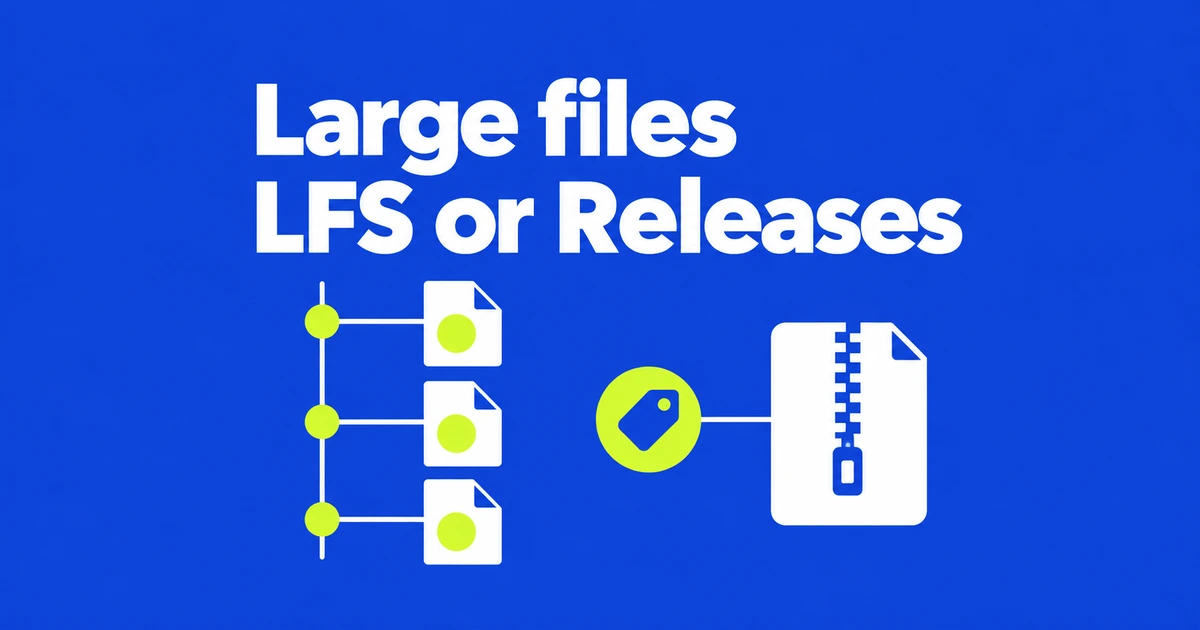
- Use LFS for large versioned source assets and Releases for finished downloads.
- Storage grows with whole-file versions; downloads count against the repository owner.
- Deleting a tracked file or pruning local copies does not purge GitHub’s remote LFS objects.
Working assets and finished downloads
Use Git LFS for large working assets whose versions must follow your commits. Use GitHub Releases for finished binaries that users download to install or run. A design source and an installer can be equally large while needing entirely different histories.
Regular Git uploads to GitHub warn above 50 MiB and are blocked above 100 MiB. Browser uploads have a separate 25 MiB limit. Switching from the website to the command line can resolve the browser limit, but does not remove the regular-Git limit.
| File | Suitable destination | How someone uses it later |
|---|---|---|
| Code, configuration, small documents | Regular Git | Check out the version associated with a commit |
| Large editable source assets | Git LFS | Retrieve the object identified by the commit’s pointer |
| Finished installers or distribution packages | Release attachments | Download the asset for a particular release |
| Disposable generated files | Ignore rules when tracking is unnecessary | Regenerate them in the appropriate environment |
LFS stores a pointer in Git and the large object separately. The pointer identifies the asset version associated with that commit. To open the asset, a collaborator needs both the commit and the corresponding LFS object.
LFS has its own per-file limits: 2 GB for Free and Pro, 4 GB for Team, and 5 GB for Enterprise Cloud. Those limits answer whether a particular file is accepted, not how much free storage an account receives.
Versions consume storage; downloads consume bandwidth
Under GitHub’s LFS billing rules checked on October 26, 2026, Free, Pro, and free organization accounts include 10 GiB each of storage and download bandwidth. Team and Enterprise Cloud include 250 GiB each. Current billing is metered; old prepaid data-pack advice is no longer the basis for a purchase.
Each changed version uploads the entire file. As a hypothetical example, three distinct 1 GiB versions occupy 3 GiB even if the working folder contains only the latest one. Downloads, including those by GitHub Actions, count against the repository owner’s bandwidth; uploads do not use that download allowance. A zero-dollar budget blocks overages, whereas deleting the budget removes the spending limit.
Remote LFS storage and local copies
In a 2022 Git LFS project discussion, a user reported remaining quota usage after deleting large files and cleaning history. The current GitHub removal documentation explains the mechanism: remote LFS objects remain after their files have been removed from Git history.
| Operation | What changes | What it does not automatically do |
|---|---|---|
| Commit a file deletion | The new tree omits the file | Purge older versions or remote LFS objects |
| Remove an LFS tracking rule | The rule for subsequent file handling | Ask GitHub to delete existing stored objects |
| Run git lfs prune | Eligible local LFS copies | Reduce GitHub’s remote-object storage |
| Remove remote objects | Data retained on the service | Erase storage usage already accrued that month |
For a local disk problem, prune offers a preview that reports candidates without deleting them:
git lfs prune --dry-run --verboseWith default retention settings, prune preserves objects needed by the current checkout, stashes, recent commits, unpushed commits, and other worktrees. Its preview can therefore show fewer candidates than the total local LFS cache contains. That retained data supports work you may still need locally.
GitHub documents deleting and recreating the repository to remove its LFS objects, or contacting Support for help purging removed objects when repository deletion is not possible. Deleting a repository also affects project records such as issues and stars. Treat that as a project migration with retained data and records to account for, rather than a routine quota-reset button.
Remote removal also does not retroactively recalculate storage already accrued during the month. Conversely, a new monthly accounting period does not automatically delete stored objects.
Track a new asset before its first commit
Install the LFS client separately from Git, using the installer or package manager for your operating system. Then initialize its Git integration. Inside the intended repository, this example tracks a new PSD source that has not already entered Git history:
git lfs install
git lfs track "*.psd"
git add .gitattributes design/cover.psd
git lfs ls-files --size
git diff --cached --stat
Replace design/cover.psd with your real path. The quoted pattern reaches LFS without the shell first expanding it into filenames. Tracking writes a rule to .gitattributes; commit that file so collaborators and fresh clones receive the same rule.
The LFS listing shows tracked paths and object sizes. Review the staged changes before committing, including any unrelated work that was already staged. When the selection is correct:
git commit -m "Track design source with Git LFS"
git push
This push assumes that the repository’s remote and the current branch’s upstream are already configured. Read any LFS upload error before treating the operation as complete. Collaborators also need LFS support to obtain the working assets, rather than merely their pointers.
A deletion commit does not remove the earlier large file
Ignore rules do not affect files Git already tracks. If commit one adds a large file and commit two deletes it, pushing both still sends a history containing that file. Likewise, adding an LFS tracking rule later does not retroactively convert the original blob.
For an asset that belongs under version control, convert the relevant history to LFS. For a disposable generated file, remove it from that history instead. These are different decisions from deleting the current working copy.
The migrate command defaults to the current branch and commits that do not exist on any remote. First inspect the summary. Only run the import after choosing that scope, preserving a repository and asset copy, and committing or stashing unfinished work:
git lfs migrate info
git lfs migrate import --include="*.psd"
The first line reports sizes; the second rewrites eligible PSD objects as LFS pointers. Migration normally refreshes remote references, but it does not automatically push the rewritten history. Examine the resulting paths and commits before publishing them.
If a converted asset opens as pointer text, run git lfs checkout to populate missing files or matching pointers from objects already stored locally. It leaves modified files alone. Checkout does not download missing objects, so it cannot restore an asset whose content is absent from the local LFS store.
Already-shared history needs a coordinated migration. Adding --everything expands the references considered, and rewritten commits receive new identifiers. A blanket force-push can replace history other people already use. The existing-file migration guidance therefore involves history conversion, not just another track command.
Publish the finished asset, then check the download
Releases associate distribution files with Git tags. You can retain editable sources in LFS while attaching the finished package to a release. A release can hold up to 1,000 assets, from which users download the package they need.
In the web release editor, open Releases → Draft a new release, select a tag or create one against the intended branch, add a title and notes, and attach the binaries. Save a draft while reviewing them; publish once the assets are complete. If immutable releases are enabled, published assets cannot subsequently be added, replaced, or deleted.
The automatically generated Source code ZIP is not the installer you attached. Generated ZIP and tar archives contain LFS pointers by default. A repository administrator can enable Include Git LFS objects in archives under Settings → Archives. The objects need committed .gitattributes rules, and downloads of archives containing them count toward LFS bandwidth.
For example, linking Source code ZIP to a designer can deliver a small pointer where they expected an editable original. Linking the completed package gives an end user a different, intentional deliverable. Choose the link according to what the recipient needs to open, rather than assuming every download on a release page contains the same material.
Download the file linked in your instructions and inspect its contents. Confirm that required assets are actual files and that the distribution package is the intended version.