GitHub Template or Fork? Choose Before You Need Upstream Updates
You started your app from a template, and now the original project ships a better build workflow. Can you still pull it in, or should it have been a fork?
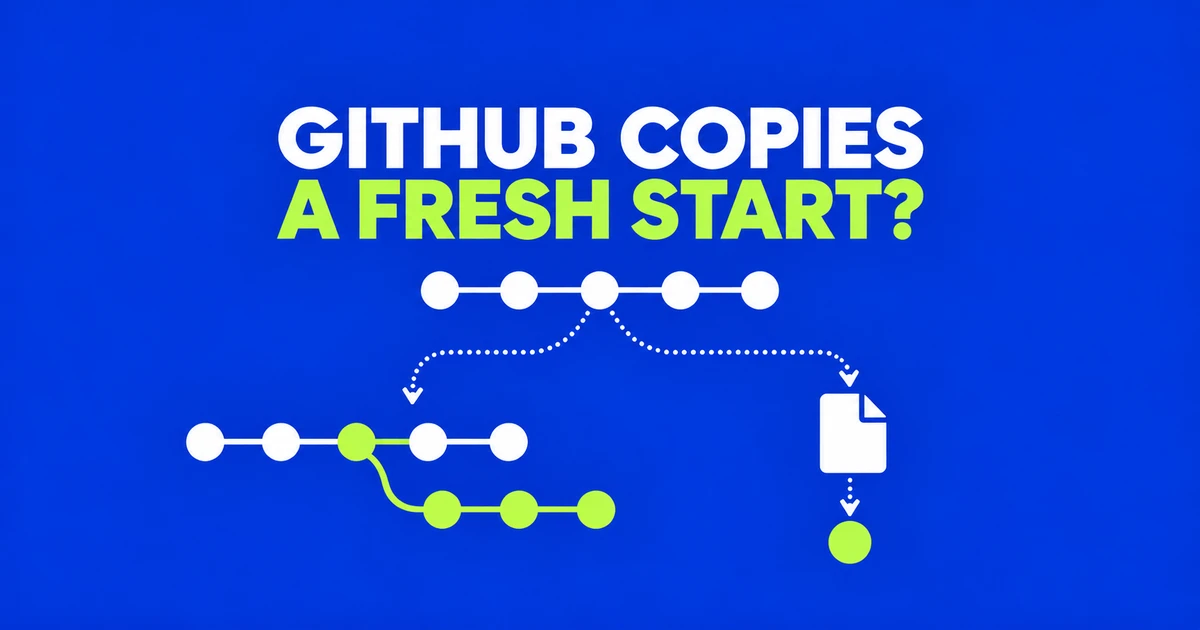
- Use a fork when your work will keep following the original project or return changes through pull requests.
- Use a template for a new project with a fresh history; later template improvements need their own integration work.
- Clone the repository you intend to work on locally. A normal git clone does not create a fork on GitHub.
When a starter project needs its first upstream update
A template is convenient until the starter project changes something you want. Your application already has its own name, configuration and commits, while the original has a better build workflow. Adding the original as a remote lets Git fetch its commits, but it does not turn your template repository into a fork with shared history.
That problem appears in a Reddit discussion about pulling updates from a GitHub template. The author tried bringing changes into an existing template-based project and reported an unrelated-histories error. The generated project and the starter had begun separate histories, even though the project initially used the starter’s files.
GitHub describes a generated template repository as starting with a single commit, while a fork includes the parent's commit history. Choose the template for an independently developed application. Choose the fork for a modified version that will keep receiving upstream changes, or for a contribution you want the original maintainers to review.
| Operation | Result | Typical next step |
|---|---|---|
| Fork | Your own GitHub repository connected to the original, retaining history for the branches copied. | Clone your fork, make a change and submit a pull request. |
| Use this template | A new repository based on the template's files and directory structure, with fresh history. | Clone the new project and develop it independently. |
| git clone | A local copy of the selected remote repository. | Inspect, run or edit the code on your computer. |
Cloning belongs in either workflow. It is also enough to start local work on a team repository you already have permission to update. You do not need another hosted copy merely because you want files on your laptop.
Creating a template project or a fork
For a new template-based project, open the source repository, choose Use this template, then Create a new repository. Select the owner, repository name and visibility. You need read access to the template.
The creation form can include just the default branch or all branches. Including all branches does not preserve their original shared ancestry: GitHub says branches generated from templates have unrelated histories and cannot be merged or used for pull requests between those branches in the normal way. Bring across other branches when you need their contents, rather than expecting a copy of the original branching workflow.
For ongoing contribution, use the original repository's Fork button instead. Select your account or an eligible organization and decide whether to copy only the default branch. GitHub's fork workflow creates your hosted copy first; cloning is the following step.
Visibility may settle the choice before you start. Forks of public repositories are public, and you cannot change a fork's visibility independently. Private forks also depend on access and owner or organization policy. A template's creation form offers visibility selection for the new repository, which can suit an independently developed private project based on a public starter.
Give origin and upstream different jobs
Install Git and configure GitHub authentication before pushing. After creating your fork, copy its HTTPS URL from Code. Replace the example account and repository names below, and work in a location where the destination directory does not already contain another project.
git clone https://github.com/YOUR-ACCOUNT/project.git
cd project
git remote -v
A normal clone downloads the repository and its history. Its usual origin remote points to the URL you cloned. If that URL belongs to the original owner, cloning has not created a fork under your account or granted permission to push there. For the contribution workflow here, origin should point to your fork.
Register the original as another remote, conventionally named upstream. If that name already exists, inspect its URL rather than adding it again.
git remote add upstream https://github.com/ORIGINAL-OWNER/project.git
git remote -v
This follows GitHub's remote configuration: fetch the original project's changes from upstream and push your work to origin. A push URL appearing in the remote listing is an address, not evidence that your account can write to it.
From a local edit to an upstream pull request
Create a working branch before editing. In this example, change and save README.md after the first command, then inspect and commit that file. Use the real filename if your correction is elsewhere.
git switch -c fix-readme
# Edit and save README.md before continuing.
git diff -- README.md
git add README.md
git commit -m "Fix README typo"
git push -u origin fix-readme
The push publishes your branch in your fork. It does not change the original repository. To request that change, open the pull request comparison across forks. The base repository and branch receive the proposed changes; the head fork and compare branch supply them. For this example, choose the original project's target branch as base and your fork's fix-readme as the source.
Read the displayed file changes and explain the correction before creating the PR. If the comparison targets your own fork instead, it will not send the request to the original maintainers. If push fails earlier, inspect origin and the authenticated account first: a branch that never reached your fork cannot yet be selected there.
Keep the hosted fork and local checkout current
GitHub offers web and command-line synchronization. On your fork's page, Sync fork followed by Update branch updates the hosted branch. Conflicting changes can require a pull request to resolve them. Your local working directory is not updated by clicking that button.
To integrate upstream changes locally instead, save and commit unfinished work as appropriate before switching branches. The following assumes that both relevant default branches are named main and that upstream is already configured. Substitute the actual branch names when they differ.
git status
git fetch upstream
git checkout main
git merge upstream/main
Fetching downloads upstream commits; merging applies that history to your selected local branch. Resolve any conflicts and run the project's checks. Once the result is ready, git push origin main updates your hosted fork as well. Fetching alone does not perform either the merge or the push.
If you already synchronized on the website, fetch from origin and merge its updated branch into local main instead: git fetch origin, then git merge origin/main while main is checked out. Local changes can still conflict. The website's completed sync describes the hosted repository, not every checkout on your computers.
Bring selected improvements into an existing template project
A project that already started from a template can still use an upstream improvement without rebuilding its entire history. For example, compare an updated CI file, adapt the relevant change to your application and commit that edit in your own repository. Registering upstream supplies the source for comparison; it does not restore the common ancestry omitted at template creation.
After adding the original repository as upstream, fetch its current state and compare the endpoints. Replace main and the example workflow path with the original's actual branch and file.
git fetch upstream
git diff --name-status HEAD upstream/main
git diff HEAD upstream/main -- .github/workflows/ci.yml
The first diff command lists changed paths and their change types. Use that list to locate the relevant configuration, then use the second command to read its line changes. Neither command edits the working files; apply the selected improvement in your editor.
Git diff can compare two commit endpoints. Here, it shows differences between your current commit and upstream's current main, not only changes made to the template since you generated your project. Your renamed application, customized paths and other local decisions can all appear in that comparison.
The displayed additions and removals describe changing your current content into upstream's content. Applying everything could undo your customization. If the useful improvement is a new test command, adapt it to your project's package scripts and directory layout, run the checks, then commit the result.