Git Restore, Reset and Revert: What Survives an Undo?
The last commit mixes a login fix with an unrelated test cleanup, and you want two commits without losing either change. Which of Git’s undo commands takes it apart safely?
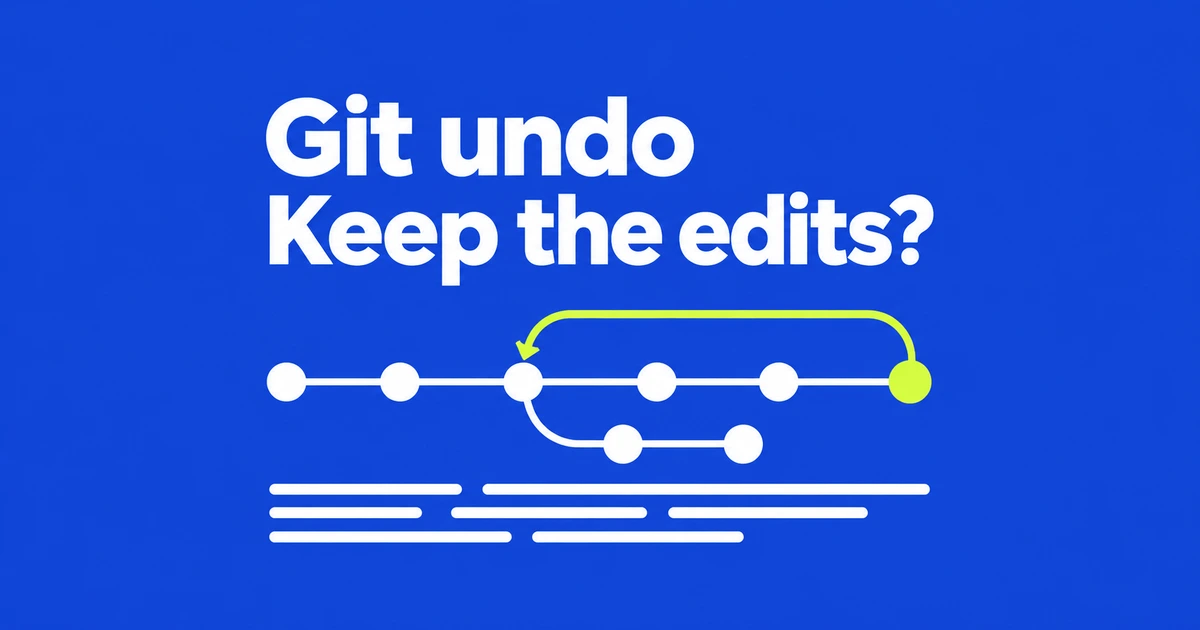
Start with the result you want to keep
Suppose your last commit contains a login fix and an unrelated test cleanup. You want two commits, but all the code is useful. Restoring those files to an older version would remove work you intended to keep. Resetting the private commit lets you assemble the changes again. If a faulty login change is already on a team branch, a revert records its removal as a new commit that other contributors can receive normally.
The distinction becomes easier when you name three things: the working tree contains your files, the index contains the content selected for the next commit, and HEAD identifies the currently checked-out commit. An undo command may change one, two or all three. Git's status documentation describes the differences it reports between these states.
| Task | Command family | Expected result |
|---|---|---|
| Take a file out of the next commit | restore --staged | Edits remain in the working file. |
| Discard unwanted file edits | restore | The file is overwritten from the chosen source. |
| Rebuild unpublished commits | reset --soft or --mixed | The branch moves; working files stay. |
| Reverse a shared change | revert | A new inverse commit follows existing history. |
The examples below assume an ordinary branch, no merge or rebase in progress, and a non-merge commit with a parent. HEAD~1 names that first parent. It is not a suitable shortcut for undoing a repository's only commit or deciding how to reverse a merge.
Read both staged and unstaged changes
git status
git diff
git diff --staged
git log --oneline -5
Run these before choosing an undo operation. A file can appear in both the staged and unstaged sections of status. For example, you add the login fix and then adjust an error message. The index holds the first version; the working file includes the later adjustment. The ordinary diff shows the later adjustment, while the staged diff shows what the next commit would contain.
That example gives two different requests. “Unstage this file” means keep both edits but remove the first version from the next commit. “Discard my latest edit” means replace the working file with the version already staged. Using the same command for both would lose or retain the wrong content.
If unrelated unfinished work needs to be set aside, git stash push -u -m "before-undo" saves tracked changes and untracked files. The -u option does not include ignored files. Inspect git stash list and git stash show -p -u before proceeding. Later, git stash apply applies the saved work without removing the entry; conflicts can still occur. These behaviors are documented in the stash reference.
Unstage a file without discarding it
git restore --staged -- src/login.js
git status
git diff -- src/login.js
Replace the path with your own file. This restores the index entry from HEAD and leaves the working file alone. Previously staged edits become available to stage again. If you had added a new file, unstaging can return it to an untracked state rather than delete it.
Removing --staged changes the operation substantially. git restore -- src/login.js overwrites the working file using the index by default. It can discard edits made after your last add, while keeping the version you already staged. It does not invariably restore the last committed version. The source and destination defaults are explicit in the restore manual.
When you really intend to discard both staged and unstaged changes in one file, git restore --source=HEAD --staged --worktree -- src/login.js specifies both destinations. Read the diffs first: this operation replaces content. A named path also makes the scope easier to assess than a dot covering a whole directory.
Soft versus mixed reset for a private commit
Return to the login fix and test cleanup committed together. Immediately after that commit, with no subsequent edits, git reset --soft HEAD~1 moves the branch to its parent while leaving the index and working files intact. The changes from the undone commit are staged. You can create another commit with a different message or adjust the selection first.
A mixed reset gives you a different starting point. It resets the index to the target commit and leaves the files untouched, so you can stage the desired work again. Run the following commands one at a time. After reset succeeds, inspect the login diff; before committing, check that the staged diff contains only that intended fix:
git reset --mixed HEAD~1
git diff -- src/login.js
git add -- src/login.js
git diff --staged
git commit -m "Fix login validation"
The test cleanup remains in the working tree for another commit. If both tasks occupy the same file, git add -p lets you select individual hunks instead of the entire file. Splitting a commit this way changes the history you will publish, so use it for work that has not become somebody else's starting point.
Suppose you also staged a help-text change after committing the login fix and test cleanup. A soft reset leaves that help edit in the index alongside the changes from the undone commit. Committing immediately would combine all three tasks. The reset reference explains why: soft reset preserves the existing index and working tree.
Hard reset overwrites working files to match its target and can affect untracked files that obstruct that operation. It is unsuitable when your goal is to retain the code. Also, a path-based command such as git reset -- src/login.js only changes the index; it does not move the branch like a commit-based reset does.
Revert a shared commit without replacing history
Imagine A is followed by B, which changes login validation, and C, which updates help text. Reverting B adds a new commit D on top of C. It applies the inverse of B's change; it does not restore the entire project to A. Independent help edits can remain. If C also changed B's code, the inverse may conflict or require a deliberate adaptation.
Start from a clean working tree and identify the actual commit. In the following commands, BAD_COMMIT is a placeholder for its hash. Inspect the selected change, create its inverse, then inspect the resulting commit:
git show BAD_COMMIT
git revert BAD_COMMIT
git show --stat HEAD
Save the commit message when the editor opens, explaining why the change is being reversed. Review the full resulting diff and run the project's relevant tests before using your normal push or pull-request process. Azure Repos' undo guidance explains why retaining shared history keeps this compatible with other contributors' existing work.
A successful revert is a source-control result. It does not itself redeploy a running service or undo database records already changed by an application. If the project uses a deployment pipeline, the new commit still has to go through that pipeline.
Finish or abort a conflicted revert
If Git stops with conflicts, open the files identified by status and construct the result that should remain. In the example, removing B's faulty validation should not silently erase a later correction from C. Once the conflict is resolved, stage the affected file and continue:
git add -- src/login.js
git revert --continue
Use git revert --abort to cancel the operation and return to its starting state. Do not substitute --quit: that forgets the operation's bookkeeping rather than performing the same restoration. The revert reference distinguishes these options. A merge commit also needs a decision about the mainline parent and future merging behavior; blindly adding -m 1 to this example does not make that decision for you.
Recover a displaced commit before moving anything else
After an accidental reset, use git reflog to look for the earlier commit. Reflogs record reference movements in this local repository. Inspect a candidate with git show OLD_COMMIT, substituting its real hash, then use git branch rescue-before-reset OLD_COMMIT to give it a branch name without overwriting current files. You can then choose how to bring the required changes back. The reflog manual explains the record you are searching.
This can locate commits still available to Git. It cannot promise recovery of every edit that was never committed or stashed. GitHub's undo examples call out that limitation for discarded local changes. If the commit is present but unfinished edits are missing, an editor's local history or a separately saved copy may be the remaining source.