Git Merge, Rebase, or Squash: What Stays in Your History?
You want to fold a PR’s review fixes into one clean commit, but a teammate has already branched off those commits. Which choice keeps their work intact?
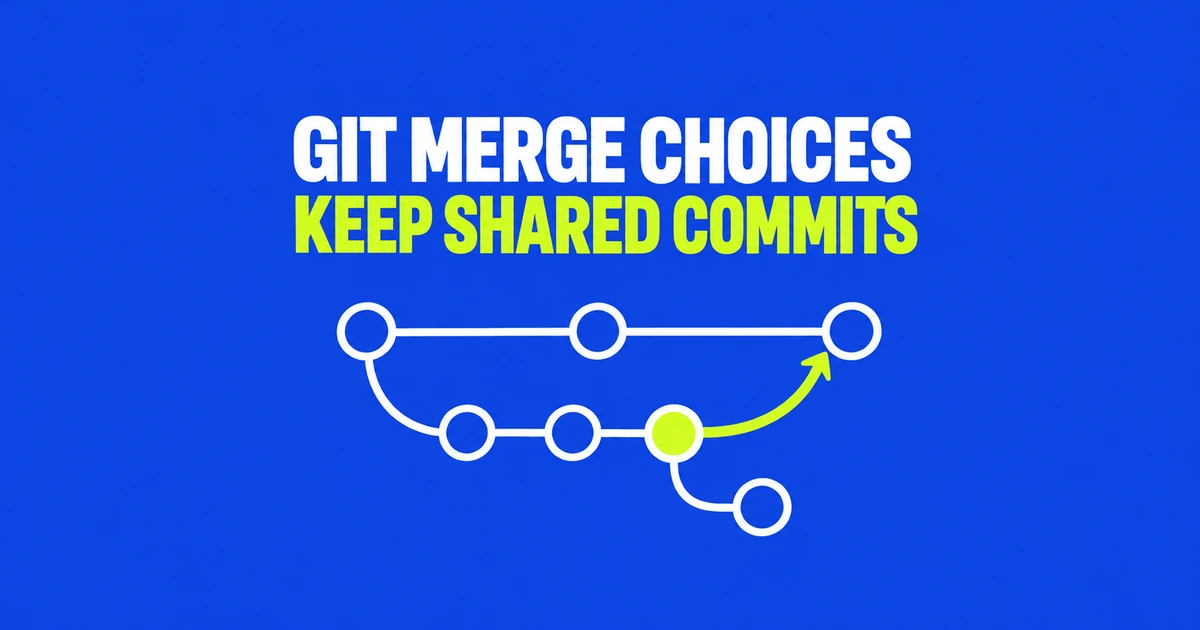
- If a teammate has built on your commits, merging main into your feature branch lets you keep those commits intact. For private changes nobody else is using, rebase can replay your work on the newer main.
- When the PR is finished, decide what a future reader should find in main. Squash can collect one feature’s review fixes into a single commit; a merge commit keeps the individual commits and their join point.
- After squashing a completed PR, start the next task from the updated main branch. Reusing the old head can bring previously squashed commits into the next PR.
Cleaning up review commits becomes a shared decision once a teammate has based new work on them. Rebasing creates replacement commits, while the teammate’s branch still descends from the originals. If you only need the latest main in your feature branch, merging it in keeps that shared history intact.
You can make a separate decision when the finished PR enters main. A team might merge main into its shared feature branch during development, then squash the completed feature into one commit for readers of main. The follow-up work should start from that updated main; continuing on the old feature branch can bring the earlier PR’s commits along again.
Choose the unit of work you want to keep
Imagine a login feature built through six commits: an initial implementation, spacing fixes, extra tests, and review corrections. Those six commits describe how the author reached the result. If the change someone will look for later is “add login,” one squash commit can express it well.
Now imagine three deliberate commits: extracting a shared authentication function, adding login, and updating documentation. Someone investigating the function refactor may want to read it separately. Squashing everything would make that reader inspect a larger combined change. The appropriate choice depends on what the commits explain, rather than their count.
| History you want | Integration choice | Tradeoff |
|---|---|---|
| Original commits and a visible join point | Merge commit | Branching remains visible. |
| Individual changes in a linear sequence | Rebase and integrate | Replayed commits have new identities. |
| One completed change per PR | Squash merge | Intermediate commits do not become separate commits on main. |
GitHub exposes these integration choices through its PR merge menu. Its rebase option creates new SHAs; it does not preserve the feature branch’s original commit identities. See GitHub’s PR merge reference. Repository settings control which choices are available. A protected branch requiring linear history needs squash merging, rebase merging, or both enabled, as described in GitHub’s rebase configuration guide.
Squashing cannot turn an unfocused PR into a coherent feature. Combining login changes with an unrelated billing-policy change produces a commit that still contains two separate decisions. Splitting those PRs first gives each a useful description, whether the team subsequently merges or squashes them.
Same files, different ancestry
Consider this illustrative history. Main advances from A to B while a feature adds X and Y. The letters represent commits, not actual hashes. Assume the feature commits are nonempty and their changes are not already present on main.
A---B       main
 \
  X---Y     feature
Merging feature into main creates M with B and Y as parents. Rebasing feature onto B replays its changes as X′ and Y′. Main can then advance to Y′. A squash instead records the combined result as S, whose parent is B. These are different relationships even when the resulting files match.
Merge:
A---B-------M   main
 \         /
  X-------Y

Rebase, then advance main:
A---B---X′---Y′  main

Squash:
A---B---S        main
The Pro Git rebase chapter explains replaying changes, while its branching and merging chapter explains joining histories. A rebase does not inherently collapse X and Y into one commit. Interactive rebase can combine commits using squash or fixup, but that is an additional editing operation covered in Rewriting History.
A straight graph does not prove that a rebase happened. If main had stayed at A, an ordinary fast-forward merge could simply move it to Y. No extra merge commit would be needed. Also, local git merge --squash feature prepares the working tree and index without making a commit; you review the result and commit it yourself. That differs from completing a squash through GitHub’s button. Both behaviors are documented in git merge.
Bring main into your feature branch
For an unfinished feature, bring the latest common code into that feature branch. This example assumes a remote named origin, a normally tracked main branch, and an existing local branch named feature. Commit or separately save unfinished edits first so the working tree is clean.
git status
git fetch origin
git switch feature
git log --oneline --graph --decorate HEAD origin/main
Fetching updates remote-tracking references such as origin/main; it does not automatically integrate those changes into feature or advance your local main. The log command displays the histories reachable from HEAD and origin/main together, so you can see where they diverged.
To retain the feature’s existing commits, run git merge origin/main. To replay your private feature commits on the fetched base, use git rebase origin/main instead. These are alternatives for this example, not consecutive steps.
The rebase changes feature. It does not put the feature into main or complete its PR. Using origin/main after fetching also avoids accidentally rebasing onto an outdated local main. The rebase manual describes which commits are replayed and how the current branch is updated.
Why a shared branch changes the decision
Suppose a teammate already built Z on your original Y. Replacing X and Y with X′ and Y′ leaves their Z attached to the old chain. Your history looks tidy, but their next integration must reconcile those two chains. This is why rewriting an upstream branch can create work for everyone downstream.
One r/learnprogramming question describes force-pushing over a teammate’s branch and recovering from that teammate’s local copy. The author wanted to understand Git beyond remembered commands. Replacing a remote branch with your local history can also remove a colleague’s commits from that branch’s ancestry.
After rebasing an already-pushed branch, a normal push may reject the update because the old remote tip is no longer an ancestor of your new tip. The --force-with-lease option compares the remote tip with an expected value before allowing replacement. It cannot check a teammate’s unpublished work. When the expected value is omitted, background fetches can update the remote-tracking reference it relies on and weaken that protection. See the push documentation.
For a shared feature branch, merging main preserves the commits colleagues are using. If your team allows rebasing individual PR branches, establish whether anyone has built on yours before rewriting it.
The next PR after a squash
After main receives S, the original feature branch still points through X and Y. Adding Z there can make the next PR include commits that were already squashed. GitHub documents this behavior for long-running head branches, including the possibility of resolving the same conflicts again. It does not mean every line of code will necessarily be added twice.
Add Z to the earlier example and the relationship looks like this. S contains the combined changes from X and Y, but the two branches still share A as their merge base.
A---B---S       origin/main
 \
  X---Y---Z     feature
With the same origin/main and feature references used above, fetch the remote state and inspect the ancestry before moving further work:
git fetch origin
git merge-base origin/main feature
git log --oneline origin/main..feature
merge-base reports a common ancestor’s hash. The two-dot log range selects commits reachable from feature but not origin/main: X, Y, and Z in this diagram. Seeing X and Y in that list does not establish that their code is missing from main. Separate the changes already represented by S from the remaining work in Z before transferring the follow-up.
For a finished feature, begin the next task from the updated main instead. If no follow-up commits have already been added to the old feature and your working tree is clean, choose an unused branch name:
git fetch origin
git switch --no-track -c login-followup origin/main
The new branch starts with S already in its ancestry. The --no-track option avoids making origin/main its upstream. This creates and switches to a branch without deleting the old one, following the switch documentation.
If you already wrote Z on the old feature, creating this branch does not transfer Z. Moving that remaining work is a separate operation. For a branch intentionally kept alive across many integrations, preserving ancestry with merges may fit the workflow better than repeatedly squashing it.
Finish the operation that actually stopped
A rebase replays changes sequentially and can stop at more than one commit. When it stops, inspect git status, edit the conflicted files, remove the conflict markers, and stage each resolved file with git add followed by its actual path. Then run git rebase --continue. GitHub’s rebase conflict guide describes this process.
Use git rebase --abort to abandon an in-progress rebase. git rebase --skip omits the current patch; it is not a way to keep the same change while silencing an error. For a normal merge conflict, stage the resolved files and use git merge --continue, or cancel the in-progress merge with git merge --abort. Pre-existing uncommitted edits can prevent a merge abort from fully reconstructing the starting state, which is why the example starts clean.
Finally, run the affected behavior. If main renamed an authentication argument while your feature changed its caller, the resolved code must satisfy both changes. A successful login, invalid credentials, and an error response exercise different parts of that combined behavior. Completing the Git operation alone does not establish that the feature still works.