Excel cuts off columns—or makes the text too small
Your report can run over several pages, but each row needs to stay together. How do you stop Excel from putting its last columns on separate sheets of paper?
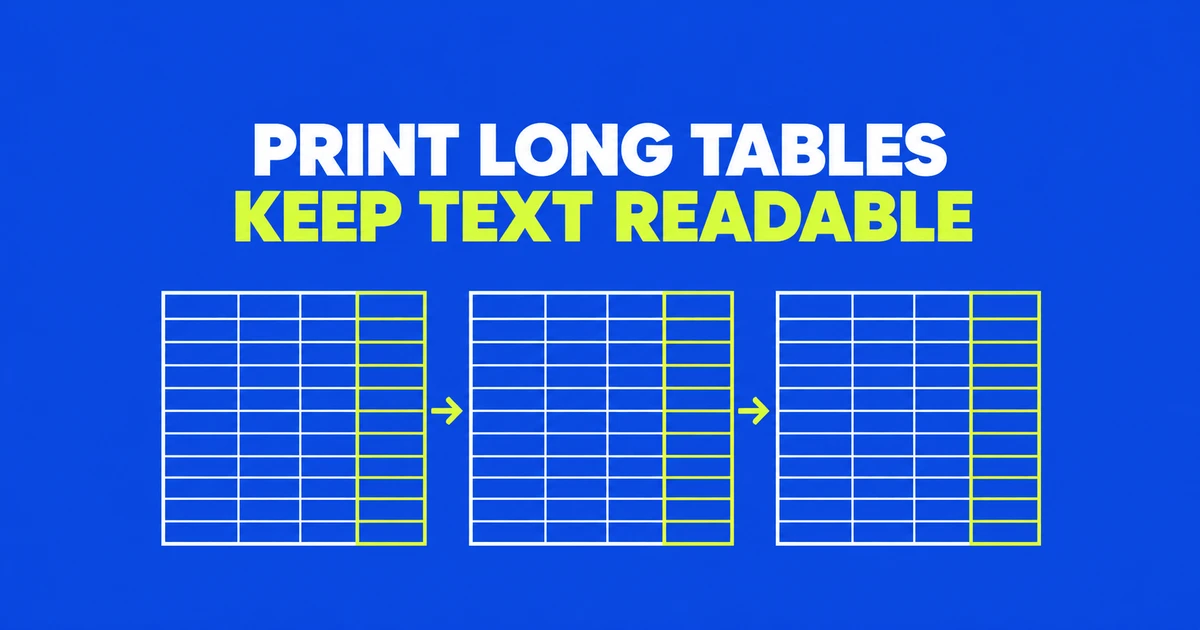
A transaction list usually needs every column on the same page, not every transaction on the same sheet of paper. In desktop Excel for Windows, open Page Layout and set Width to 1 page and Height to Automatic in the Scale to Fit group. This removes the one-page height constraint, so the list can continue down through additional pages.
The setting does not guarantee full-size text. Excel may still need to shrink an unusually wide table. What it removes is the extra pressure to squeeze a long list vertically. A user asking how to make a one-page table readable on r/excel illustrates that conflict: fitting everything and making it larger can require more space than one sheet provides.
Choose a page constraint that matches the document
A short approval form and a monthly transaction export should not inherit the same print settings. For the form, fitting one page wide by one page tall can be appropriate. For the export, leave the height open. Microsoft’s one-page instructions specify both dimensions; its worksheet scaling guide explains the alternative with Automatic height.
| Document | Setting | Trade-off |
|---|---|---|
| Short summary | 1 page wide, 1 page tall | More content may mean smaller text. |
| Long transaction list | 1 page wide, Automatic height | The report can occupy several pages vertically. |
| Department packets | Adjust to a percentage, then manual breaks | You must check the width again after changing scaling modes. |
Press Ctrl+P after choosing the settings. Inspect the last column as well as the first page’s overall shape. A page count alone cannot tell you whether a report is usable: long descriptions, repeated headings and larger row heights all consume space.
Set the report’s print area
Consider a sample worksheet with the report in columns A:H and calculation notes in J:L. Row 1 contains the title, row 2 the period, row 3 the field names, rows 4–123 the transactions, row 124 the total and row 125 a note. Its intended print area is A1:H125.
Select that rectangle, then choose Page Layout → Print Area → Set Print Area. The calculation notes no longer need to fit beside the report. Keep the total and explanatory note inside the selection; excluding them can produce an attractive page with incomplete information.
The print area is saved with the workbook. When next month’s list grows, compare the last record with the saved range and extend or redefine it if necessary. Separate, nonadjacent print areas are printed separately, so selecting two distant tables does not arrange them together on one page.
For a one-off extract, File → Print also offers Print Selection. For a complete report, make sure that a leftover cell selection is not the output you have chosen. Microsoft’s printing instructions distinguish the active sheets, selected cells and defined print areas, including an option to ignore a saved print area.
Make page two understandable on its own
Page Layout → Print Titles opens the settings for repeated labels. On the Sheet tab, enter $3:$3 in Rows to repeat at top for the example’s field names. To include the title and reporting period too, use $1:$3. Confirm the setting and inspect the second page in print preview.
Repeating three rows uses more room than repeating one. For a continuous packet, the field names may be enough. If the pages will be handed to different people, the period and title may need to travel with every page. That decision changes the amount of space left for transactions, so revisit the preview afterward.
Freeze Panes keeps rows visible during scrolling; it does not replace print titles. A frozen row looking correct in the editing window does not establish that it will repeat on paper.
If Print Titles is unavailable, finish editing the current cell, deselect any chart and check that a printer is installed. If only the repeat-row or repeat-column boxes are unavailable, multiple worksheets may be selected. Right-click a selected sheet tab, choose Ungroup Sheets and configure the report sheet alone. These conditions appear in Microsoft’s repeated-heading instructions.
Recover width before reducing every font
If one-page-wide scaling still makes the text too small, change the geometry of the report. Try landscape orientation for a wide list. This creates more horizontal room on the same paper, though fewer rows may fit vertically. For a long export, that can be a useful exchange.
A description column often consumes much of the width because it has been widened for its longest entry. Select those cells, enable Home → Wrap Text and reduce the column width. Then use Home → Format → AutoFit Row Height. Microsoft’s wrapping guidance notes that a fixed row height or merged cells can keep text from appearing fully; increase the height manually where needed.
This moves some space demand from width to height. It works well when additional pages are acceptable, but the final line of each long description still has to be visible. Check the longest entry, rather than judging the entire column from a short product name.
Page Layout → Margins offers preset and custom margins. Keep enough space for the printer’s printable area. Center on page only changes placement; it does not enlarge the table. Microsoft describes margins and centering in the same settings dialog.
If the report remains too wide, use larger paper that is actually available or prepare a narrower report sheet. For example, a delivery list may need item, quantity and destination, while a separate analysis needs cost calculations. Retain a shared record identifier if readers must cross-reference the two. Changing to a larger paper size in Excel alone does not supply that paper to the printer.
Start a department on a new page
Automatic vertical flow is convenient until a packet needs a new page at each department. To place those boundaries yourself, first switch scaling modes. In Page Layout, open the Page Setup dialog, select the Page tab and choose Adjust to instead of Fit to. Select a percentage that leaves the text readable, then check the last column again.
Open View → Page Break Preview. If the next department begins on row 42, select that row’s number and choose Page Layout → Breaks → Insert Page Break. The new page begins at row 42.
That boundary does not promise that the previous department fits on one page. A large department can still span several sheets. The manual break controls where the next group begins.
To remove an unwanted break, select the row below it and use Breaks → Remove Page Break. Reset All Page Breaks removes the manual boundaries together. Automatic boundaries remain. Microsoft’s page-break guide also explains why inserted breaks may have had no effect: Fit to scaling ignores them.
The Mac setting and the web limitation
On Mac, open Page Layout → Page Setup, select Fit To on the Page tab, and enter 1 in Page wide by and 0 in Tall. In Microsoft’s Mac instructions, zero means that the height is unspecified, not that nothing will print. Fit To also ignores manual breaks on Mac.
Excel for the web can print selected cells through its own File → Print → Print command. Use that rather than the browser’s print command. The support documentation does not offer the same one-page fitting and repeated-column-heading features there, so open the workbook in desktop Excel for the layout described here.
Check the file that will actually be shared
For the example report, inspect A:H on the first page, repeated labels on the second, and the total and note on the last. Check the last line of wrapped descriptions too. If printing on paper, match Excel’s paper setting, printer properties and the paper in the tray.
To create a PDF in Windows Excel, choose File → Save As or Save a Copy, select PDF, and use Standard quality for printing. Open Options to check the output scope before saving. The Office PDF instructions include a separate Excel procedure.
Open the saved PDF and check a middle page as well as both ends. If paper is the destination, print one copy before distributing the packet. Zooming into a PDF can conceal a size problem that remains obvious on the printed page.