Why New Rows Are Missing From Your Excel PivotTable
You’ve already arranged the report’s fields and filters. Can you bring in the missing records without rebuilding the PivotTable?
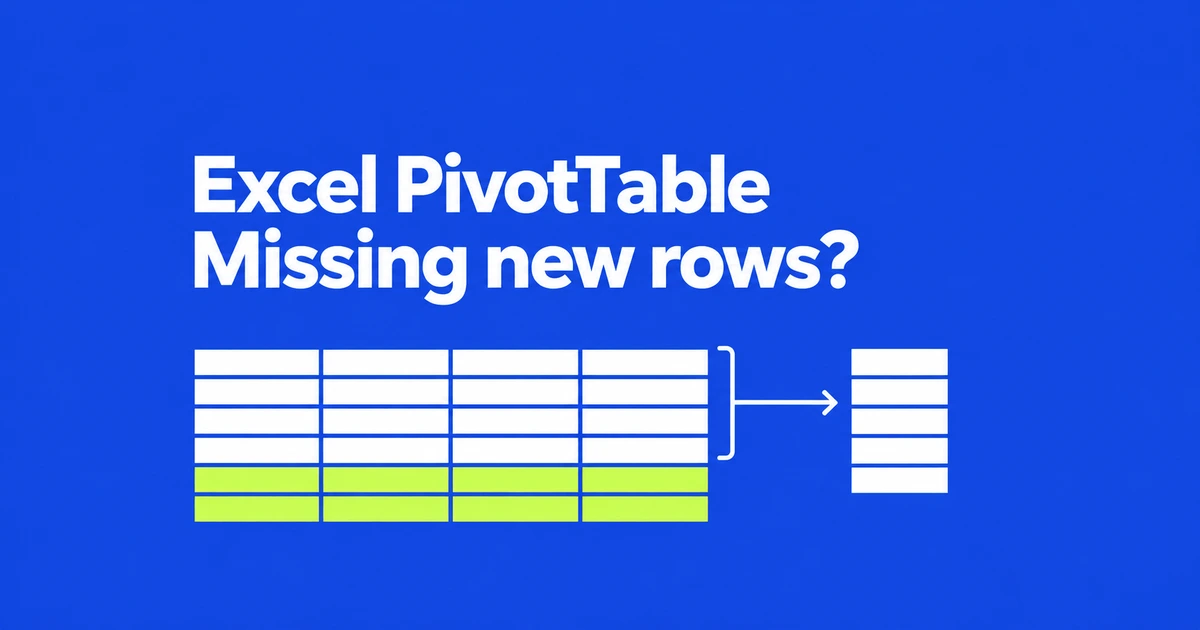
- Refresh cannot read rows outside the configured source. Extend the source range—or make sure the appended rows belong to its Excel table—then refresh again.
- If a missing transaction is already in the source, look for it with report filters removed. For imported data, also check whether Power Query excludes it before it reaches the report.
- New records in a query preview may not yet be loaded into the worksheet or Data Model. Finish that load before refreshing the PivotTable, then check the added transactions and their amounts.
Start with a cell inside the existing report and open PivotTable Analyze → Change Data Source. If its range ends at row 100 while the new records occupy rows 101–120, extend the source and refresh. You can correct that omission in the existing PivotTable without rebuilding its field layout. If the source already includes the rows, check where a missing transaction disappears from the filters or imported data.
A September 2026 Microsoft Q&A question describes this exact split: existing data refreshes, while newly added records do not appear. The useful first question is where an individual new record drops out.
These instructions use Microsoft 365 Excel for Windows. Work in a copy of the report and note its intended period and department selections before clearing filters. You will need to restore those conditions after diagnosing the missing records.
Read the source address, including the sheet name
Select a cell inside the PivotTable, then open PivotTable Analyze → Change Data Source. Inspect the table or range shown. A source such as Data!$A$1:$D$100 excludes transactions below row 100, regardless of how many times you refresh.
If the newly appended records extend through row 120, change that example to Data!$A$1:$D$120, confirm, and refresh the PivotTable. Microsoft documents this kind of expansion in its source-change instructions. Use the actual columns and last transaction row in your workbook.
Check the sheet name as carefully as the row number. A nearby tab named “Source” may look like the input sheet while the PivotTable still points to a different tab. Also avoid extending into manually entered subtotals or notes beneath the transaction list. Including an existing subtotal can count the same money again.
| Source shown | Where to look next |
|---|---|
| A worksheet address | Its starting cell, columns, and final row |
| A table name such as Records | The boundaries of that specific table |
| An external connection or Data Model | The file, query, and load supplying the report |
Microsoft specifically excludes PivotTables based on the Workbook Data Model from the ordinary source-change operation. For those, investigate the data feeding the model instead of trying to substitute a worksheet address in the same dialog.
Make sure the PivotTable uses the table you created
An Excel table is useful for a list that keeps growing. It is a defined object with a name and boundaries, not simply a range with alternating row colors. Select a cell inside it to expose its table-design controls.
- Select the source headers and records. Choose Home → Format as Table, then verify the range and header setting.
- In Table Design, give the new table a recognizable name, such as
Records, that is not already used in the workbook. - Return to the existing PivotTable’s source dialog, specify that table, and refresh.
After creating and naming the table, check the PivotTable’s source dialog. If it still shows A1:D100, the report is reading that address. Specify Records to use the transactions within the table, or use the current name of an existing suitable table.
Paste the next batch directly below the table’s last data row, beginning in its first column and keeping the same column order. If you pasted beyond a blank gap, inspect the boundary. Use Table Design → Resize Table to select the full range from the headers through the new last record.
Extra columns need attention too. Microsoft’s resize guidance explains that pasting more columns than the table contains does not automatically include the excess columns. If a new “Owner” field sits in column E outside an A:D table, resize the table to include E before expecting that field in the report.
A source named Records can still omit transactions pasted outside Records. Select a cell in one of the missing records and check whether the table-design tab appears and whether the resize dialog includes its row.
Find the transaction with report filters removed
If the record is inside the source and refresh has completed, inspect the PivotTable’s report, row, and column filters. A report copied from last month may still exclude this month. A manually selected list of departments may omit a newly introduced department.
In the diagnostic copy, use PivotTable Analyze → Clear → Clear Filters. You can also clear a specific field’s filter through its dropdown. These controls are documented in Microsoft’s filtering guide. Check connected slicers and their selections as well.
If the transaction appears, restore the intended conditions one at a time. Suppose it remains visible after selecting the month but disappears after selecting a department. Compare the record’s department value with the selected item. “Sales” and “Sales Team” can represent separate labels even when colleagues mean the same group.
Check value and label filters, not just the item checkboxes. A report limited to the highest-value categories may correctly omit a new category below the cutoff. Decide whether that filter still fits the report’s purpose before removing it permanently.
A larger total alone does not prove that you recovered the right data. Clearing the period filter may bring in unrelated months. Locate the missing transaction, then reapply the actual reporting period and reconcile under those conditions.
Follow external data through its saved file and loaded output
For a report importing another workbook or CSV, save changes in the source file first. Microsoft’s Power Query error guidance notes that unsaved file changes are not included in refresh. Confirm that the query reads the intended path and table, rather than a similarly named older copy.
If refresh reports an error after a source column was renamed, inspect the step referring to that column. The old result still visible on a sheet is not evidence that the new load succeeded. Record the error and repair the affected reference before comparing totals.
For a query loaded to a worksheet, select a result cell and choose Query → Edit. Inspect filters on the date and category columns. Power Query can exclude rows by values or position; clearing a downstream PivotTable filter cannot recover rows removed by the query.
Finding a new record in the editor is only part of the check. Refreshing the preview does not refresh the worksheet or Data Model output. If the PivotTable reads a worksheet query table, return to Excel, select a cell in that table, and refresh through the Query tab. Once the load finishes and the record appears there, refresh the PivotTable.
A worksheet query running in the background can leave Excel usable before the load finishes. Check the status message and output before refreshing the report.
For a Data Model, if Power Pivot is available, open Power Pivot → Manage. In that window, use Home → Get External Data → Refresh for the current table or Refresh All for all model tables. A successful refresh reports imported row counts; investigate any error or cancellation before reconciling the report.
Preserve intentional business filters. Removing a “cancelled orders” exclusion may make totals increase while producing an incorrect report. Identify which condition excludes the transaction that should be included, revise that condition, and load again.
Two new transactions may add no new category rows
A department summary combines transactions belonging to the same department. Appending two records therefore does not necessarily produce two new rows in the PivotTable. Consider this illustrative dataset; all amounts are in Korean won.
| ID | Department | Amount, KRW | Batch |
|---|---|---|---|
| T01 | Sales | 10,000 | Original |
| T02 | Support | 20,000 | Original |
| T03 | Sales | 30,000 | Original |
| T04 | Sales | 5,000 | Added |
| T05 | Support | 10,000 | Added |
The original three records total KRW60,000: Sales contributes KRW40,000 and Support KRW20,000. After both additions, five records total KRW75,000, split KRW45,000 and KRW30,000. The report still has just two department labels.
In a small diagnostic copy, move the transaction ID field into the Rows area and look for T04 and T05. If both appear but department totals differ, compare their category values, amounts, and active filters. If the IDs are missing, return to the source boundary or query output.
Also verify the field in Values and its calculation. Microsoft’s PivotTable guide explains the difference between summing numeric amounts and counting data interpreted as text. Open the value field’s settings to inspect the summary calculation. Counting records is not the same as adding their amounts.
Check for duplicate inputs before declaring the result complete. Pasting T04 twice would produce KRW80,000 in this example. Correct the source transaction and refresh again rather than overwriting a report value to force the expected total.
Refresh settings for the next batch
For subsequent batches, confirm that the table contains the appended records, then refresh the report. Use a PivotTable cell’s context menu for one report or the refresh menu’s all-reports command for several PivotTables.
To refresh when opening the workbook, open the PivotTable options and enable the file-opening refresh setting on the Data tab. That setting does not mean every edit made after opening will immediately appear. It also cannot bring records from outside the configured source into the report.
As checked on October 27, 2026, Microsoft’s documentation identifies local-source Auto Refresh as available to Microsoft 365 Insider participants. Manual refresh remains the route to use when that option is absent. Fixing an incorrect range does not require joining a different release program.
For this example, a handoff could read: “Paste new transactions directly below Records. Check that the table includes them, refresh the PivotTable, and compare the added transaction IDs and amounts.” For an imported source, name the query to refresh first. For a monthly report, include the period the recipient should select.