Editing one Excel sheet changes other tabs too
After printing several monthly tabs, you discover that the latest entry has overwritten figures on other sheets. Which cells need restoring before you continue?
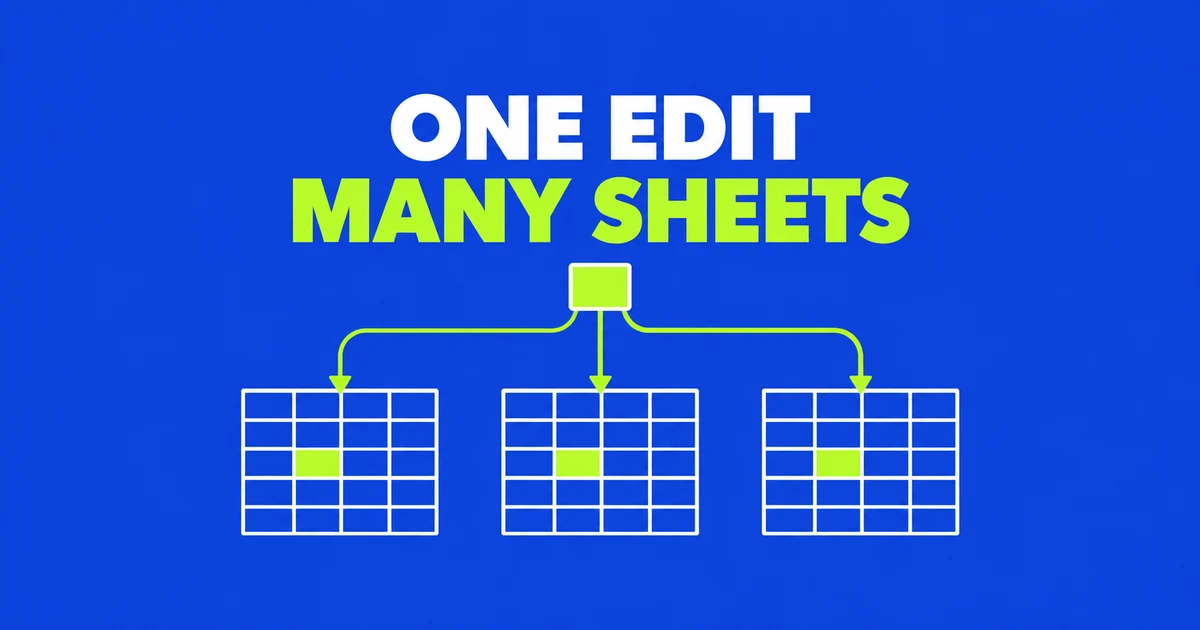
- If an entry appears on several worksheets, check whether their tabs are selected together. Right-click a selected tab and choose Ungroup Sheets before entering more data. If you are still typing an uncommitted entry, press Esc first to cancel it.
- Ungrouping leaves earlier changes in place. Use Undo if the mistaken edit is still available, then check the affected cells across the previously selected sheets. You may be able to undo after saving. If the necessary history is gone, compare the cells with an earlier file or the records used to fill them.
- If numbers still change after ungrouping, inspect the formula bar. A reference to another sheet will continue to update when its source changes. Check whether that connection belongs in the calculation before replacing a formula with a fixed number.
You correct January’s attendance figure, then find the same new number in February. March has changed too, even though you never entered anything on that tab. Before trying to repair each month separately, look at the sheet tabs along the bottom of Excel. More than one may be selected.
Excel may still have several sheets selected even though only one is visible. Grouping applies an entry across those sheets. In a 2011 Microsoft Q&A question, a user described entries appearing on other sheets after selecting tabs for printing. The steps here apply to Windows desktop Excel.
Stop editing several sheets at once
Look for multiple selected tabs and the word Group beside the workbook name in the title bar. Holding Ctrl while selecting tabs groups individual sheets; select a first tab, then hold Shift and select a last tab to include the sheets between them. You can finish printing and still have several sheets selected for the next edit.
If an entry is still being edited, press Esc before committing it. Note which sheets are selected so you know where to check for earlier changes. Then right-click a selected tab, choose Ungroup Sheets, and select the one sheet you intend to edit. Check that Group has disappeared and that multiple tabs are no longer selected.
Simply moving to another tab is not a dependable instruction for every selection. Microsoft’s worksheet grouping guide distinguishes a group containing every sheet from a group containing only some of them. Moving within a partial group can leave it intact. The explicit Ungroup Sheets command avoids having to infer the selection from the worksheet now on screen.
If there is no group now, that does not establish what was selected when the unwanted edit happened. Record the affected sheet names and cell addresses. Avoid entering another test value into the working ledger while trying to reproduce the problem; it would create another change to account for.
Trace the cell address across the workbook
Grouped editing follows coordinates. An entry in C6 goes to C6 on the selected sheets, regardless of what those cells mean. Excel does not find an “Attendance” label on each sheet and place the number beside it.
Consider this hypothetical event workbook. March has an extra information row, so its attendance count has moved to C7. All three sheets are selected when someone enters 20 in January’s C6.
| Selected sheet | Previous contents of C6 | Result of entering 20 |
|---|---|---|
| January | Attendance: 12 | The intended count becomes 20 |
| February | Attendance: 18 | February’s count is also overwritten with 20 |
| March | Venue code: R2 | The venue code becomes 20; attendance in C7 is outside this entry |
Checking only the attendance total would miss part of the damage in this example: March’s lost venue code might not contribute to that total at all. Inspect the address you edited on every sheet that was selected. If you changed a range, use that range when comparing sheets.
Also inspect the formula bar. A cell showing 20 might previously have calculated attendance from a list. Replacing that formula with a constant can leave a plausible number on screen while preventing later list changes from updating it. Microsoft’s worksheet selection guidance explicitly warns that data entered across selected sheets can replace existing contents.
When asking a colleague to help, give the addresses and the records needed: “Please check February C6 against the attendance list and March C6 against the venue booking.” That is more actionable than asking whether the monthly totals look reasonable.
Undo the unwanted edit and finish the intended one
Ungrouping changes the scope of subsequent edits. It does not restore earlier cell contents. The immediate recovery choice depends on whether the entry has been committed: Esc cancels an edit still in progress; Undo applies after it has been entered. Microsoft documents that distinction in Edit cell contents.
If the workbook is still open, inspect the available Undo actions. Ctrl+Z is useful when you know the last action is the mistaken entry. If you have done more work since then, inspect the Undo list before repeatedly pressing the shortcut. After undoing, check the relevant cells on the other affected sheets as well as the sheet in front of you.
In the example, confirm that February’s attendance and March’s venue code have returned. Then verify that the sheets are ungrouped and enter January’s intended count again. This final step matters: undoing the shared entry may also remove the correction you actually wanted to make in January.
Do not assume that saving has made Undo impossible. Microsoft’s Undo guidance says changes can be undone after saving, within the available undo limits. Some actions cannot be undone, and running a macro can clear the undo stack. What matters is the history available now, not just whether you clicked Save.
When the required edit is unavailable, you need an earlier file or another reliable record. Guessing February’s count or copying a neighboring month’s formula may introduce a new mistake. Check both the formula and its references where calculations were overwritten. Before replacing an entire workbook with an older copy, account for valid work completed elsewhere since that copy was made.
Keep unresolved cells explicit. “Sheets ungrouped; original value in February C6 still unconfirmed” tells the next person that editing can be confined to one sheet, but recovery remains incomplete.
Check whether a formula explains the change
A cell containing =January!C6 is supposed to respond when January C6 changes. Ungrouping does not remove that reference. This is a separate reason why numbers on another tab can change without anyone typing directly into them.
Select the unexpected result and read the formula bar. Is the cell storing a number or a formula beginning with an equals sign? A sheet name followed by an exclamation mark identifies a reference to that sheet. Microsoft’s cell reference documentation explains this structure.
For a wider comparison, use Formulas → Show Formulas to display calculations instead of their results, then toggle it off when finished. This does not expose formulas that have been hidden on a protected sheet; ask the workbook owner if you need to inspect those. The limitation is covered in Display or hide formulas.
A reference is not automatically correct just because it is a formula. Determine whether the cell should show a previous month’s figure or hold an independent entry for the current month. Replacing a legitimate formula with its displayed number would stop future updates. Conversely, matching constants alone do not prove that grouping caused them; compare earlier records and the editing history.
Keep shared template edits separate from monthly entries
Grouping is useful when the same locations serve the same purpose across sheets. An event name in A1 or a shared column heading is a good example. Microsoft’s simultaneous entry guide demonstrates shared headings across worksheets.
Before making that edit, check the actual destination on each template. Monthly sheet names do not guarantee identical layouts. A row added to March can move the intended field even though the rest of the sheet looks familiar. Select only sheets where the relevant positions still match.
Finish the shared heading change, ungroup, and then enter each month’s own figures. Treat the group as a selection for one specific task. That creates a clear moment to check the tabs before moving from common text to individual records.
Selection also matters when copying to another worksheet. Microsoft warns that a range copied from grouped sheets can be incompatible with the destination on a single sheet. If pasting fails in this situation, check that only the intended source sheet is selected before copying again.
Save a workbook that is ready for the next person
According to Microsoft’s worksheet selection guidance, a workbook saved with grouped sheets retains that group when reopened. Before handing over a file for individual data entry, ungroup the sheets, select the intended starting sheet, and save.
State what was actually checked. For example: “January, February, and March are ungrouped. C6 was compared with the original records on all three sheets, and only January received the new attendance count.” Name any unchecked sheets or unresolved cells separately, and make sure the copy you send contains the corrections.
Excel for the web is different: current Microsoft guidance says it allows only one sheet to be selected at a time. If values change across tabs there, investigate their formulas and actual changes rather than assuming the desktop grouping feature is responsible.
The next time you select several months for printing, finish the print job, ungroup, and choose the month you need to update. That gives you a specific point to check the selection before returning to individual entries.