A password-protected ZIP can still reveal its filenames
You have locked the documents, but the recipient can browse the folder tree before entering a password. How do you hide that list too?
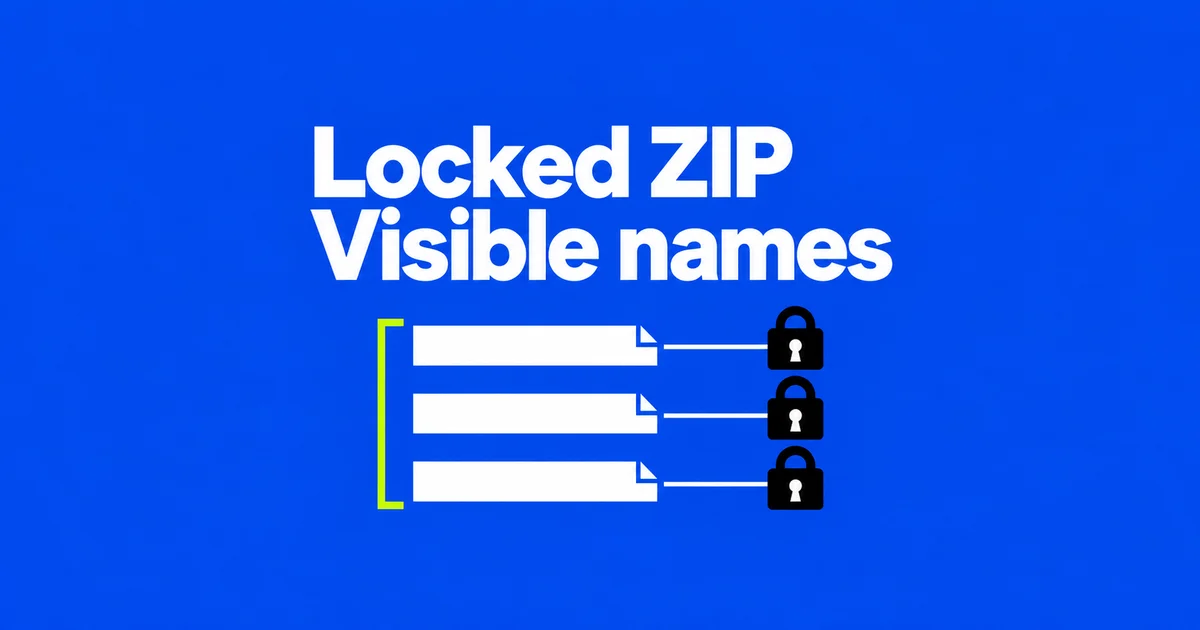
A user in the official 7-Zip forum described being able to browse a protected archive’s folders, with a password requested only when opening an individual file. They wanted the password prompt before the folder tree became visible. Developer Igor Pavlov’s answer was to use the 7z format with Encrypt file names enabled. Setting a password alone does not necessarily hide the directory. The question and developer’s response.
To send a file prepared this way on Windows, the recipient needs an application that can extract encrypted 7z archives. A company computer may not allow another app to be installed, and some receiving systems require ZIP attachments. Agree on a format both sides can use before preparing the confidential documents.
What the password protects
WinZip can require a password to open or extract a document while still showing its filename. Someone browsing the archive may learn who the customer is without reading a single page. If that information is confidential too, the archive must conceal the directory listing as well as encrypt the documents. WinZip’s filename explanation.
Consider two fictional filenames: Client-A-contract-revision.docx and Client-B-settlement.xlsx. Someone unable to read the documents could still infer the clients and the type of work. If those names are confidential, hiding the text and spreadsheet values is only part of the intended result.
AES-256 is not a filename-hiding switch. 7-Zip supports AES-256 encryption in both ZIP and 7z. Its 7z documentation describes deriving an encryption key from a user-supplied password; the key length does not make a short, predictable password difficult to guess. Choose a strong password as well as the appropriate archive settings. Supported features; 7z encryption.
The outer filename remains visible. An attachment named Client-A-termination-negotiations.7z would still disclose the client and subject even if its internal list were encrypted. Use a neutral delivery name and version outside, keeping descriptive document names inside the protected archive.
Choose a format the recipient can open
A request to “send a ZIP” may mean an exact format requirement, or simply a request for one bundled attachment. Ask which application will extract it before changing settings. Support for ordinary ZIP files does not imply support for every encryption method used inside them.
| Archive choice | Internal names before the password | Receiver requirement |
|---|---|---|
| Ordinary encrypted ZIP made with 7-Zip or WinZip | May remain visible | Support for the chosen ZIP encryption method |
| Password-protected 7z without filename encryption | May remain visible | Support for encrypted 7z |
| Password-protected 7z with filename encryption | Hidden until the correct password is supplied | Support for encrypted 7z headers and contents |
Bandizip users can also select filename encryption when creating a 7Z archive. Adding a password with ZIP selected does not provide the same protection for the list. Bandizip’s format guidance shows where the option appears. At the receiving end, the app must support extracting encrypted archives, not just opening ordinary 7z files.
Microsoft’s instructions specifically say that Windows 11 version 24H2 supports several ordinary archive formats but does not support operations on encrypted archives. It directs users to applications such as 7-Zip or WinRAR. Having opened an unencrypted 7z in File Explorer is therefore not a sufficient compatibility test for this delivery. Windows archive support.
Do not quietly switch confidential material to legacy encryption just to make an older extractor accept it. WinZip describes traditional Zip 2.0 encryption as weaker than AES. If the recipient cannot use an approved compatible app, agree on another authorized transfer method. Encryption methods and limitations.
Create a 7z with encrypted filenames
Prepare a new archive from the intended source files. This makes it easier to review exactly which revisions and working notes will be included. On a managed computer, use the organization’s software distribution process; otherwise obtain 7-Zip through its official website linked above.
- Open 7-Zip File Manager, navigate to the source folder, select the files or folders to send, and choose Add.
- Set an output name and location that you can identify later.
- Set Archive format to 7z.
- Enter and confirm the password in the Encryption section. Check that the method is AES-256.
- Enable Encrypt file names, choose OK, and wait for archive creation to finish.
The University of Wuppertal documents this File Manager workflow, including the separate filename checkbox. GRCC’s operational instructions also specify AES-256 and compatible software for recipients. Wuppertal’s creation steps; GRCC’s sender and receiver instructions.
If you already use Bandizip, its documented alternative is to select 7Z, open More options → Advanced, and enable Encrypt filenames in the 7Z settings, alongside password protection. Renaming an existing .zip file to .7z does not convert its contents or apply encryption.
Check the actual attachment
Work from the output path, not a folder you extracted earlier. A previous successful check does not cover a different archive you created afterward. Verify the final revision you intend to attach.
- Close the archive-manager windows and start a fresh session. Do not inspect an already unlocked listing as if no password had been supplied.
- Open the delivery archive without entering its password. Check whether actual internal folder and file names are visible.
- If you expected hidden names but see a list, revisit the format and filename-encryption checkbox. Create a corrected copy.
- Enter the correct password and extract to a separate check folder. Confirm that the intended documents are present and open in their applications.
- Attach the verified archive, rather than the source documents or extracted copies.
The University of Bergen advises checking the password’s behavior and sending the encrypted output rather than the original. For this task, the check also includes visibility before unlocking. Seeing names after entering the correct password is expected. Bergen’s verification advice.
If you have been updating an existing ZIP, inspect newly added entries too. WinZip allows selected files to be encrypted and documents some add operations that do not offer encryption at that point. Its Encrypted column shows protection per file. A password prompt for one original document does not establish that every later addition is protected. Adding files and checking encryption status.
If the receiver reports a failure, ask for the extraction app, the stage at which it failed, and whether the download completed. Failure before a listing appears and failure after password entry are different observations. A small sample containing no confidential information can test the same format without repeatedly resending sensitive documents.
When the recipient requires ZIP
WinZip documents a nested-archive alternative: put the documents into an unencrypted inner ZIP, give that ZIP a neutral name, then encrypt it as the single item inside an outer ZIP. The outer listing exposes the inner ZIP’s name instead of the original document names. The double-ZIP method.
The receiver must unpack two layers and still needs support for the outer ZIP’s encryption. Sending only the inner ZIP would expose the documents. Keep the two output names distinct and check the outer archive before attaching it. A ZIP-only attachment rule does not automatically permit encrypted ZIPs; confirm the receiving system’s policy rather than disguising an extension.
Deliver the password and later revisions
Send the password through a separate, agreed contact route. Wuppertal and Bergen both recommend separating password delivery from the file transfer. Two messages in the same mailbox still give someone with access to that mailbox both pieces. Choose the alternate route with the recipient instead of adding the password to the attachment email.
Extracted documents are no longer protected by the archive password. Account for the source and check folders as well as the attachment. WinZip also documents temporary copies when documents are opened from an archive, and possible additional backups made by the document application. Deleting the archive alone does not remove those copies. Extracted and temporary files.
For a revision, assemble the current source set, create a newly named encrypted archive, and repeat the listing and extraction checks. Record the delivered version and whether the recipient could open it. Handle intermediate ZIPs and extracted check copies under your organization’s retention rules, keeping the only usable originals until the delivery has been verified.