How to Adjust CSS Tooltip Placement with Chrome’s position-area Editor
You keep swapping CSS keywords and reloading to move a tooltip around its button. What does Chrome’s new position-area grid let you try, and what has to be set up first?
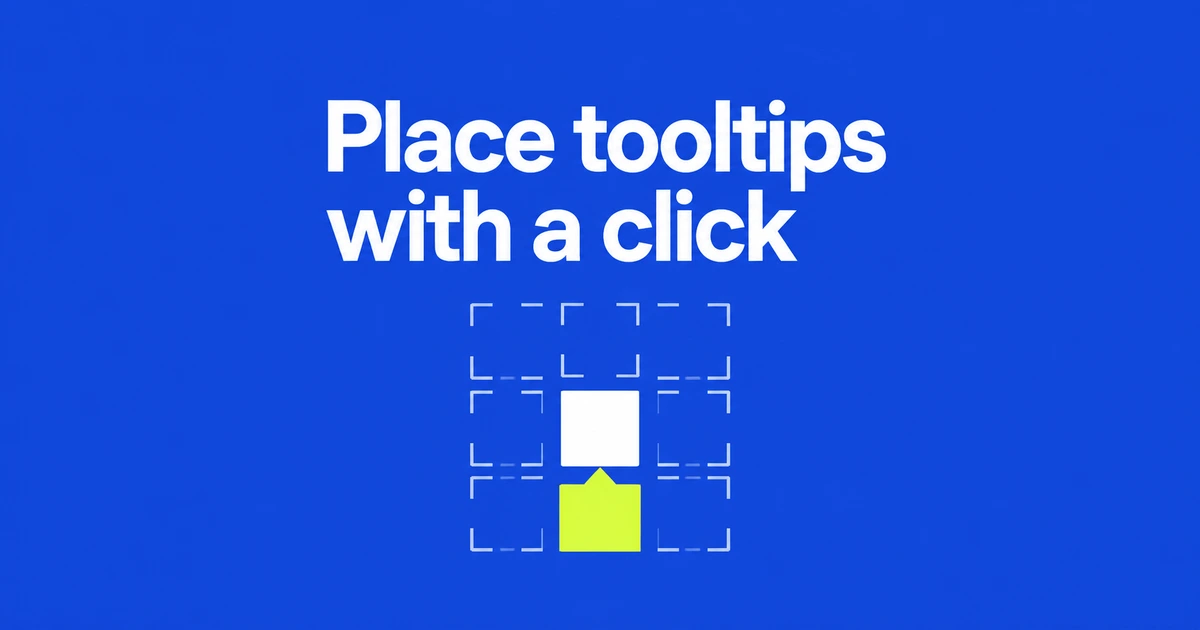
- Open Elements → Styles and click the swatch beside a position-area declaration to choose a placement visually.
- A valid anchor association and absolute positioning are prerequisites for the property to work.
- Use position-try-fallbacks for alternative placements when the preferred area overflows.
Click the swatch beside position-area in Styles
Chrome DevTools now lets you choose an anchor-positioned tooltip’s placement from a visual grid. Select the element in Elements, find its position-area declaration in Styles, and click the adjacent swatch.
The October 20 DevTools update, covering Chrome 155 and 156, introduces controls for selecting regions and adjusting the axes together or separately. This gives an existing CSS placement rule a visual editing interface.
Connect the target before choosing its region
position-area uses a three-by-three grid with the anchor in the middle. For example, bottom center selects the region directly below it. The property has no effect without a default anchor or on an element that is not absolutely positioned.
This positioning example assumes a trigger and an already-visible tooltip. Opening, closing and keyboard interaction belong to the surrounding component.
.trigger {
  anchor-name: --help-button;
}
.tooltip {
  position: absolute;
  position-anchor: --help-button;
  inset: auto;
  margin: 0;
  position-area: bottom center;
}
With the two names connected, the visual editor becomes a way to inspect a known relationship. Check that relationship before experimenting with more placement keywords.
Check default insets and the actual anchor
Popover and dialog defaults can interfere with an intended anchored layout. Chrome’s anchor positioning guide recommends resetting the default insets with inset: auto. Inspect any additional offsets supplied by the application as well.
For a popover with multiple implicit anchors, DevTools also lets you right-click its DOM-tree adorner and jump to an associated anchor. That is useful when the region looks right but the element is attached to the wrong trigger.
Give an overflowing tooltip another place to go
A comfortable placement in the middle of a page may run out of room near its edge. Position-try fallbacks let the browser try another region when the preferred one overflows. Add this to the example to try the region above the trigger:
.tooltip {
  position-try-fallbacks: top center;
}
If no fallback fits, placement can return to the initial choice. Check long tooltip content and narrow windows as well as the default position. Start with the visual editor, then scroll and resize to see where alternative placements are needed.