No BitLocker Keys in Your Microsoft Account: Is a BIOS Update Safe?
The BIOS updater warns you about BitLocker, but your Microsoft account lists no recovery keys. Did you miss a setting, or is Windows already encrypting the drive?
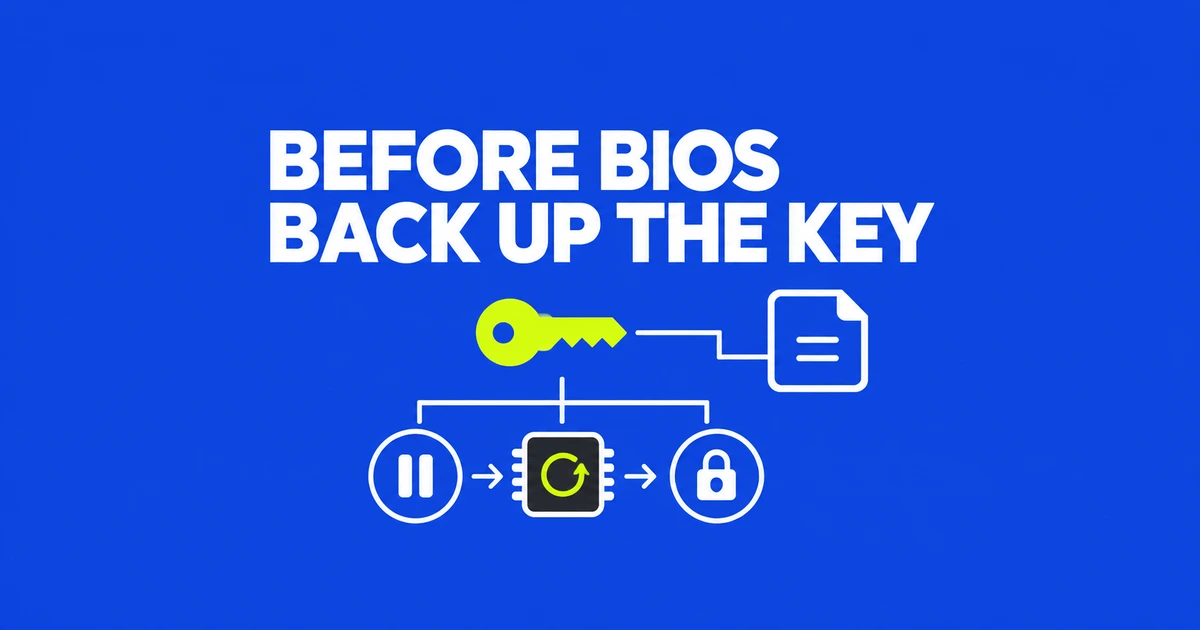
Before a BIOS update, the message “no BitLocker recovery keys” in your Microsoft account can look reassuring: perhaps there is no encryption to worry about. It can also mean you are looking in an account that never received this PC’s key. The account page is a storage location for keys, not a live report of the drive’s encryption state.
This was the exact question raised by a Windows Home user on Reddit preparing a BIOS update and CPU change. Someone else had set up the computer, and the current account’s recovery-key list was empty. The useful next step was checking the computer, not assuming the empty list guaranteed a trouble-free reboot.
Start with the drive, while Windows still opens
BitLocker encrypts a drive so that its contents cannot simply be read after removing it from the computer. Windows normally unlocks the drive as part of an expected startup. Changes to hardware, firmware, or software can prevent that automatic unlock and trigger recovery. Microsoft’s overview explains why a computer you own can still ask for a recovery key.
Windows Home is not an exception to encryption. On supported devices, Device Encryption can turn on automatically when the device is set up with a Microsoft account or work or school account. Its key is attached to that account. A local account does not automatically enable it. The full BitLocker Drive Encryption management interface belongs to Pro, Enterprise, and Education, while Device Encryption is available more broadly, including Home. See Microsoft’s Device Encryption documentation.
On Windows 11, sign in as an administrator and open Settings → Privacy & security → Device encryption. If the page is absent, the device may not support it, or you may be using a standard account. On editions with the full management interface, search Start for Manage BitLocker to inspect individual drives.
You can also inspect the Windows volume from an administrator terminal. This example queries C: without changing encryption settings:
manage-bde -status C:Read the conversion status and encrypted percentage alongside Protection Status. A fully encrypted drive can have protection suspended. “Protection Off” alone therefore does not mean its data has been decrypted. The status command reports these as separate fields, along with lock status and key protectors.
Get a usable copy of the recovery key
The recovery value requested at startup is a 48-digit number. Your Windows sign-in PIN and Microsoft account password do not substitute for it. A recovery key ID identifies which saved key belongs to the recovery request; it is not the number used to unlock the drive.
Open your Microsoft account’s recovery-key list from another device. Use the account involved in setting up the PC or enabling encryption. Checking from another device establishes that the backup remains reachable even when the PC itself will not boot.
If Manage BitLocker is available, open it, select Back up your recovery key for the relevant drive, and choose an available destination: Microsoft account, USB drive, file, or printout. A work-managed PC may offer an organization account instead, and organizational policies can affect the choices. Microsoft’s backup instructions describe those options.
If Windows is unlocked but the account has no key and the full management screen is unavailable, an administrator can inspect the drive’s existing protectors:
manage-bde -protectors -get C:If the output includes a numerical password with a 48-digit value, preserve that value and its identifier privately outside the protected drive. An access-denied result calls for checking administrator rights. Missing recovery information is not repaired by repeatedly running the command: the -get operation displays existing protection methods rather than recreating a lost key.
A key saved only inside the drive it unlocks cannot help while that drive is locked. The backup interface does not let you save the key file to the BitLocker-encrypted drive. Keep a USB copy or printout in a safe place separate from the PC; taking both together would give a thief the means to unlock it. Do not post a screenshot containing the actual key when asking for help.
Backing up this key also does not back up your documents. It provides access to the encrypted drive; it does not restore files after a failed drive or a reset. A separate copy of important files serves that different purpose.
Suspend protection when the update procedure requires it
Suspending BitLocker and decrypting the drive produce different results. Decryption removes encryption from the data. Suspension leaves the data encrypted but places an unprotected key on the drive so the update can proceed. That temporarily reduces offline protection, which is why resuming protection is part of the same job. Microsoft’s BitLocker FAQ explains both the clear-key mechanism and the update conditions.
| Action | What it accomplishes | What remains to do |
|---|---|---|
| Back up the recovery key | Preserves a way to unlock the drive if recovery appears. | Follow the firmware update procedure. |
| Suspend protection | Allows relevant startup changes without decrypting every file. | Complete the update and resume protection. |
| Decrypt the drive | Removes encryption from its contents. | Re-enable encryption later if protection is wanted; this is broader than ordinary suspension. |
Not every update requires manual suspension. Microsoft’s normal quality and feature updates require no separate BitLocker action. Manufacturer or manual firmware changes can require it depending on the update path and the components changed. Use the instructions for your specific model and firmware package.
For example, Dell’s BIOS guidance describes opening BitLocker Drive Encryption, selecting Suspend Protection, installing the appropriate BIOS update, and returning to Resume Protection afterward. Its page also discusses specific older firmware problems. Those model-specific remedies are not universal instructions to change Group Policy or disable the BitLocker service.
On a PC with the management interface, the practical sequence is to secure the key, suspend protection on the Windows volume, complete the manufacturer’s update and restarts, and resume protection after returning to Windows. Then inspect the actual protection state. An updater finishing successfully does not by itself prove every protection setting has returned to its previous state.
What RebootCount 0 actually means
If the graphical management interface is unavailable, an administrator terminal can use manage-bde. After securing the recovery key, and where the manufacturer’s update procedure requires suspension, this command suspends protection until manually resumed:
manage-bde -protectors -disable C: -rebootcount 0After the update and required restarts, restore protection and inspect its status:
manage-bde -protectors -enable C:
manage-bde -status C:
Microsoft’s protectors documentation defines these operations without removing the configured protectors. On an organization-managed device, follow IT’s update procedure. Systems with the BitLocker PowerShell module can use the following alternative from an elevated PowerShell window; use one method rather than repeating both:
Suspend-BitLocker -MountPoint "C:" -RebootCount 0The zero means protection stays suspended until you resume it manually. It does not mean “suspend for one reboot.” After the firmware update and its required restarts are complete, restore protection with:
Resume-BitLocker -MountPoint "C:"Microsoft’s suspension guide documents that behavior. Other suspension methods or updater tools can use different restart handling. Afterward, run manage-bde -status C: in the administrator terminal and check that Protection Status is On. This confirms that protection has resumed, separately from whether the firmware installer finished.
If the recovery screen is already on the PC
You cannot begin with Windows’ backup menu if Windows is no longer accessible. Note the first eight characters of the recovery key ID and use another device to locate a matching saved key. Microsoft lists the possible locations in its recovery guide.
- Check the Microsoft account associated with setup. Beginning with Windows 11 version 24H2, the recovery screen can show an account hint.
- If someone else set up the PC or enabled BitLocker, check with that person. The key may be in their account.
- For a device connected to work or school, use the organization recovery-key page. Open Devices and the relevant device’s BitLocker keys, or contact IT if self-service access is unavailable.
- Check printed backups and USB copies. Read a saved text file on another device and match its ID before entering the 48-digit value.
A matching key unlocks the drive; it does not necessarily fix a firmware condition that keeps triggering recovery. If the prompt returns at every restart, record the installed BIOS version and when the behavior began for the manufacturer or IT team. Repeated recovery deserves investigation of the startup change rather than repeated deletion of security settings.
Microsoft Support cannot retrieve or recreate a lost key. Its recovery guidance says that if the key cannot be found and the triggering changes cannot be undone, resetting the device is the remaining recovery option, and that reset removes files. If preserving those files is the objective, exhaust the account, organization, paper, and USB locations before choosing an operation that erases them.