64GB DDR5 on AM5: One 2×32GB Kit or Four 16GB Sticks?
Your AM5 board has two empty RAM slots, and another 32GB kit looks like the easy upgrade. What changes when you fill all four slots instead of replacing the original pair?
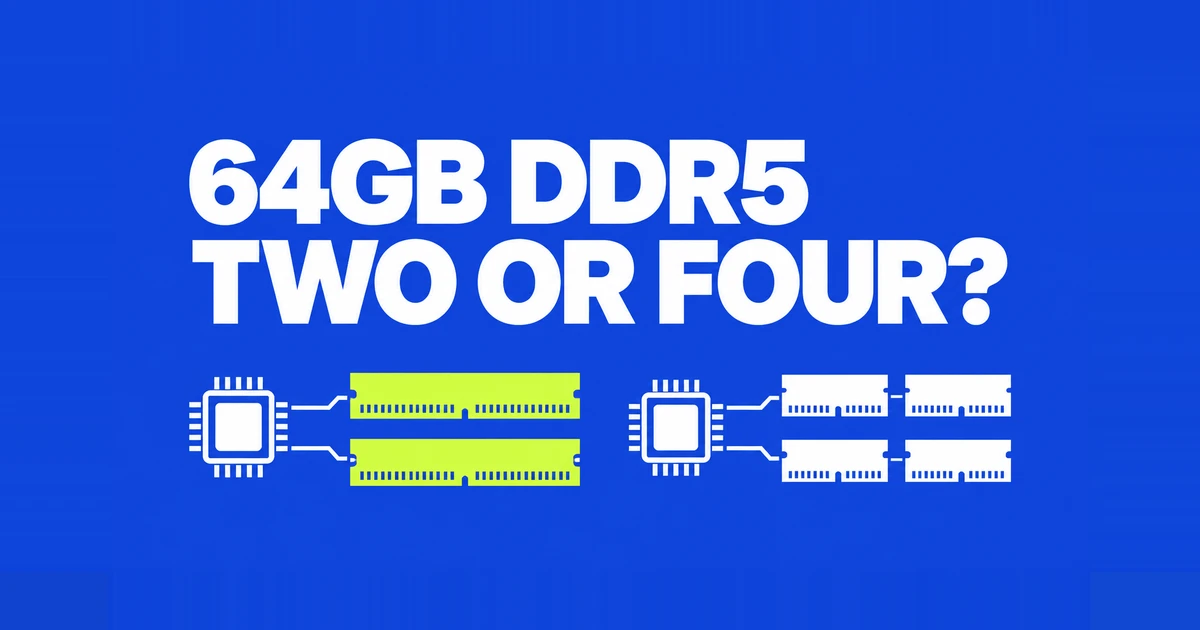
- For a new 64GB AM5 build, start with one compatible 2×32GB kit. Filling four slots does not turn this dual-channel platform into a quad-channel system.
- AMD specifies DDR5-5600 with two modules and DDR5-3600 with four for the Ryzen 7 9800X3D. A DDR5-6000 EXPO profile is an overclocking setting, rather than that CPU specification.
- If you already own 2×16GB, compare the cost of adding a second kit with replacing the pair after resale. Include the operating speed and validation of the complete configuration in that comparison.
An empty slot looks like a promise: buy the same memory again, install it, and double your capacity. For an AM5 desktop moving from 32GB to 64GB, that promise leaves out two purchasing details. The CPU is now addressing more modules per channel, and the memory manufacturer has not necessarily validated the two separately purchased kits together.
One 2×32GB kit is the better starting point when buying all 64GB today. An upgrade using existing memory needs a separate cost calculation. Replacing RAM that already works has a price, while preserving its EXPO setting after an addition is something to establish rather than assume. Buying two unrelated 32GB sticks also differs from buying one matched kit.
What changes when all four slots are occupied?
This comparison concerns DDR5 UDIMMs in an AM5 desktop with four memory slots. It does not describe soldered laptop memory, Mac unified memory, or server RDIMMs.
| Purchase | Capacity | Occupied slots | Modules per channel | What to establish |
|---|---|---|---|---|
| One 2×32GB kit | 64GB | 2 | 1DPC | Full kit part number and board compatibility |
| One 4×16GB kit | 64GB | 4 | 2DPC | Validated four-module speed and configuration |
| Two separate 2×16GB kits | 64GB | 4 | 2DPC | Operation of the combined kits |
| Two separately sourced 32GB sticks | 64GB | 2 | 1DPC | Compatibility of that particular pair |
With symmetric installation across the two channels, both two-stick and four-stick layouts are dual-channel. Kingston calls the layouts one or two DIMMs per channel, abbreviated 1DPC and 2DPC. More occupied slots do not add CPU memory channels.
The kit distinction matters independently of slot count. A listing that says “64GB, two modules” tells you the total and the number of sticks. It does not establish that the sticks were sold and validated as one kit. Ask for the full kit part number when requesting a build quote.
The CPU rating and the EXPO label answer different questions
As checked on October 30, 2026, the Ryzen 7 9800X3D specification lists the following maximum memory speeds. The figures describe that CPU; another AM5 processor needs its own specification.
| AMD configuration | Module arrangement | Maximum memory speed |
|---|---|---|
| 2×1R | Two single-rank modules | DDR5-5600 |
| 2×2R | Two dual-rank modules | DDR5-5600 |
| 4×1R | Four single-rank modules | DDR5-3600 |
| 4×2R | Four dual-rank modules | DDR5-3600 |
Those four-module entries do not predict the actual boot speed of every four-stick PC. They establish AMD's supported specification. Equally, buying four sticks marked 6000 does not establish that the complete machine will operate at that rate.
EXPO supplies a stored memory overclocking profile. NZXT explains the difference between default operation and profile-based speeds in its support documentation. When ordering an EXPO kit, the useful question is which setting the builder will deliver with your CPU, motherboard, BIOS, and complete memory configuration.
For an upgrade, a seller's successful test of the new pair alone leaves the four-module question unanswered. Request the operating setting and error-checking result for all four modules together. That turns a vague “6000-compatible” claim into an assessable purchase condition.
How much application performance is at stake?
A reduction in memory transfer rate is not the same percentage reduction in application speed. In Puget Systems' direct testing, a Ryzen 9 9950X3D used a ProArt X670E-Creator board, BIOS 3402, an RTX 5080, and two to four dual-rank 32GB modules. Its 5600 1DPC setup was 13% faster than 3600 2DPC in Unreal Engine shader compilation. CPU llama.cpp token generation fell by up to 12% with four modules, while GPU-focused MLPerf showed no difference.
That test also changed total capacity. It was not a fixed-64GB comparison of 2×32GB against 4×16GB. The results help identify sensitive workloads; they do not supply a universal four-stick penalty or a gaming frame-rate prediction.
For your own upgrade, choose a repeatable task before changing hardware: opening a particular editing project, exporting the same sequence, or compiling the same project. Record its settings and completion time. Adding more applications to the session and timing a different export afterward would answer a different question. A useful comparison preserves the work you actually care about.
Matching the old part number does not create a single kit
Corsair validates rated performance using the modules included in a particular kit. Its guidance identifies instability, unavailable EXPO or XMP operation, and failure to boot as possible outcomes of combining kits, even at matching advertised speeds.
This does not mean every mixed installation fails. It means a second box changes the configuration being purchased. “The same part number is available” and “the combined set has been checked at my target setting” are different answers.
There is a parallel trap in buying two discounted 32GB sticks from different sellers. The layout is 1DPC, but the pair is still separately sourced. The recommendation for a single 2×32GB kit includes both the layout and the kit, rather than just the number two.
Use the board's qualified vendor list, or QVL, to investigate the exact purchase. ASUS describes searching the board's memory support page by model and filtering by factors including capacity, speed, and socket support. A brand name or product family is too broad. Check the complete part number and the listed installation conditions.
G.SKILL limits its QVL compatibility to a single kit and explains that compatibility lists are not exhaustive. Absence is a reason to seek confirmation, rather than proof that a kit cannot work. Conversely, a listing for one kit does not establish compatibility after adding another.
Compare the money you would spend now
For an existing 2×16GB setup, compare two forward-looking costs:
- Addition: the new 2×16GB kit, delivery, and any installation charge.
- Replacement: the new 2×32GB kit and associated charges, minus the net proceeds from selling the old kit.
Use zero resale proceeds if you intend to keep the original pair. If selling, subtract selling fees and shipping from the expected receipt. An unsold listing's asking price is not money already recovered. The amount paid for the old RAM is a past expense shared by both choices.
When the remaining price difference is small, replacing the pair with one compatible 64GB kit is the stronger purchase. If adding RAM saves a substantial part of your budget and the confirmed four-module setting suits your work, keeping the existing pair has an economic case. The comparison needs both a price and a delivered configuration.
Two free slots also do not promise a seamless move to 128GB later. Adding another kit reintroduces the population and compatibility questions. If your planned work already needs more than 64GB, price the supported target capacity now instead of treating today's empty sockets as a validated future upgrade.
Check capacity, operating settings, and errors separately
Before changing hardware, save the current BIOS version, memory settings, kit part number, and slot layout. ASUS instructs users to disconnect power and follow the board manual's recommended slots. Its example uses A2/B2 for two modules; your own board manual supplies the applicable layout.
- Start at default memory settings and confirm that the BIOS recognizes all 64GB.
- Allow memory training to finish, using the motherboard's diagnostic indicators and instructions.
- Run a memory error check at default settings. After applying the intended EXPO profile, repeat the check at that setting.
- Run the representative application task you recorded before the upgrade. Save the operating speed and the result together.
Kingston describes training after an initial boot, memory change, or firmware update; some DDR5 PCs take three to five minutes. That is an example, not a universal timeout or an explanation for every blank screen. Follow the particular board's error indications.
Read units before diagnosing a speed reduction. G.SKILL's CPU-Z explanation distinguishes DRAM clock from the DDR transfer rate. Roughly 3000MHz in the DRAM Frequency field corresponds to roughly 6000MT/s. The smaller clock number alone does not indicate that a 6000 kit has been downclocked.
A useful support report identifies all installed modules, slots, BIOS version, recognized capacity, operating rate, and error results at default and EXPO settings. For a new build, putting the kit part number and delivered setting on the order achieves the same purpose earlier: it makes clear which 64GB configuration you are buying.