Why Your 4K Webcam Still Looks Soft in Zoom or Google Meet
In the camera preview your face looks crisp, yet colleagues watching your presentation see it soft and blurry. Where between your webcam and their screen is the detail getting lost?
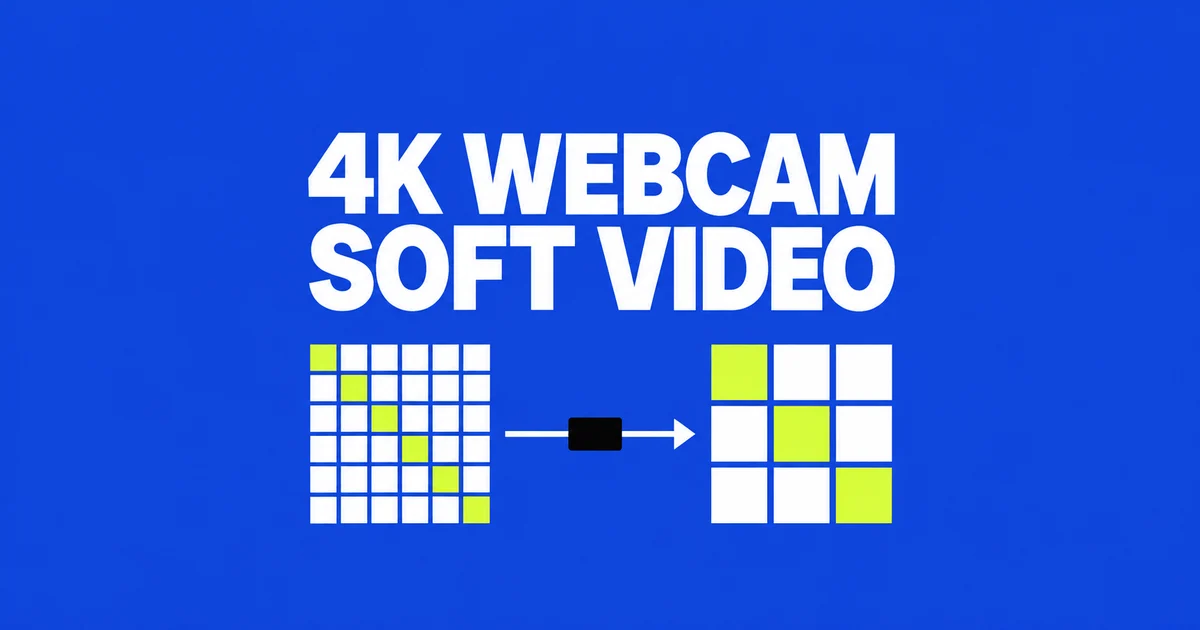
- Your webcam supplies an image to the computer, but the meeting app can send it to colleagues at a lower resolution. A sharp preview can therefore accompany a lower-resolution call.
- If your face is dark or out of focus in a local recording, adjust the light and camera position first. If that recording is sharp but the outgoing resolution is low, check the account’s HD eligibility and meeting settings.
- A replacement camera cannot remove a meeting service’s transmission limit. Separate 4K recordings can still justify the camera: their extra pixels give you room to crop toward a face or product when editing.
A sharp webcam preview can coexist with a disappointing meeting image. The camera supplies the source, but the meeting application determines what it sends, and the recipient views that feed under another set of conditions. Buying a higher capture resolution does not remove those later constraints.
An MX Brio owner asked how to improve Zoom beyond its HD button. They already had a 4K camera and were disappointed with the call quality. If the camera’s local image is sharp while the call sends fewer pixels, investigate that call’s HD settings and connection before replacing the camera.
How the webcam image reaches your colleague
The webcam sends its image to your computer, where the camera application shows a local preview. Zoom or Meet processes that input for the call and sends a video stream to the other participants. Their devices receive the stream and fit it into the meeting layout. Sending statistics show the resolution and frame rate leaving your computer, which you can compare with the recipient’s image.
For example, Logitech specifies MX Brio capture at 4K/30fps or 1080p/60fps. Those are different modes, not a promise of 4K at 60fps. They also do not promise either mode at the other end of a meeting.
Compare images at similar viewing sizes. A full-screen camera preview and a tiny gallery tile make a poor camera comparison: they change the presentation as well as the delivery path. Enlarge your feed on the receiving device, then return to the layout colleagues normally use.
Equal transmission resolution does not make every webcam look identical. An accurately focused, well-lit face and an underexposed face can both occupy a 1080p frame. Conversely, if the source already looks good, buying more source pixels may leave the visible meeting problem untouched.
Why 1080p may be missing
As of October 27, 2026, Zoom’s detailed Full HD requirements include Business, Education, Enterprise, or Pro with Zoom Events or Webinars Plus. Zoom Support must enable it; hardware and supported desktop software requirements also apply, and virtual backgrounds must be disabled. A paid subscription and an HD checkbox do not guarantee 1080p. Ask the administrator about a locked Meeting-HD Video Quality setting.
Meet’s 1080p sending eligibility includes Business Standard/Plus and Google One subscriptions of at least 2TB, among other listed editions. A suitable camera and processing capacity are required; Firefox and Safari do not support 1080p. Receiving eligibility is broader than sending eligibility.
In Meet’s Settings → Video, Send resolution affects your outgoing image; Receive resolution affects other people’s images on your device. These settings specify a maximum. Raising Receive will not improve the face you send to a client.
If 1080p is missing or locked on a company account, give IT your account and app or browser details and ask whether that sending option can be enabled. After an administrator changes an eligible setting, repeat the call with the same camera. Replacing the webcam alone will not unlock an account restriction.
Lighting, framing, and softened faces
Try changing the source image before changing the camera. If you sit with a bright window behind you, compare the same seated position with light coming from in front. Keep the camera distance constant so you can see what the lighting change contributes.
Look for facial detail, not maximum brightness. A brighter forehead with no visible detail is not the goal. If you wear glasses, move the light slightly to the side and compare reflections over your eyes. Fixing the camera height and chair position makes these comparisons easier to repeat.
A very wide view can devote much of the frame to an empty room. Moving the camera or adjusting the framing can give your head and shoulders more of the available image. Heavy digital enlargement, however, discards more of the source. Judge the resulting face rather than treating the zoom slider as a free quality upgrade.
Soft skin can also be an intentional effect. Zoom’s Video & effects settings include appearance softening and low-light adjustments. Compare with appearance processing disabled before deciding that the lens cannot focus. Restore effects you prefer after isolating their contribution.
If you demonstrate small objects, include that action in the comparison. Bring the object into view, hold it at the distance you normally use, then remove it. A camera that looks acceptable for a seated conversation may still disappoint when focus must switch between a product and your face.
A comparison using two devices
Use one device as the presenter and another as the recipient. Silence the spare device’s microphone and speakers if both are in the same room. A colleague joining from their usual location provides a more realistic receiving environment; two devices at home share the same internet connection.
- Save a short local camera clip. Use your normal seat and lighting. Speak and turn your head so the comparison includes movement.
- Close the capture application and join the meeting. Select the intended webcam rather than the laptop’s built-in camera.
- Inspect the remote view. For Zoom, use its documented fullscreen and speaker-mode HD conditions. Then compare your usual gallery layout.
- Change one variable per comparison. Test lighting, effects, or network connection separately while repeating the same movements.
In Zoom, open the arrow beside the video control, then Video Settings → Statistics. Compare your Video sending resolution, frame rate, and packet loss with the recipient’s receiving values at the same moment. Overall also exposes CPU use. A note taken when the image deteriorates is more useful than one taken only when the call starts.
In Meet, More options → Troubleshooting & help provides a network stability graph and diagnostics. Pause a large upload or cloud synchronization job and compare the call again. Record whether the remote image changes, rather than assuming the background task caused the problem.
A simple note is sufficient: camera, light position, local appearance, remote appearance, available statistics, and time of deterioration. Keep softness and interrupted motion separate. A still screenshot can look fine while movement in the call remains distracting.
What each result says about an upgrade
| Observed result | Next comparison | Likely spending priority |
|---|---|---|
| Changing the light improves both views | Repeat at your normal meeting time | Lighting or desk placement |
| Local image is sharp; sending resolution is low | Account eligibility and meeting settings | Resolve the restriction before buying more pixels |
| Image interruptions accompany unstable transmission | Pause transfers; compare Ethernet | Investigate the connection and computer load |
| Only one colleague reports softness | Their receive settings and viewing conditions | Investigate that receiving path first |
An internet plan’s advertised download speed cannot settle all of these questions. Zoom recommends 2.6Mbps up and 1.8Mbps down for 720p group video, or 3.8Mbps up and 3.0Mbps down for 1080p. It adjusts bandwidth use to the network. Those recommendations are not a guarantee that a fast speed test unlocks a particular resolution.
Google recommends observing bandwidth and latency over time and comparing a wired connection. If the same camera repeatedly performs better over Ethernet than Wi-Fi, investigate that difference before replacing it. On a managed network, give the administrator the comparison and timestamps.
Where 4K earns its place
A camera used for separate training videos has a different job from one used only in meeting tiles. More source pixels can leave room to crop a wider recording. A central crop retaining half the width and half the height of 3840×2160 leaves 1920×1080. That is pixel arithmetic, not a measured promise of lossless zoom: focus, optics, and processing still affect detail.
Check the saved file as well as the capture setting. Logitech’s BRIO guidance calls for a 4K-capable recording application and USB 3.0 connectivity. Verify the requirements of the actual model you choose, including its connection and recording software. A meeting recording button does not establish that you saved the camera’s original 4K output.
A replacement is worth comparing when your current camera still struggles to focus or frame the scene after you adjust its position and lighting. If its local image already looks good and quality drops only in the call, work on the meeting settings and connection first. For separate recordings, inspect a crop of the saved footage: whether your face or product retains enough detail for the finished video is a concrete reason to choose 4K, even when colleagues receive a lower-resolution meeting feed.