Apple Plans Tighter Full Disk Access Controls as AI Agents Expand
You ask an AI agent to summarize one folder, and the Full Disk Access you approve also covers Mail, Messages and your backups. What is Apple changing about that permission?
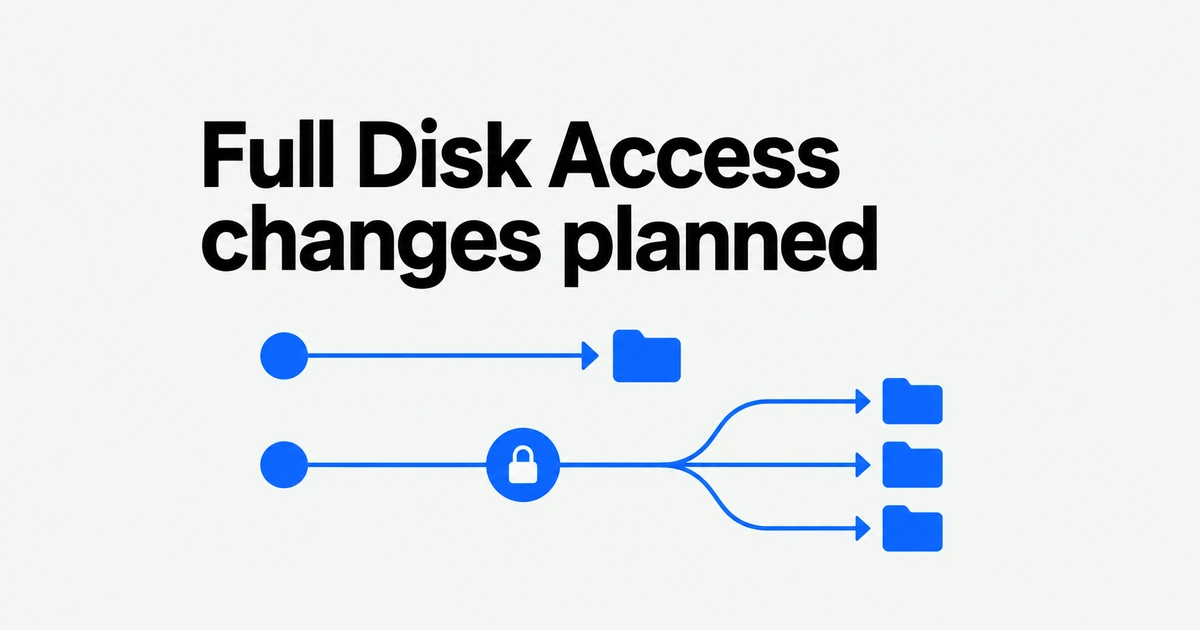
- Apple plans additional controls around granting Full Disk Access, citing increasingly autonomous AI agents.
- The permission extends beyond a selected working folder to other apps’ data and backups.
- No rollout date was named; users can review the separate permissions already available.
A stronger consent process is planned
Apple’s October 2 developer announcement promises additional controls requiring explicit user action before granting Full Disk Access. It ties the need for stronger controls to the growing capabilities and autonomy of AI agents.
The announcement names neither a release date nor a macOS version. It does not announce the removal of Full Disk Access or a blanket ban on AI apps.
The permission reaches beyond your working folder
Apple’s settings reference includes data from Mail, Messages, Safari, and Home, Time Machine backups, and certain administrative settings for every user on the Mac within Full Disk Access.
Location-specific file access is a separate part of the permission model. Apple Platform Security describes consent requirements for locations including Documents, Downloads, Desktop, iCloud Drive, and network volumes.
For a folder-summary task, a useful first question is whether the app offers a way to select that folder. That is a practical way to match access to the job, rather than treating every file-related task as a reason for full-storage access.
Accessibility is a separate decision
An app seeking to control the Mac through Accessibility needs explicit permission in Privacy & Security. Apple’s Accessibility guide also explains how to review and toggle that permission for individual apps.
| Setting | Scope to consider |
|---|---|
| Files & Folders | Files in different locations on the Mac. |
| Full Disk Access | Broad file access, including other apps’ data and backups. |
| Accessibility | Accessing and controlling the Mac through accessibility features. |
| Automation | Accessing and controlling other apps. |
Review these entries separately. Granting one is not evidence that every other permission is enabled; disabling one does not describe all the access an app retains.
Review the permissions already in place
Open Apple menu → System Settings → Privacy & Security. Compare each app’s listed permissions with the work you want it to perform.
Apple advises granting Accessibility access to apps you know and trust, and reviewing their terms and privacy policies to understand their use of information. If the purpose of a permission is unclear, the developer’s explanation is the next thing to check. Authorizing a file task and authorizing broad access to the Mac’s data should be separate decisions.
Frequently asked questions
Will the new controls ship in macOS 27.2?
Apple’s October 2 announcement does not identify a target version.
Does disabling Full Disk Access prevent all file access?
Not necessarily. Review the app’s other permissions, including Files & Folders, to understand its remaining access.