4K vs. 5K on a Mac: Same Desktop Size, Different Text
A 27-inch 4K display can show a 2560×1440 desktop, just like a 5K display. What are the extra pixels buying you?
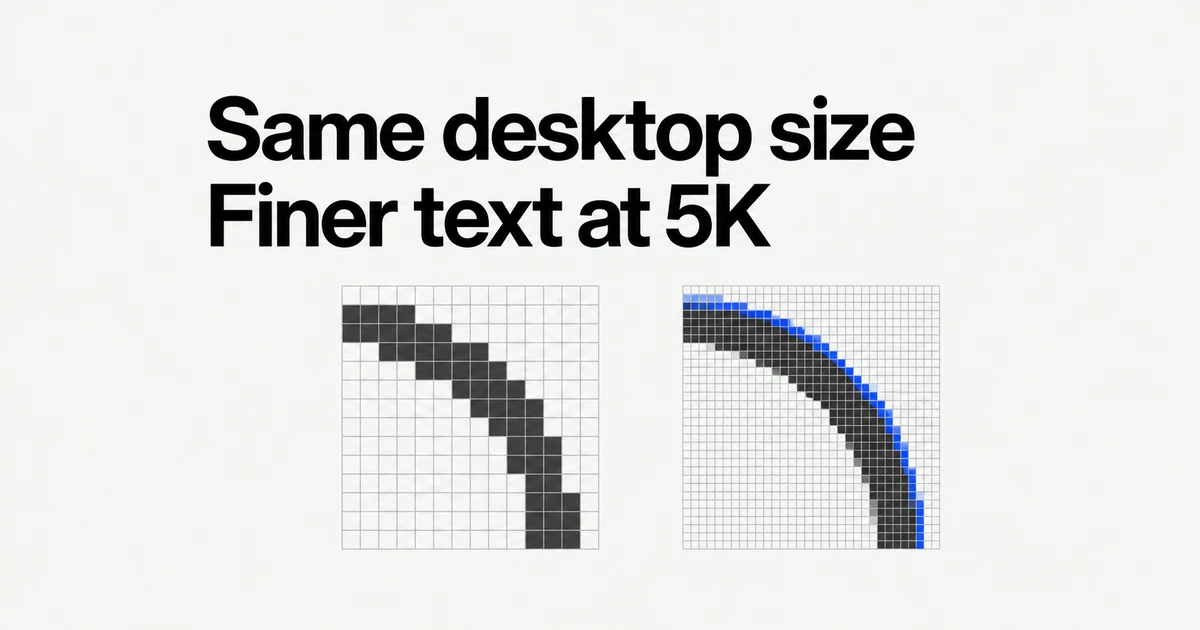
- A 2560×1440 desktop describes your workspace. A 27-inch QHD, 4K or 5K panel can present that workspace with different amounts of physical detail.
- 5K maps that HiDPI desktop directly to its pixels. On 4K, the same HiDPI size is rendered larger internally and then reduced to the panel.
- Compare text at the size and distance you actually use. Keep a comfortable 4K setup; consider 5K when finer text at the same physical size is the improvement you want.
Setting a 4K Mac monitor to look like 2560×1440 does not make it equivalent to a QHD panel. You get a similar amount of room for windows, but more physical pixels are available to describe their contents. A 27-inch 5K display takes this further: it can preserve that familiar desktop size while drawing finer text.
An actual Mac user's buying question describes the confusion: conflicting recommendations for 1440p and 4K made choosing a coding monitor difficult. One recommendation can be about comfortable interface size while another is about text detail.
Workspace is not panel resolution
A panel specification such as 3840×2160 counts physical pixels. A desktop that looks like 2560×1440 describes the logical space available to applications. Those numbers serve different purposes. Selecting a smaller desktop does not remove physical pixels from your monitor.
Imagine a browser on the left and an editor on the right. On two 27-inch screens using the same logical desktop and app settings, the windows occupy similar physical areas. Switching one panel to 5K does not automatically reveal another column of code. To fit more content, you would select a larger logical desktop or reduce the app's text or zoom size.
Apple's high-resolution architecture separates logical coordinates from pixels. Text and vector shapes can use the additional rendering detail; enlarging an old low-resolution bitmap cannot create missing information. A page can therefore show cleaner letters beside the same rough logo.
What changes at 27 inches
These calculations assume 16:9 panels. Pixel density is the diagonal pixel count divided by the diagonal size in inches. The 32-inch entry uses exactly 32 inches; an actual 31.5-inch panel is approximately 140ppi.
| Screen | Physical resolution | Total pixels | Calculated density |
|---|---|---|---|
| 27-inch QHD | 2560×1440 | 3.69 million | 109ppi |
| 27-inch 4K UHD | 3840×2160 | 8.29 million | 163ppi |
| 27-inch 5K | 5120×2880 | 14.75 million | 218ppi |
| 32-inch 4K UHD | 3840×2160 | 8.29 million | 138ppi |
Real examples match those rounded figures: BenQ lists the MA270U at 27 inches, 4K and 163ppi, while Apple lists Studio Display at 27 inches, 5K and 218ppi.
5K has about 78% more physical pixels than 4K. That is a total-pixel increase, not a 78% wider desktop or a measured improvement in readability. At a fixed interface size, those pixels can describe finer edges. Density alone does not rank reflections, brightness or color quality.
For a useful comparison, open the same small annotation, punctuation-heavy code and spreadsheet grid on both screens. Keep font size, app zoom and viewing distance consistent. A large photograph or enlarged text on just one display answers a different question from whether your everyday editor looks better.
Why 4K can render a 5K image
The BetterDisplay developer's scaling explanation describes a 2560×1440 HiDPI desktop as a 5120×2880 internal image. A 5K panel can display it directly. A 4K panel receives the result reduced to 3840×2160. The larger image is rendered internally; your cable does not need to carry a 5K signal for this 4K arrangement.
At 1920×1080 HiDPI, the doubled dimensions match a 4K panel instead. The interface becomes larger and the workspace smaller. An editor and documentation window that fit comfortably at 2560×1440 may now overlap. The intermediate setting exchanges direct pixel mapping for additional working room.
Selecting the largest number is not automatically better. A larger logical desktop makes interface elements smaller. Nor does a mode's width alone establish its rendering quality: HiDPI and low-resolution variants can share logical dimensions. Available modes depend on the Mac, macOS and connection.
A larger screen or finer text?
Moving from 27-inch 4K to 27-inch 5K addresses a different complaint from moving to 32-inch 4K. At the same 2560×1440 desktop size, the first adds physical detail without substantially enlarging the interface. The second spreads the interface over a larger area.
With the same aspect ratio and desktop dimensions, 32 divided by 27 gives approximately 1.185. Interface elements are therefore about 18.5% larger in physical height and width on the nominal 32-inch screen. Its pixel density is lower. Moving it farther back on your desk also changes how large those elements appear to your eyes.
If letters look coarse but their size is comfortable, compare density. If you lean forward to read menus, try larger interface scaling or a larger physical screen. Choosing more desktop space on the larger monitor spends some of that extra area on additional content, so the 18.5% enlargement no longer applies.
Choose scaling with your work open
Open an ordinary working arrangement before changing anything: an editor with reference material, or a spreadsheet beside email. Keep the usual app font sizes initially. This reveals the cost in window space when you enlarge the entire interface.
- Open System Settings → Displays and select the external screen.
- Note the current choice. Control-click the resolution thumbnails to show a list if you need numerical dimensions.
- If available, compare a desktop resembling 2560×1440 with a nearby larger-text option.
- Close Settings and read the same content at your normal desk position. Check small labels and the windows you use together.
Apple's resolution guide explains the list controls and optional additional resolutions. If an unsupported choice produces a black screen, it advises waiting 15 seconds, then pressing Escape if the previous setting has not returned.
When only one app's content is too small, use its zoom or text settings before shrinking the whole desktop. Finder has text-size controls under View → Show View Options, except in Gallery view. For supported apps, open System Settings → Accessibility → Display → Text size and adjust the listed apps. Apple's text and icon guide describes those scopes. Enlarging a file list need not make your editor window occupy more room.
For example, suppose a reference page is hard to read but the editor beside it is comfortable. Enlarge the browser page and see whether the resulting line wrapping still works for that window. If you instead enlarge the entire interface, both windows have less logical room. The browser may improve while the editor shows fewer lines.
Separate scaling from connection problems
If the whole picture becomes unusually blurry through a dock, compare a direct connection. Where the monitor exposes input information, compare the incoming resolution with its panel specification. A logical desktop label alone does not identify the signal traveling over the cable.
Apple's external-display troubleshooting notes that cable or adapter capabilities can limit resolution and refresh rate. Check the combination you need, including refresh rate, rather than relying on a generic “4K” label.
Correct output does not eliminate every cause of poor text. Strong sharpening or a monitor's picture preset can affect edges, as the BetterDisplay text-quality guide explains. A screenshot also does not reproduce the physical panel you are looking at. Compare actual text on the display when changing its picture processing.
For slow animation or recording, repeat the same workload with recording stopped and running. Compare a smaller HiDPI desktop or the app's own rendering settings separately. The developer's performance guide explains why more rendering pixels do not imply an equally large slowdown. If recording triggers the slowdown, try lower capture dimensions or frame rate in the recorder. That changes the captured output without forcing larger menus throughout your desktop.
Choose for text or motion
For long document or coding sessions, 27-inch 5K is worth comparing when your existing interface size is right but you want finer text. Bring the files and font settings you actually use. A different demo font at a different size can hide the improvement you are trying to evaluate.
A comfortable 4K setup does not need replacing merely because it resamples an internal image. Nearby scaling options or app zoom may improve it further. QHD can also remain useful when you can read comfortably and are satisfied with its text.
If motion matters, compare refresh rate separately. The MA270U and Studio Display cited above are both specified at 60Hz despite their different resolutions. Check the actual model and Mac connection for your required refresh rate.