Erase an iPhone for Sale Without Leaving It Locked to You
The phone shows the setup screen, yet it still appears in Find My. What should you check before handing it over?
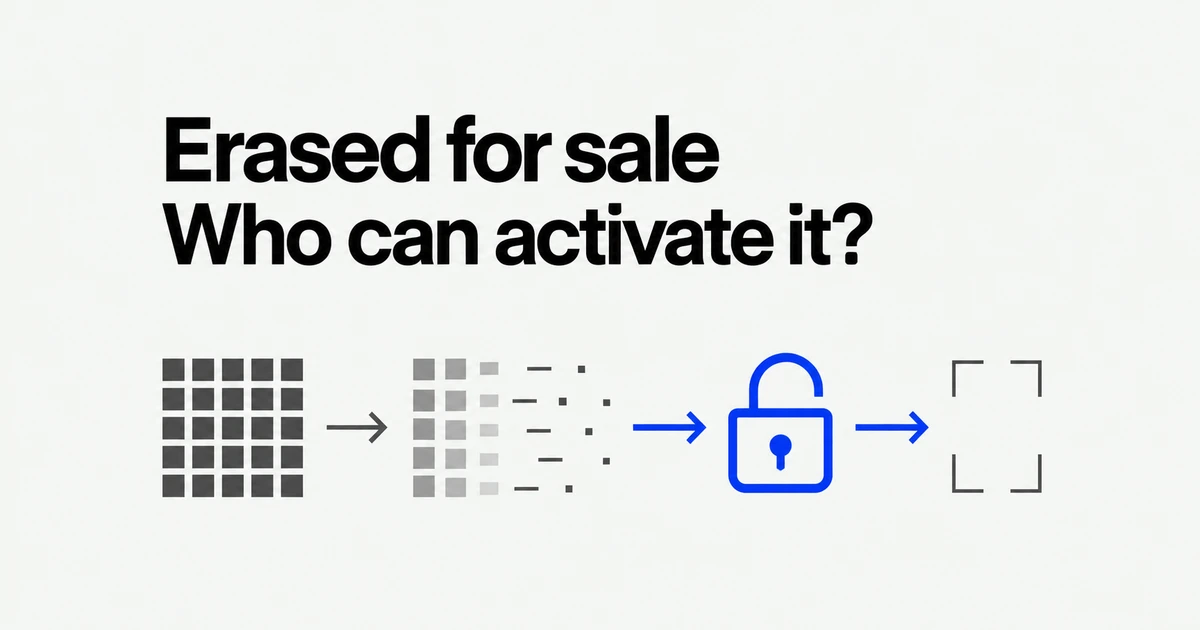
- Check that your replacement phone has your data before erasing the old one. Sign Out But Don’t Erase leaves personal content on the device.
- An on-device erase completed through Apple’s sale preparation process removes Activation Lock. A remote erase through Find My keeps it enabled until you remove the erased device.
- A 30-day removal notice is not a universal waiting period for buyers. Check whether setup asks for the previous owner’s account.
An empty iPhone can still require its previous owner’s credentials. Find My uses Activation Lock to prevent someone else from activating a protected device, and remote erasure deliberately preserves that lock. Preparing a phone for sale therefore involves both clearing its contents and releasing it for its next owner. Apple’s Activation Lock guide
Start with the action you took, not the word “reset”
If you still have access to the iPhone, use its own sale preparation process. Apple’s iPhone guide calls for a backup, signing out, and erasing the contents and settings; erasing through that process removes Activation Lock. If the phone has already been erased, establish how it was erased before signing back in and starting over. Prepare an iPhone for a new owner
| Action | Result | What remains before sale |
|---|---|---|
| Sign Out But Don’t Erase | Most local data stays on the phone | Verify the transfer, then erase it |
| Complete the on-device sale preparation and erase | Contents and Activation Lock are removed | Check the buyer can proceed through setup |
| Erase through Find My | Activation Lock stays enabled | Remove the device after erasure completes |
For example, deleting photos and signing out does not establish that every remaining file or app has been cleared. Conversely, a successful remote wipe can leave no personal content while still stopping the buyer at owner authentication. Tell the buyer which process you completed and which screen now appears.
A 30-day list entry does not mean every buyer must wait a month
Apple’s general removal instructions say an offline device can lose Activation Lock immediately but remain listed for 30 days. If it later reconnects after that period while still signed into your account, it can reappear with the lock enabled again. Do not confuse this removal branch with removing a device after completed erasure. Removal conditions in Find Devices
Check what actually happened before interpreting a countdown. Online removal also has qualifications: Apple’s separate Activation Lock instructions say an iPhone may be removable on the web even while online. A blanket instruction to wait 30 days would miss those distinctions. Remove Activation Lock on the web
Ask for the exact setup message if the buyer reports a problem. A device still appearing in your list, an erase waiting for connectivity, and setup demanding the previous owner are different observations. Each tells you something different about the unfinished step.
Open the data you need on the replacement phone
A new Home Screen does not mean every download has finished. With Quick Start, an iCloud download can continue while you use the replacement iPhone. A direct device transfer requires you to wait before using either phone. Keep the devices near each other and connected to power until the transfer finishes. Apple’s Quick Start instructions
Choose a few checks that reflect your actual use: open a recent photo, find an important contact, and open a document you keep in Files. Try the apps you will need after the sale. Seeing an icon is less useful than confirming that you can open the app and access the material you need. If something is missing, retain the old phone while you resolve the transfer.
Do not tidy the old phone by manually deleting synchronized photos or contacts. Those deletions can propagate to iCloud and your other connected devices. Erase All Content and Settings works differently: it clears the device without deleting your content from iCloud. Apple’s pre-sale data guidance
If signing out warns about unsynchronized data, stop and verify that it exists elsewhere. Apple recommends checking connectivity, iCloud storage, and the data on another device or iCloud.com. Resolve the missing material before committing to the wipe. Check data before signing out
Complete authentication, cellular transfer, and Watch unpairing first
Stolen Device Protection can delay signing out or turning off the protection for an hour, followed by another biometric check. This normally applies away from familiar locations; the Always option applies at familiar locations too. Apple says to turn off this protection before selling the device. Check Settings → Face ID & Passcode, or Touch ID & Passcode, before the appointment.
This does not mean every erase takes an hour. Apple lists erasing content under biometric authentication, while signing out and disabling Stolen Device Protection are security-delay actions. Finish the required owner authentication before promising an immediate handover. Stolen Device Protection requirements
Move your cellular plan to the phone you will keep, then erase the old eSIM. When the wipe offers to retain or erase that profile, choose erasure for a sale. Deleting an eSIM does not cancel the cellular contract; cancellation requires your carrier. Erase an eSIM
As a practical check, make a call and receive the messages you need on the replacement phone before handing over the old one. Retrieve your physical SIM if you used one. Agree on an internet connection for the buyer’s setup so a connectivity problem does not get mistaken for an account lock.
If an Apple Watch is paired with the old iPhone, open the Watch app, choose All Watches, open its information button, and unpair it. This erases the Watch and releases its Activation Lock. Erasing directly on the Watch leaves that lock in place. If you are keeping the Watch, retain its cellular plan when appropriate; the phone’s sale does not automatically mean you are selling the Watch too. Unpair an Apple Watch
Erase the iPhone while it is still in your possession
In iOS 26 and later, signing out offers an erase option and Sign Out But Don’t Erase. The latter retains most local content, including photos and apps. It is useful when you are keeping the device, but it does not finish clearing it for a buyer. What stays after signing out without erasing
- Open Settings → General → Transfer or Reset iPhone → Erase All Content and Settings.
- Continue through the review screen and the eSIM choice. Remove your eSIM from the phone being sold.
- Enter the requested device passcode, allow any backup to finish, and authenticate with your Apple Account password when requested.
- Wait for erasure to finish and the Hello setup screen to appear.
These are the stages in Apple’s factory-reset instructions. Tapping the erase button is not the same as seeing completion. If authentication blocks progress, resolve it yourself instead of sending the buyer your password to finish later.
Keep the replacement phone and sale phone clearly separated while doing this. If several devices share a name, compare their device details before choosing a target. A mistake here can mean erasing the phone you just finished setting up.
If the buyer already has it, wait for the remote erase to complete
Contact the buyer, then sign in to Find Devices yourself. Select the correct phone and request erasure. An offline phone will not execute the request until it reconnects. The request being accepted is therefore not evidence that the buyer’s device is already empty. Remote erase behavior
After erasure is confirmed by email, select Remove This Device to release Activation Lock. For a sold device, you do not need to enter a lost-device phone number or message. Remove the lock after a sale
For example, if the buyer has left the phone powered off, agree on when they can turn it on and connect it. Then check completion before telling them to retry setup. Remote handling still requires coordination when the device is offline. This sale procedure should not be used to release a lost or stolen phone from your protection.
Check whether setup demands the previous owner’s account
Turn on the phone with the buyer and proceed through setup. An existing Home Screen or passcode screen calls for checking erasure. If setup requests the previous owner’s Apple Account, or shows an owner-lock screen, finish releasing the phone before completing the handover. Apple’s used-device checks
Read whose credentials are requested. The buyer signing into their own account is different from being blocked by a previous-owner requirement. Keep your password and verification codes private; perform your part of the authentication yourself.
If you cannot access the original account, follow Apple’s recovery or Activation Lock support options. Proof of purchase can support a request; it is not a promise of approval. A business or school device should go through its administrator. Owner and organization support routes
Before leaving, confirm the two outcomes separately: your replacement phone contains the material and working line you need, and the buyer can continue without your old account blocking activation.