iPhone Mirroring Says “Unlock,” Then “iPhone in Use”? Lock It Again
Authenticate Automatically is on, yet the Mac drops the mirroring session the moment you unlock your iPhone. What order does it actually expect?
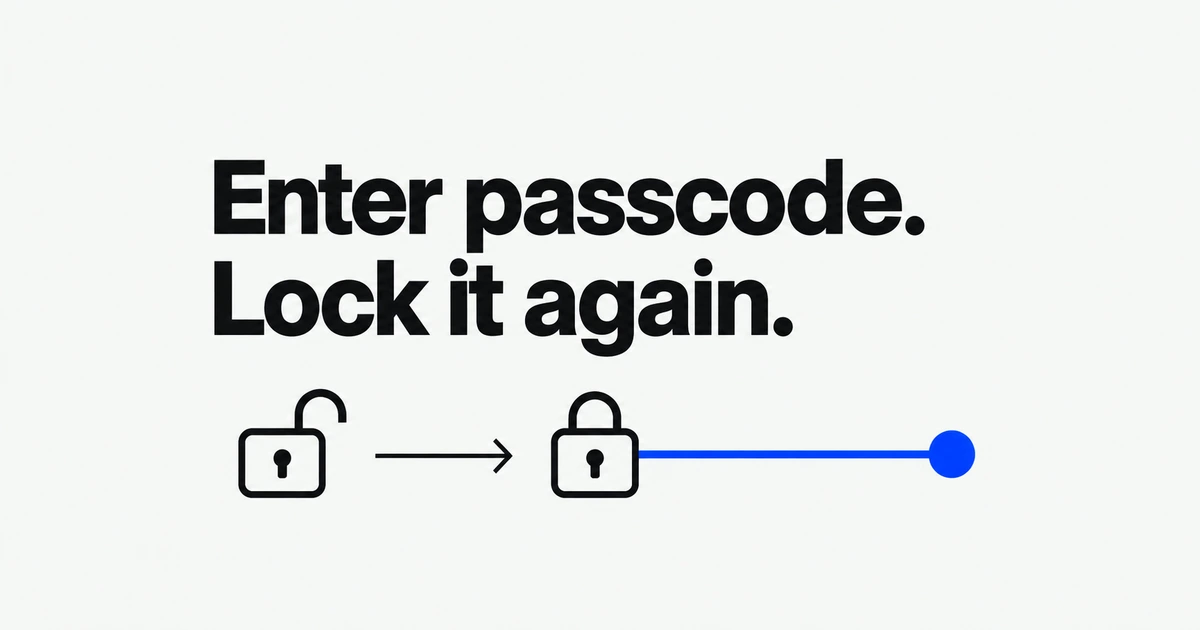
- Complete a requested passcode entry on the iPhone, then lock it again before using the Mac's mirroring window.
- Automatic authentication changes the Mac's confirmation step. The iPhone still needs to remain locked.
- If reconnecting still fails, check proximity and connection settings. Revoking access means setting up mirroring again.
Unlocking and mirroring are different steps
A request to unlock your iPhone is not a request to leave it unlocked. If entering the passcode is followed by “iPhone in Use,” lock the phone again and return to the mirroring window on your Mac.
Apple's iPhone User Guide specifies a powered-on, nearby iPhone with its screen locked when using mirroring. Complete any requested confirmation on the phone, press the side button to lock it, and continue from the Mac.
Unlocking the phone during a session stops mirroring, as Apple's mirroring management guide explains. During a working session, the iPhone's lock screen also says that it is in use and identifies the Mac. That status message on the phone is normal; the connection-blocking message discussed here appears in the Mac app.
Automatic authentication does not keep an unlocked phone connected
On the Mac, open iPhone Mirroring and choose iPhone Mirroring → Settings. The support article's settings section distinguishes two choices:
| Option | Effect |
|---|---|
| Ask Every Time | Authenticate before mirroring with your Mac login password, Mac Touch ID or Apple Watch. |
| Authenticate Automatically | Authorize the option with your Mac password to skip the pre-mirroring authentication prompt. |
The iPhone still needs to stay locked. Automatic authentication skips the Mac's prompt before mirroring; it does not remove passcode requests on the phone. While this option is selected, the Mac's Lock Screen setting requires a password immediately after the screen saver starts or the display turns off. Select Ask Every Time to restore authentication each time you start mirroring.
If it still fails, check the connection before resetting it
If a timeout or repeated passcode request remains after relocking, follow the instructions in the Mac's mirroring window. Then check the connection requirements in the Mac User Guide: use the same Apple Account, enable Wi-Fi and Bluetooth on both devices, and keep them within 30 feet or 10 meters. A VPN must allow local networking.
The Mac must have Apple silicon or a T2 chip and run macOS Sequoia 15 or later. The iPhone needs iOS 18 or later and a passcode, and the shared Apple Account needs two-factor authentication. Apple's guidance, checked October 26, 2026, lists the feature as unavailable in the European Union.
Stop Internet Sharing, AirPlay or Sidecar on the Mac before reconnecting. Apple's troubleshooting steps also include updating and restarting both devices. If either device is heavily using Wi-Fi or Bluetooth to stream audio or video elsewhere, stop that activity and retry. Check whether VPN or security software is blocking the connection; the Mac firewall must not be set to block all incoming connections.
If the connection still fails, you can rebuild its setup. Choose Revoke iPhone Access in the Mac app's settings. This removes the pairing and the Mac's Allow notifications from iPhone setting. Set up mirroring again to restore both access and notifications.
You can also remove a Mac from the iPhone under Settings → General → AirPlay & Continuity → iPhone Mirroring. Tap Edit in the upper-right corner and select the Mac to remove. That screen identifies which Mac used the phone, when it connected and how long the session lasted.
For a demonstration controlled on the phone, use AirPlay
If you want to hold the iPhone and demonstrate an app on a larger screen, AirPlay screen mirroring is the relevant feature. Connect both devices to the same Wi-Fi network, open Screen Mirroring in the iPhone's Control Center, and select an AirPlay-capable Mac.
With AirPlay, you operate the app on the iPhone while its screen appears on the Mac. To use the Mac's keyboard and pointer to control iPhone apps, use iPhone Mirroring and keep the phone locked.