iPhone USB Hotspot on Windows and Mac: Setup and Connection Checks
Plugged in over USB, the iPhone charges, yet the laptop still has no internet. What does Windows or macOS need before it treats that cable as a hotspot connection?
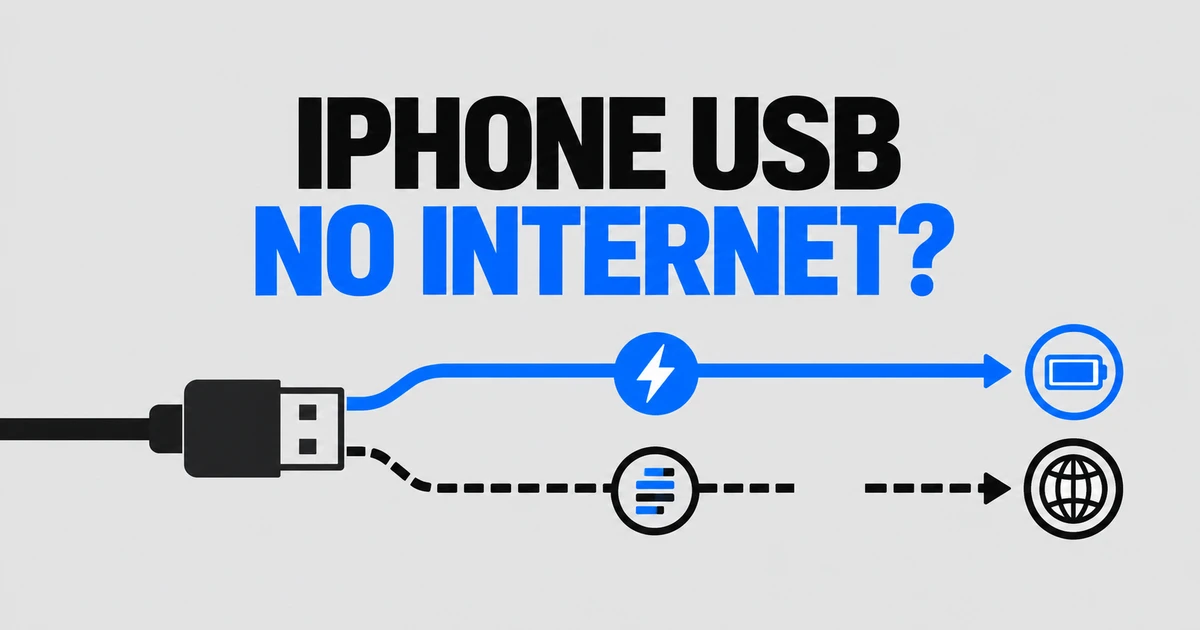
- USB tethering requires a data-capable cable, device trust, and Apple Devices or iTunes on Windows.
- A phone appearing in an app confirms device recognition; the computer still needs a working hotspot network connection.
- Wi-Fi and USB both consume the iPhone’s cellular data. Maximize Compatibility changes Wi-Fi radio and security settings.
An iPhone can charge before USB tethering works
To use an iPhone USB hotspot on Windows, install the latest Apple Devices app or iTunes, enable Allow Others to Join on the iPhone, and connect a cable that supports data. Unlock the phone and complete the trust prompt. Charging alone does not establish the data connection that tethering needs.
A Reddit user moving to another Windows PC reported that Wi-Fi tethering disconnected, while USB recognized the same phone but did not provide internet access. The user later said they were using USB sharing. The original problem illustrates why device recognition is only one step: the computer also needs a hotspot network connection and the phone needs cellular internet access.
Apple’s Personal Hotspot instructions describe sharing the iPhone’s cellular connection. A cable changes the link between the phone and computer; internet traffic still goes through the mobile plan. USB therefore makes sense for a computer you want physically connected to your phone, while Wi-Fi lets you connect without a cable. Neither method creates a separate internet allowance.
Set up the Windows USB connection
Prepare Apple Devices or iTunes while the PC has internet access. On the iPhone, open Settings, then Personal Hotspot, or Cellular followed by Personal Hotspot. Turn on Allow Others to Join and connect the phone to the PC. Keep the phone unlocked long enough to respond to the trust request.
Open Apple Devices and look for the iPhone in its sidebar. If it is absent, follow Apple’s device recognition steps: try another USB port or a different cable that supports both charging and data, and update the phone and computer software. A charging indicator shows that power is arriving. The app’s device list gives you a separate way to check that the PC can communicate with the phone.
Once the phone appears, check Windows’ network status and try opening a webpage. If the app sees the iPhone but the computer has no internet access, return to Personal Hotspot and check that sharing is enabled. Then test the iPhone’s cellular connection as described below. Replacing cables repeatedly after device recognition succeeds can leave the actual upstream problem unexamined.
The Trust This Computer prompt grants access beyond supplying power. A trusted computer can sync with the device and access content such as photos, videos, and contacts. On a shared computer, a Wi-Fi hotspot avoids adding that computer as a trusted USB host. On your own PC, finish the trust process when setting up USB tethering.
Find the iPhone USB network service on a Mac
Turn on Allow Others to Join in the iPhone’s Personal Hotspot settings, then connect it to the Mac. Allow the accessory if macOS asks, and accept the trust request on the phone. Look for the iPhone in Finder, then open System Settings and Network. The network service to look for is iPhone USB. Finder recognition establishes that the Mac sees the device; the Network panel shows the connection used for tethering.
If iPhone USB is missing from Network, use the action menu to add a service. Choose iPhone USB as the interface, enter a service name, and create it, following Apple’s network service instructions. If the interface itself is unavailable, return to the cable, trust, and Finder checks. Typing “iPhone USB” as a name for some other interface will not create the missing device connection.
For a Mac signed in to your Apple Account, wireless Instant Hotspot is another convenient option. It can connect without entering a hotspot password, so a cable is not necessary just to avoid typing credentials each time.
Connect over Wi-Fi, with or without Instant Hotspot
| Computer and connection | What enables joining | Where to connect |
|---|---|---|
| Windows or a regular Wi-Fi client | Allow Others to Join and the hotspot’s Wi-Fi password | The computer’s Wi-Fi network list |
| Mac using the same Apple Account | Nearby devices with Wi-Fi and Bluetooth on; Instant Hotspot | The Mac’s Wi-Fi menu |
| Configured Family Sharing member | Family Sharing hotspot permission set to approval or automatic access | The family member’s Wi-Fi controls |
For a regular Wi-Fi connection, leave the iPhone’s Personal Hotspot screen open while joining. Its network name is the iPhone’s device name. In Windows 11, open the taskbar’s Network, Sound, or Battery area, select the Wi-Fi connection controls, choose the iPhone, and connect. Enter the Wi-Fi password displayed on the phone’s hotspot screen. Microsoft’s Wi-Fi guide also shows how to refresh the network list.
The hotspot password is separate from your Apple Account password and the phone’s unlock passcode. When changing it, use at least eight ASCII characters, such as English letters and numbers. If the network name appears but authentication fails, check the selected phone and its current hotspot password before changing unrelated network settings.
Instant Hotspot uses the same Apple Account, nearby devices, and enabled Wi-Fi and Bluetooth. Allow Others to Join does not have to be enabled for this connection. Choose the iPhone from the Mac’s Wi-Fi menu. For Family Sharing, the iPhone’s Personal Hotspot settings let you choose automatic access or a request for approval for each family member.
Mac hotspot settings can also ask before joining. An automatic option is available in macOS Tahoe 26 or later. Asking before connecting makes the switch to cellular visible; automatic joining removes that extra interaction when another connection is unavailable.
What Maximize Compatibility changes
On iPhone 12 or later, Maximize Compatibility can help a device that cannot join the Wi-Fi hotspot. The setting affects the wireless link. It does not install Windows’ device support or make an unrecognized USB cable carry data.
According to Apple Platform Security, this mode restricts the hotspot to 2.4 GHz, disabling 5 GHz and, where applicable, 6 GHz. It also uses WPA2 Personal security, while the default hotspot supports WPA2/WPA3 Personal. Apple’s hotspot troubleshooting guide says internet performance and Wi-Fi security may be reduced.
For a notebook that fails to join, enable the option and attempt the connection again. If it now joins, you can use the hotspot with the 2.4 GHz and WPA2 settings described above. A computer that already connects successfully can keep using the default mode.
When the connection exists but webpages do not load
Check the phone’s internet connection by turning off its Wi-Fi and opening a webpage over cellular. If that fails too, the notebook’s hotspot password is not the immediate obstacle. Restore cellular access first. If the phone browses successfully, return to the Wi-Fi join result or USB network status on the computer.
If Personal Hotspot is unavailable or cannot be enabled, Apple directs users to check that cellular data is on and that their carrier and plan support the feature. The carrier determines the service available on the line. Switching from Wi-Fi to USB still uses that line.
Apple also recommends restarting both devices and updating their software. Test the connection after each change so that a successful port change, restart, or wireless setting remains identifiable. A device that fails to appear in Apple Devices needs a different next step from one that appears correctly but cannot reach the internet.
If the trust prompt is missing or you previously declined it, the iPhone’s Settings → General → Transfer or Reset iPhone → Reset → Reset Location & Privacy can make the computer trust question appear again. Reset Network Settings is broader: it resets saved Wi-Fi networks and passwords, cellular settings, and VPN and APN settings. Have the information needed to reconnect before using that broader reset.
Control traffic and end the session
Windows’ metered connection setting can reduce background traffic on a limited mobile plan. In Windows 11, open Settings → Network & internet, select the connected Wi-Fi network or Ethernet network, and enable Metered connection. Some updates and app synchronization may be limited; a download you start can still consume data.
USB hotspot sharing remains active while the cable is connected. Unplug it or turn off Allow Others to Join when finished. If sharing stays enabled, connecting the phone later to charge can also connect the computer to its hotspot.