Free iPhone Photo Space Without Deleting Your iCloud Library
Plenty of room is left on your iCloud plan, but the iPhone still says storage is full. If every photo is already in iCloud, what happens when you delete them from the phone?
If your iPhone is full, deleting half the camera roll can seem reasonable when every photo already appears in iCloud. But iCloud Photos maintains a synchronized library. A deletion is one of the changes it sends to your other devices.
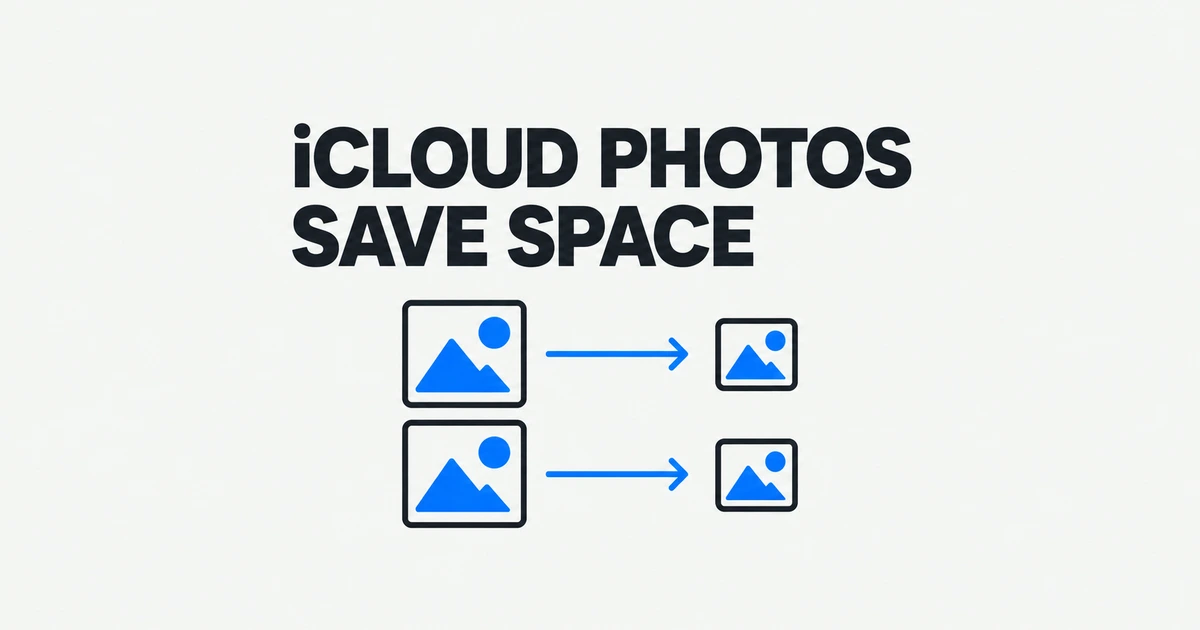
To keep the library and reduce its local footprint, use Optimize Storage. It lets the phone retain smaller versions while full-resolution originals remain in iCloud. You can continue browsing the library and download originals when needed. That changes local storage management without removing the photos from the library. Apple explains this behavior in its iCloud Photos guide.
What each storage action actually does
| Action | Effect on the phone | Effect on iCloud Photos |
|---|---|---|
| Enable Optimize Storage | Reduces local storage as needed | Keeps originals and continues syncing |
| Delete a photo while syncing | Removes the library item | Synchronizes the deletion |
| Turn off this iPhone's sync | Disconnects this device; offers download or removal options | Does not itself delete the cloud library |
| Turn off and delete iCloud Photos for the account | Ends use of the service | Cloud photos are deleted after 30 days |
For an everyday phone that should keep uploading new pictures, optimization is the appropriate route. Disconnecting a device serves a different purpose: that phone will stop exchanging new photos, edits, and deletions with the library. The account-wide deletion option ends the cloud service and is not a local-space shortcut. Apple documents the two ways of turning off iCloud Photos separately.
Find out which storage is full
Device storage and iCloud storage are separate capacities. A larger iCloud plan gives your account room for more online content; it does not increase the physical storage inside the phone. If the phone keeps full-resolution originals locally, a spacious cloud plan can coexist with a nearly full device.
Open Settings, then General, then iPhone Storage to inspect local usage. Open Settings, your name, iCloud, and Storage to inspect the account's usage. Apple's storage guide describes both locations. The result determines the next useful step.
If iCloud has room and Photos is consuming much of the phone, optimization and upload status are relevant. If iCloud itself is full, new uploads can be held up. Selecting optimization does not create online capacity. You need room for those originals before assuming they have been preserved in the cloud.
Enable optimization on your iPhone
On iOS 27 or later, open the iPhone Storage submenu inside the iCloud Photos settings. On iOS 26 and earlier, select Optimize Storage directly. This version difference changes the fourth step below.
- Open Settings and tap your name.
- Choose iCloud, then Photos under Saved to iCloud.
- Make sure this iPhone is syncing with iCloud Photos. Enabling it for the first time starts uploading the existing library.
- Open iPhone Storage and select Optimize Storage. On iOS 26 or earlier, select Optimize Storage directly.
- Return to Photos and inspect the library's sync status. Keep the phone connected to power and Wi-Fi while outstanding uploads progress.
Optimization is not a command to select particular photos and instantly remove their local originals. Apple says it works as storage is needed, starting with photos and videos accessed least often. There is no fixed percentage reduction to expect immediately after selecting the option.
Originals may need to download when you use them. Before a trip without reliable internet, save the particular originals you will need to a separate local destination and open them to verify the files. An optimized library should not be treated as a guarantee that every original is available offline.
When the storage number does not drop
Start with the status message in Photos. On iOS 26 or later, open Collections and tap the profile button. On iOS 18, use the profile button in Photos. On iOS 17 or earlier, open Library, select All Photos, and scroll to the bottom. This shows whether the library is still uploading or has paused.
A pause can have a specific cause. If the message identifies Low Power Mode or Low Data Mode, turn off that mode. Charge the phone if its battery is below 20 percent, and let it cool if an overheating message appears. Match the action to the status message so the condition that paused the upload is addressed. Apple's sync troubleshooting guide lists these conditions.
An iCloud-storage-full message calls for a different response. Free account storage or change the storage plan so uploads can resume. If preserving the photos is the objective, deleting those same photos is not a useful first move. Inspect other unneeded cloud content or provide additional capacity.
A large first upload takes time. Apple suggests leaving the phone on power and Wi-Fi overnight, but the duration still depends on the library and connection. Switching iCloud Photos off and back on is not its recommended fix for a slow sync: restarting that process can make it take longer. A photo with an unfinished upload should not be assumed to have a cloud original.
Export copies that live outside the Photos library
When you use iCloud Photos, the library is not duplicated inside the device's iCloud backup. That makes it useful to keep independent copies of irreplaceable material. Files exported to an external drive live outside the synchronized Photos library, so they are not removed by a later deletion of the library item.
On the iPhone, select the photos or videos, open the share menu, and choose Export Unmodified Originals. In the Files destination picker, choose where to save them. The picker opens in iCloud Drive by default. To use a connected external storage device, go back to Locations and select that device before saving. Apple's download instructions describe the destination choice.
“Unmodified” means the version originally captured or imported. That may differ from an edited appearance in Photos. Start with a few images and a video, open the resulting files, and verify that you saved the versions you intended. Then expand the selection. This also catches a wrong destination before a large export has been attempted.
If the phone lacks working space for a large export, a computer can download from iCloud.com/photos instead. The website allows selecting up to 1,000 items at once, so larger collections need batches. Its download options include unmodified originals and more compatible formats. Save the files, verify they open, and move them to the intended archive location.
Remove the library from one device
You may want a secondary iPhone to stop participating in iCloud Photos. Before disconnecting it, inspect its sync status and check that the required photos are present on iCloud.com. Finish outstanding uploads or export those local items before removing device copies.
Open Settings, your name, iCloud, and Photos, then turn off Sync this iPhone. Choose the download option if you want copies on the phone, or Remove from iPhone if you want to remove the synced photos from that device. Downloading originals requires sufficient space. Small optimized versions that have not been replaced with originals are not full-resolution archive copies.
After disconnecting, new photos taken on that iPhone no longer upload through iCloud Photos, and its changes no longer sync with the other devices. If you want automatic uploads to continue, leave sync enabled and use optimization instead of repeatedly disconnecting and deleting.
The account-wide Turn Off and Delete Photos option has a different consequence: Apple deletes the iCloud photos after 30 days unless that deletion is canceled in time. It should not be used when the aim is simply to reduce one phone's local storage.
Recover photos you already deleted
Photos normally remain in Recently Deleted for 30 days unless permanently removed sooner. In the current Photos interface, open Collections, then Recently Deleted under Utilities, unlock it with Face ID or Touch ID, select the items, and use Recover from the More menu. Apple's deletion and recovery guide provides the recovery steps and time limit. For an iCloud Shared Photo Library item, only the person who added it can recover it from Recently Deleted.
If you meant to preserve the originals, recover those items before emptying Recently Deleted. Then let the library synchronize and apply Optimize Storage. That restores the photos first and addresses local capacity through the setting designed to manage it.