Learn from Videos Without Subtitles with RainbowSay for Mac
A line from a Korean drama is worth replaying and studying, but there’s no subtitle track. What can RainbowSay pull from the audio, and which Macs does it run on?
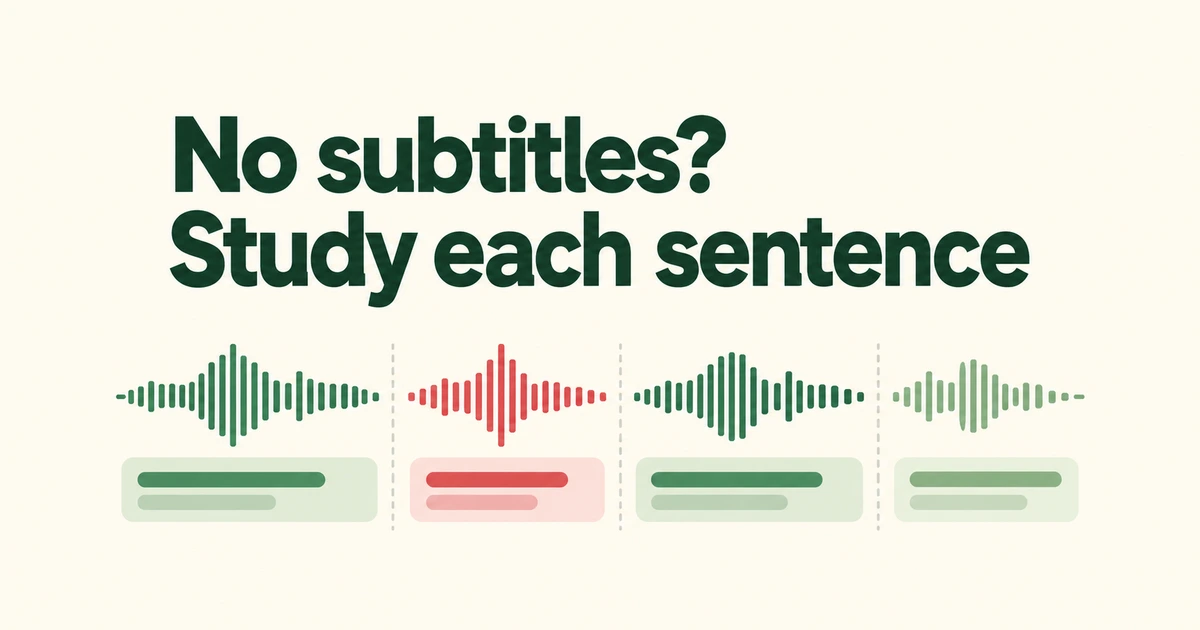
- RainbowSay creates study material from Mac audio instead of requiring an existing subtitle track.
- Listening pauses for sentence study; Subtitles keeps the video moving.
- It requires Apple Silicon and macOS 14.2 or later, with cloud AI handling recognition and translation.
Use the audio as the starting point
RainbowSay listens to audio playing on a Mac and places translations, vocabulary and grammar explanations over the video. It does not depend on retrieving subtitles from a particular website. That makes an uncaptioned video or an audio recording a possible source for study.
Automatic pausing has a narrower requirement: the player must respond to the Mac’s Play/Pause media key. Capturing a player’s sound does not by itself mean the app can stop that player.
For a Korean drama, for example, Listening lets you stop on a recognized sentence and examine it. Subtitles is the separate mode for reading translated captions while playback continues.
Start with Listening and select the audio source
You need an Apple Silicon Mac running macOS 14.2 or later. The official guide starts with installation, Google sign-in, permissions and a first Listening session. Windows and Linux versions are not currently available.
- Open the video and choose Listening from the menu bar.
- Set the study and translation languages, then select all Mac audio or a particular app.
- Read the sentence card, replay the original and use its chat for a question about the expression.
- Press Continue for the next sentence.
Selecting one app helps keep unrelated music and notifications out of the lesson. The guide also describes sentence-detection and auto-pause settings for adjusting where speech is divided.
Audio capture uses the System Audio Recording Only permission. Listening also needs Accessibility for playback control, named Device Control and Data Access on macOS 27 and later.
The free examples are alternatives, not separate quotas
The October 26 pricing page describes a one-time starter allowance without a card. Its examples are roughly 45 translated Listening sentences or 19 minutes of Subtitles if you spend the whole allowance on that activity. Listening, Speaking practice and Subtitles share the credit; you do not receive independent quotas.
| Plan | Monthly billing | Allowance |
|---|---|---|
| Free | $0 | One-time starter credit; one subtitle language at a time. |
| Pro | $29 | A monthly allowance shared across the three modes. |
| Max | $100 | A larger shared monthly allowance. |
The Listening estimate includes spoken translations. Longer sentences and chat questions consume more; disabling spoken translation stretches the allowance. A short sample session is more informative than assuming a subscription covers unlimited episodes.
Keeping history locally does not make recognition offline
According to RainbowSay’s data policy, sentences, translations, replay audio and chats stay on your computer. You can delete sessions or disable saving; the company does not upload this study history to its servers.
Audio from an active session nevertheless travels directly from the computer to OpenAI for processing. RainbowSay’s servers authorize sessions with short-lived credentials and meter usage.
If finding subtitle files has been the obstacle, this audio-based approach is worth evaluating. Check the player’s media-key response first, then use a short Listening session to judge the sentence boundaries and credit consumption against your study routine.